How to change the settings of an X-matrix
All settings of a plan are in one panel. Click the settings icon (the cogwheel) next to the title of the plan. The icon is available to users who may manage the plan. While the matrix has unsaved changes the icon is disabled – finish or cancel them first.
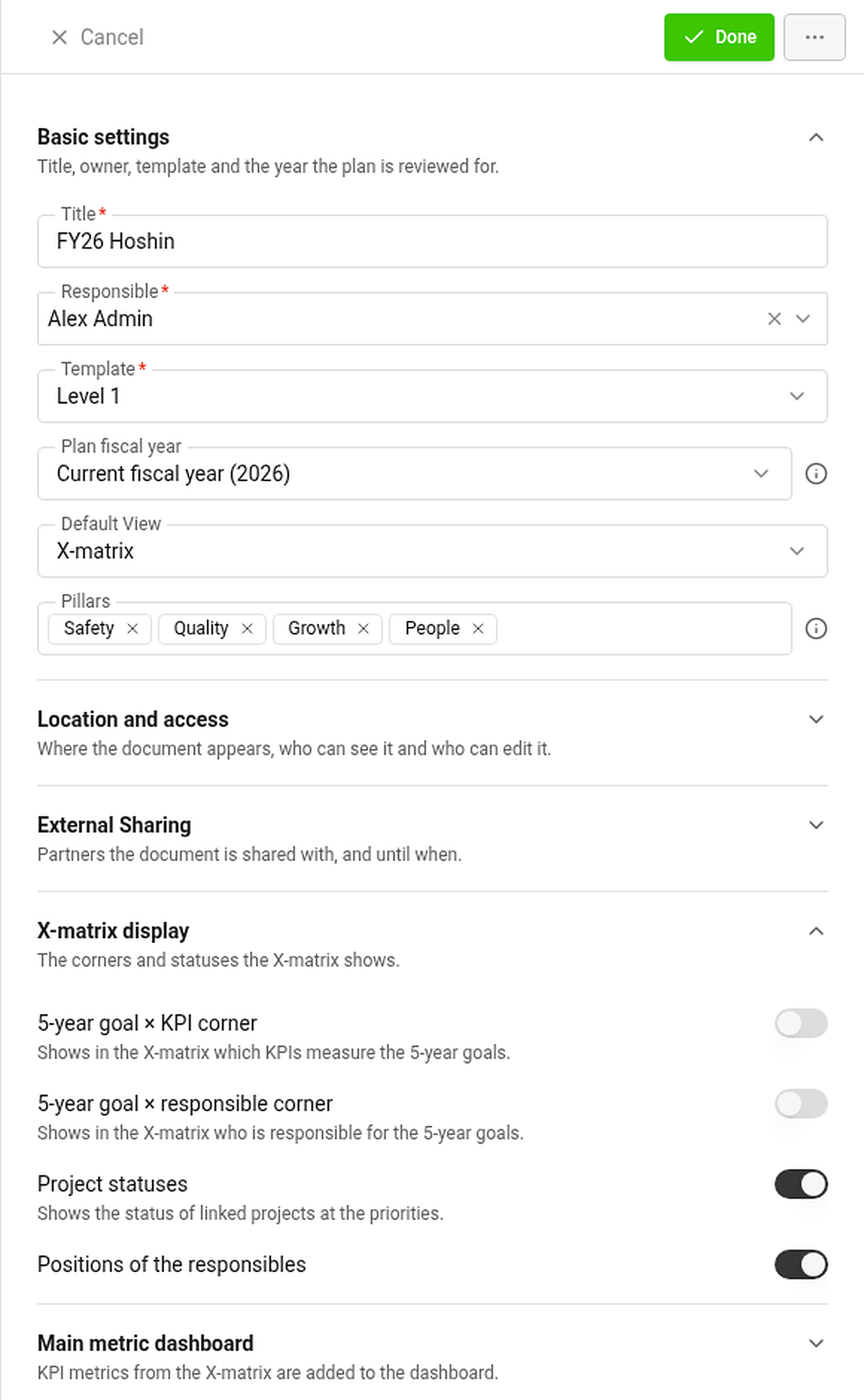
Sections of the panel
Basic settings
- Title, Responsible (owner) and Template. The template decides the names of the four lists.
- Plan fiscal year – the year the whole page reviews: elapsed time, year-to-date values and charts. Choose the current fiscal year or any other one, for example to look back at last year.
- Default View – the tab the plan opens in: X-matrix, Strategic Plan or Pillars.
- Pillars – the tags the Strategic Plan and Pillars views group the plan by, in the order you choose.
Location and access – where the document appears, whether it is private, and who may see and edit it.
External sharing – partners the document is shared with, and until when.
X-matrix display
- 5-year goal × KPI corner – shows in the matrix which KPIs measure the 5-year goals.
- 5-year goal × responsible corner – shows who is responsible for the 5-year goals.
- Project statuses – shows the status of linked projects at the priorities.
- Positions of the responsibles – shows the job position next to the name.
The two corners are for orientation only: their links never change a status. Switching a corner off hides its links but keeps them for when you switch it on again.
Main metric dashboard – the dashboard the KPIs of the matrix read from. KPI metrics are added to it automatically.
Saving
The panel has no Save button. Done, Esc or a click outside the panel save your changes and close it. If saving fails, the panel stays open and shows the errors. Cancel discards the changes after a confirmation.
Copy and archive
The … menu at the top of the panel offers Copy (a copy of the plan in the same template), Copy to: … (a copy in the template of the next level – it leaves out the 5-year goals) and Archive.
Change history
Change History in the … menu next to the title opens the log of changes made to the plan.