How to edit an X-matrix
You edit the X-matrix right where you read it. You need the right to edit the plan; without it the Edit buttons are not shown.
Edit the matrix
- Click Edit above the matrix.
- Change what you need (see below).
- Click Done.
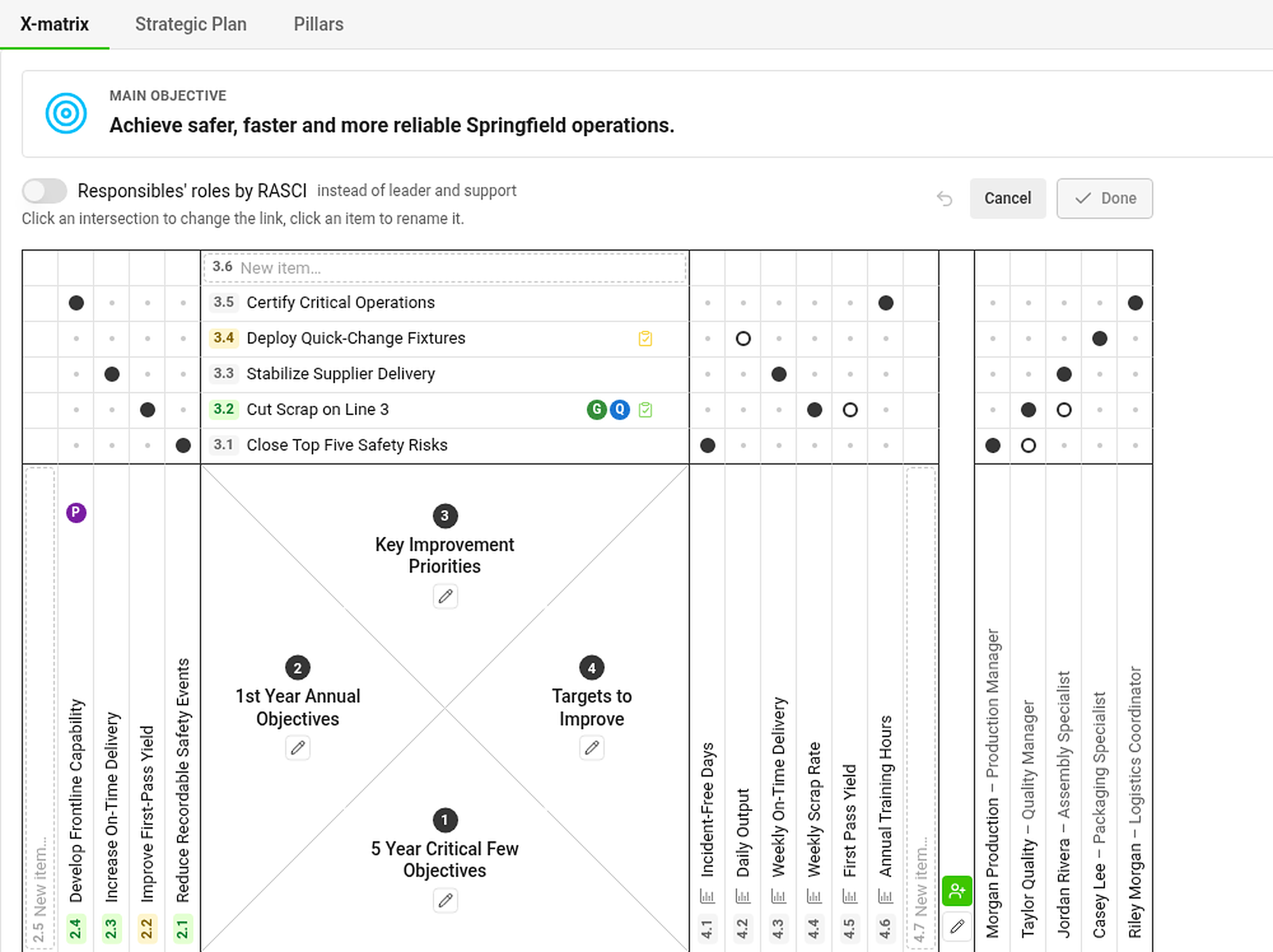
| I want to… | Do this |
|---|---|
| Add an item | Type into the New item… slot at the end of a list and press Enter. The item is added and the next slot is ready. Press Esc to add nothing. |
| Rename an item | Click its label, type, and press Enter (or click away). Esc cancels. |
| Link two items | Click the cell where they cross. Each click cycles: no link → primary (filled dot) → secondary (hollow dot) → no link. |
| Switch from leader/support to RASCI | Turn on Responsibles' roles by RASCI above the matrix. |
| Change the main objective | Click Edit in the Main objective panel. |
Titles are limited to 120 characters (KPIs to 60). Shorter goals are easier to remember and the matrix stays readable.
Edit a whole list
Click the pencil under the name of a list (for example 1st Year Annual Objectives) to open the whole list in a window.
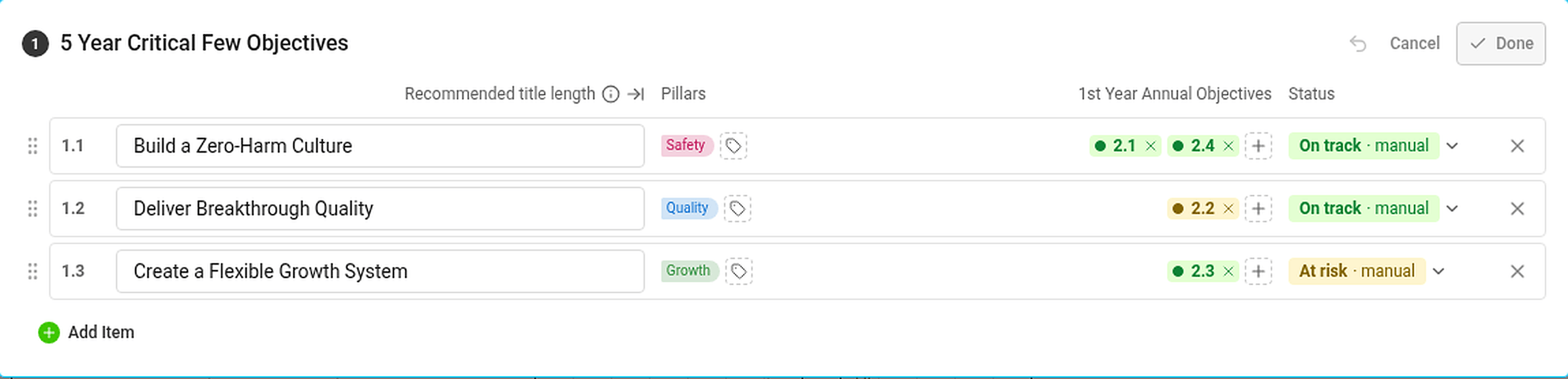
Here you can rename items, drag the handle to change their order, add tags and pillars, choose the linked items from other lists, set a status by hand (see how statuses work), add new items with Add Item and delete items with ✕. Done closes the window; Cancel returns the list to how it was when you opened it.
Deleting an item also deletes its links. Documents linked to it (projects, metric dashboards) are not deleted.
When are my changes saved?
You do not need a Save button. Your changes are saved when you:
- click Done,
- click outside the part you are editing,
- start editing another part of the page,
- switch to another tab, or
- leave the page.
If saving fails, the part stays open with your changes so nothing is lost. While you edit, only one part of the page is in edit mode at a time: the matrix, the main objective with the plan hierarchy, one pillar box or one section.
Changed your mind?
- Step back (the arrow next to Cancel, or Ctrl+Z / ⌘+Z) undoes the last change. Changes made less than half a second apart count as one step.
- Cancel throws away all changes of the part you are editing – after a confirmation, if there is anything to lose.
Edit one section at a time
Sections below the matrix (for example Targets to Improve and Responsibles) have their own Edit button next to the heading. They work the same way: edit, then Done.