How to work with the Strategic Plan and Pillars views
The same plan can be shown in three ways. Switch between them with the tabs above the main objective:
- X-matrix – the classic matrix with all links.
- Strategic Plan – a table that follows each 5-year goal down to its annual goals, priorities, projects and KPIs.
- Pillars – one box per pillar, with the goals, priorities and KPIs of that pillar under each other.
All three tabs show the same data. Change an item in one of them and it changes in the others.
Strategic Plan
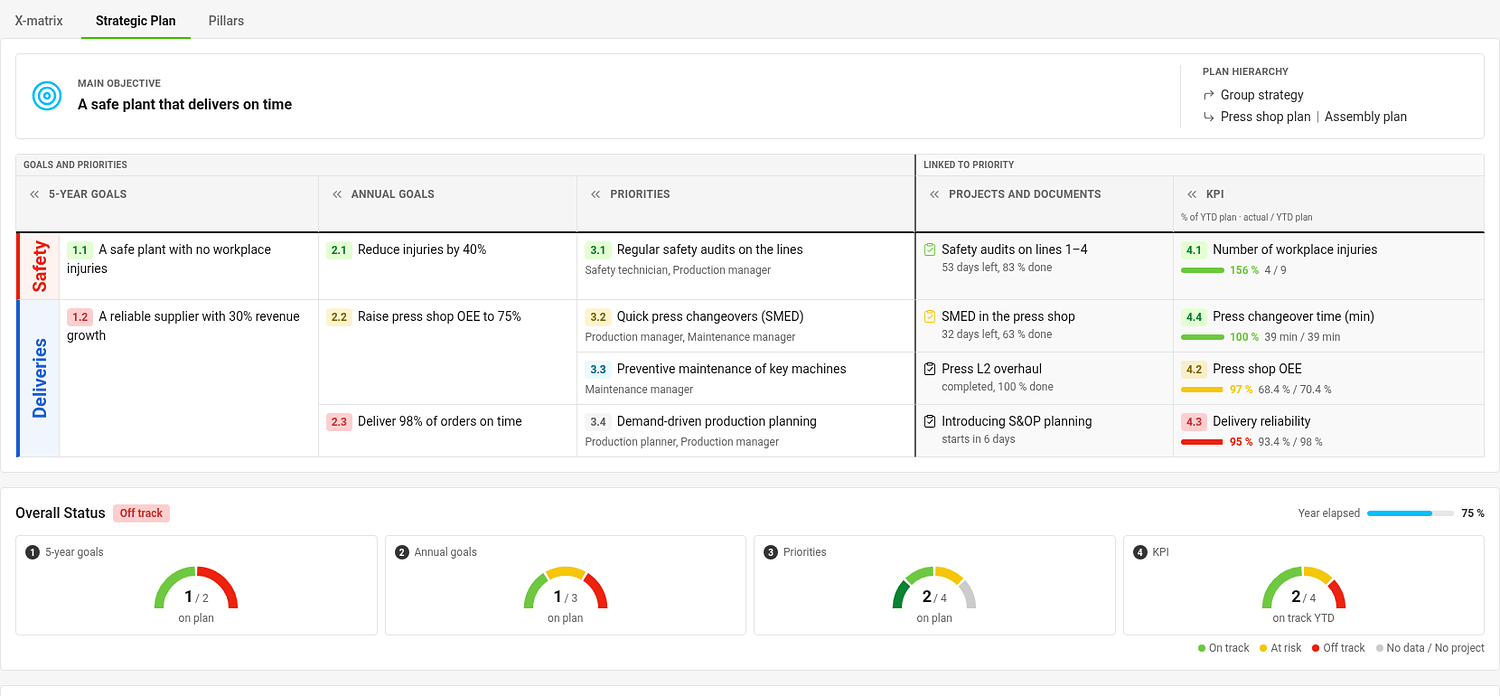
The table has one column for each list: 5-year goals, annual goals, priorities, Projects and documents and KPIs. A coloured strip on the left names the pillar of each band of rows. Every goal starts a group of rows with the items that support it; an item linked under several parents appears under each of them.
Each cell shows the code, the title and the status of the item, the responsible people of goals and priorities, the linked projects of a priority and the YTD result of a KPI. Click « in a column header to narrow the column.
To edit the table, click Edit strategic plan. Click a title to rename it, use the + at an item to add a follow-up item already linked under it, and the handle to change the order. Save with Done.
Pillars
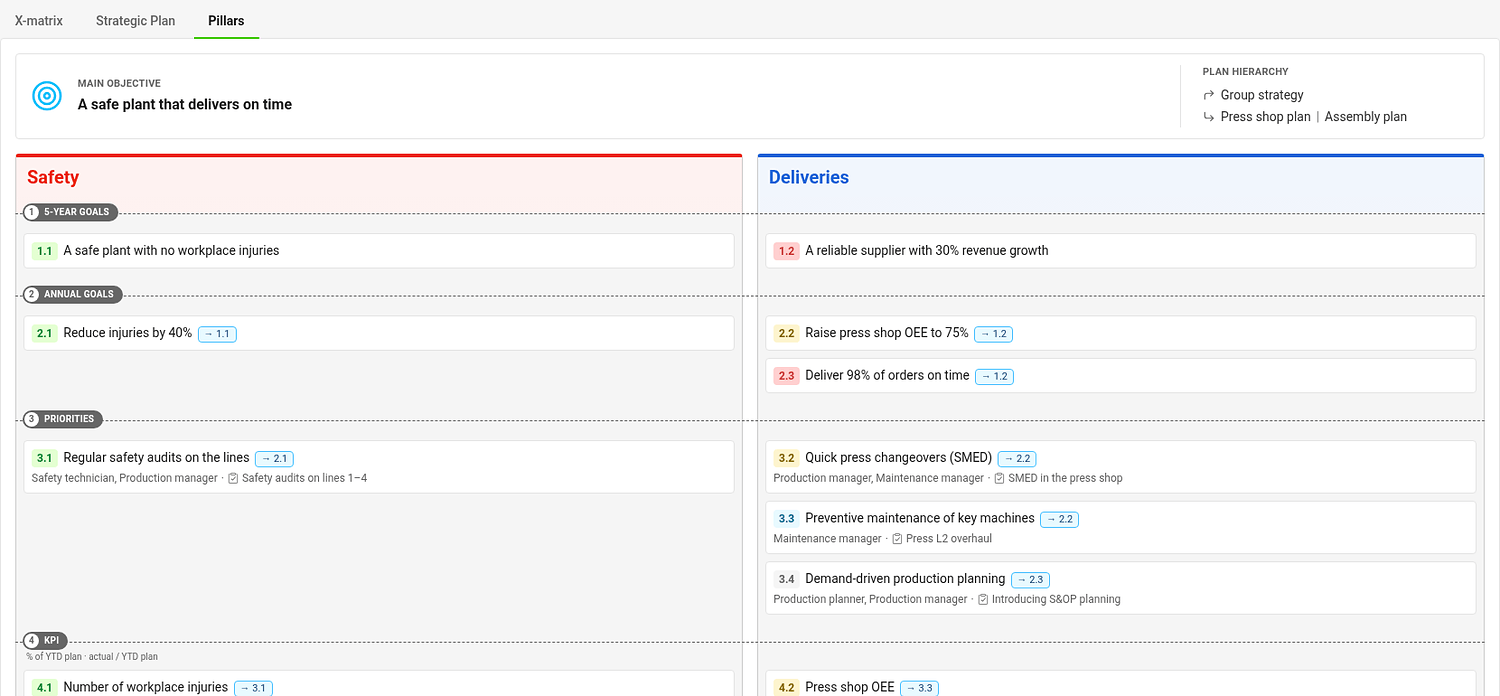
Pillars group your plan by theme, for example Safety, Quality, Growth and People. Each pillar is a box; the levels run across the boxes as rows. A card shows the code, the title, the item it supports (for example → 1.1), the people responsible and the first project.
- An item belongs to a pillar if it carries that pillar's tag. A goal or priority without a pillar tag inherits the pillars of the items above it, and a KPI inherits from the priorities it measures.
- An item in more pillars appears in each of them.
- Items without any pillar are in the box Unassigned.
- If the plan does not use pillars, everything is in one box called All items. Pillars are optional.
Each pillar box is edited on its own – click Edit in its header, make your changes and click Done. Add pillar adds a pillar to the plan.
Choose the pillars of a plan
Pillars are tags of the type Pillars. Choose which ones a plan uses in Settings → Basic settings → Pillars; the order you choose is the order of the boxes. If you choose none, the plan uses the first tag of each 5-year goal.
Choose which tab opens first
In Settings → Basic settings → Default View pick X-matrix, Strategic Plan or Pillars. A link with ?view= in the address always opens the tab it names.