Safety Alert Stages Workflow
Define how Safety Alerts (SA) move through your workflow with customizable stages. Assign responsibilities, guide alerts through approvals, and keep every step on track. Set up your own list of SA stages and select it directly within the document to match your process and ensure nothing gets overlooked.
To create and predefine a list of SA stages:
Go to the Safety Alerts module and select Safety Alert Stages from the submenu.
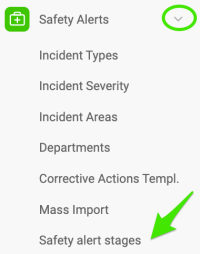
*Please note that only users with sufficient rights can add SA stages.
To create a new list, click the green plus button Create new. To modify an existing list, click edit pencil. 
Define a Title of your list, Stage Transitions workflow, and Approval type. Then +Add Stage to your list. 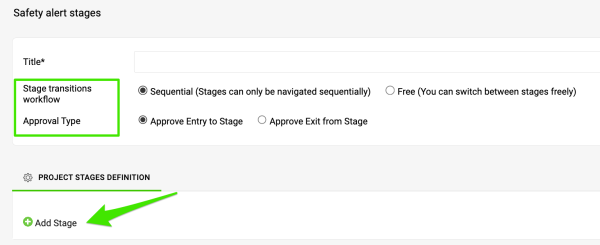
Enter your Stage Title. You can choose whether this stage marks the document as Closed, and you also have the option to Lock modifications for the document once it reaches this stage (except for actions). 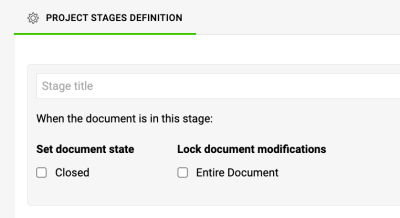
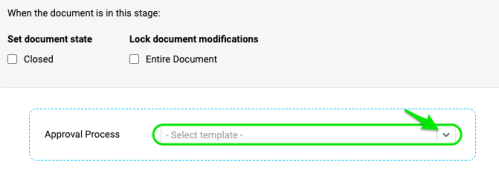
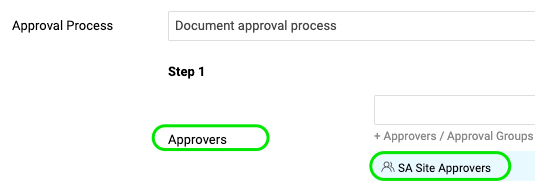
Select an approval process for this stage from your existing templates. To create a new one, the sufficient rights are required *. Then define the remaining fields—such as approvers and whom to inform—and add any additional stages as needed. Once your template is complete, Save your changes.
To set up my SA document with a stage:
Go to your SA settings by clicking the edit pencil. 
Select your List of Stages and Document stage from the submenu. 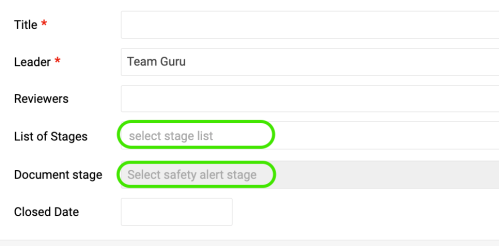
Once you Save your changes, the Stage indicator will appear in the document header.
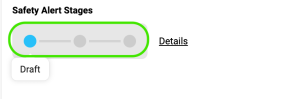
Stage Transitions Workflow as Sequential

Please note with the Free workflow, you can switch between stages freely in the edit settings of your document.
With the Sequential workflow, when ready to advance to the next stage or submit for approval, click the Details button.
From there, you can navigate through the steps, view workflow timestamps and manage your approvals.
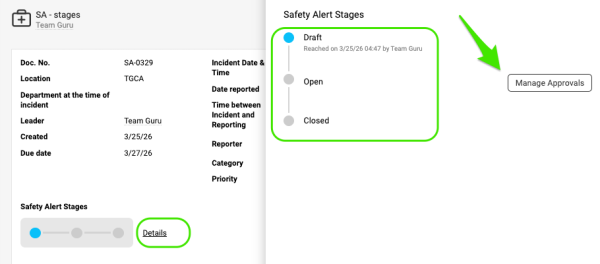
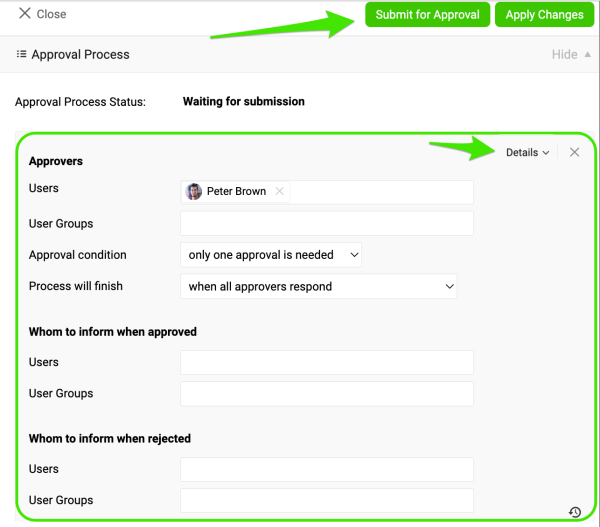
After you click Manage Approvals button, you can define your approvers, set approval conditions, and adjust other settings - if they weren’t already included in the approval process assigned to the template stages.
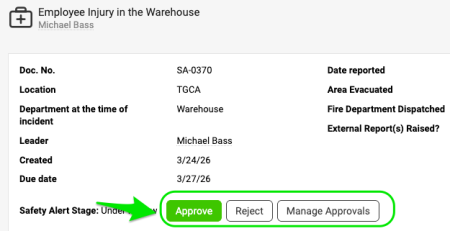
Once ready, click Apply Changes and then Submit for Approval. Approvers, who must be active system users, will get an email with the approval request. They can approve or reject it, and anyone listed in the “whom to inform” fields will receive an email notifications of the decision. The included link takes the approver directly to the document, where they can approve or reject it.
Additional Notes
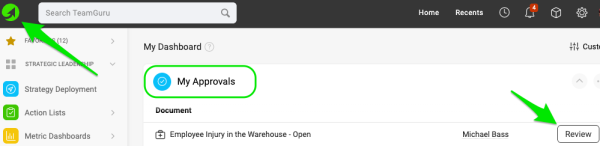
- Approvers can also find any documents waiting for the approval in the My Dashboard page.
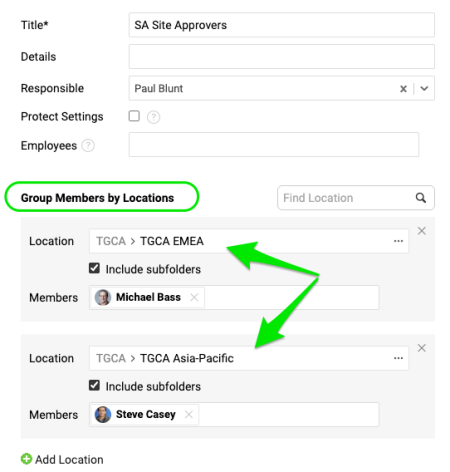
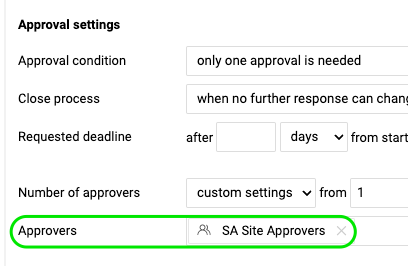
- You can set up approvers by location using User Groups feature (sufficient rights are required*) and select the group in your approval template. When an approval process is applied to a stage, the users in that group are automatically included as approvers.
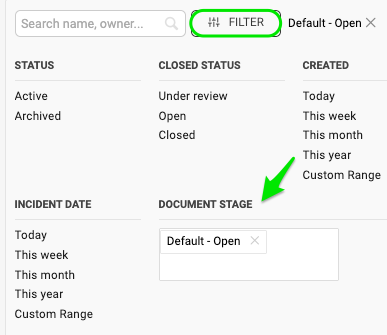
- In the document list, you can filter and view your document byt the Document stage.
*Please note: If you need to create a new list of SA stages, user group, and/or new approval process, please contact your system administrator or support@teamguru.com.