Share topic(s) in other Reports
You can share topic(s) in several reports. That way you can easily create any summary report based on the topics from other reports.
Please note that to use this functionality, a sufficient role is required.
Go to the Reports module 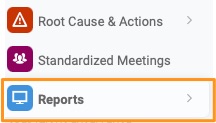
Click the green plus button Add item to create a topic 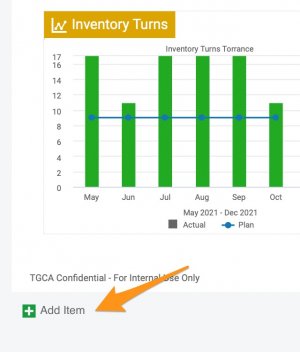
Choose Existing Topic from Other Report 
Select the source report and topic(s) you would like to add. Click Add Selected Topics button.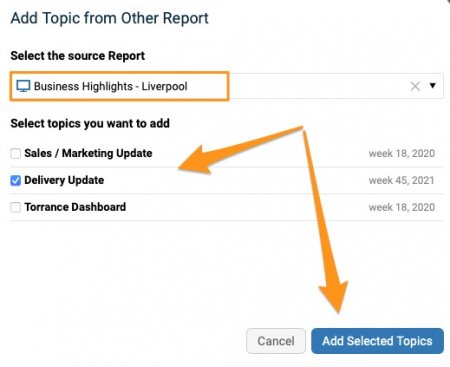
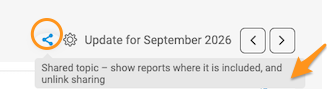
The extra icon will be displayed above the topic indicating that it is included in multiple Reports.
When any topic modification is performed, the alert notification will be activated. Please note that any change will be applied to all the reports where this topic is being shared. 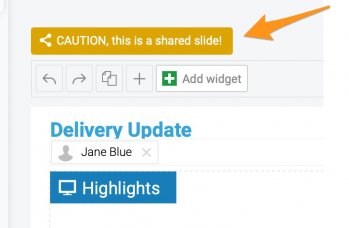
How to Unshare Slides
In case you decide not to share topics any longer, you have several options.
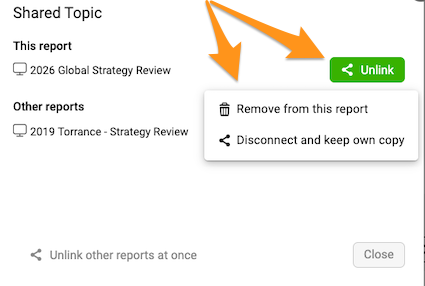
1. Remove the slides (topics) from the report(s)
2. Disconnect but keep own copy
Click the Share icon above your slide (topic). When you click the "Unlink" button, you can select the option.

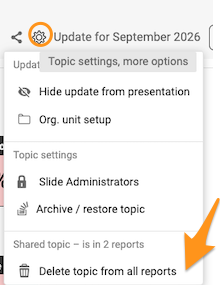
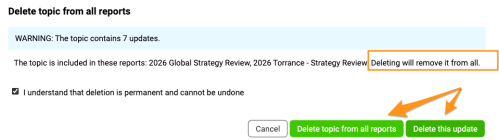
3. Remove topic - click the Settings icon above your topic (slide) and select “Delete topic from all reports.” You will then have the choice to remove only the update or all historical updates.
Please note that the selected update(s) will be removed from ALL reports where the topic is shared.