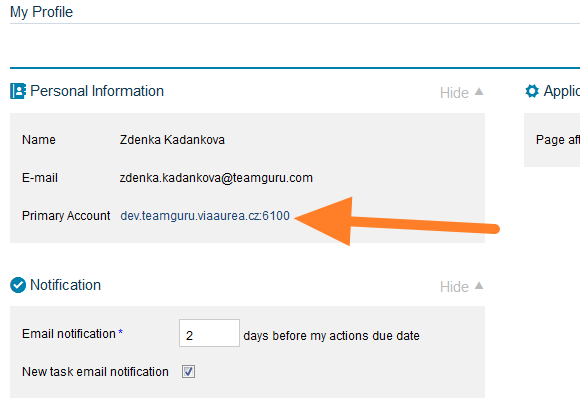
Single Sign-on / Linking multiple accounts
TeamGuru allows you to link your accounts across multiple TeamGuru instances.
To link your account:
- Log in to your main TeamGuru instance
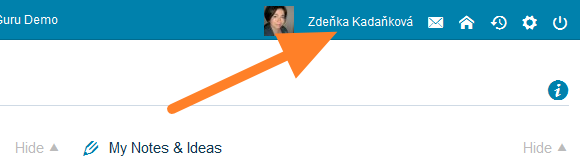
- Click on your name in the top navigation bar
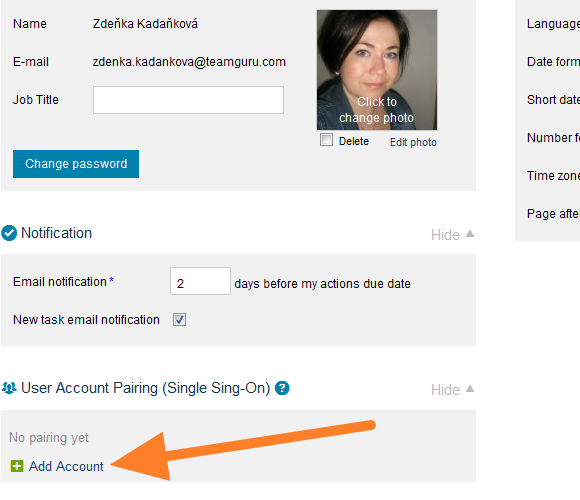
- Click on Add Account in the User Account Pairing setup section
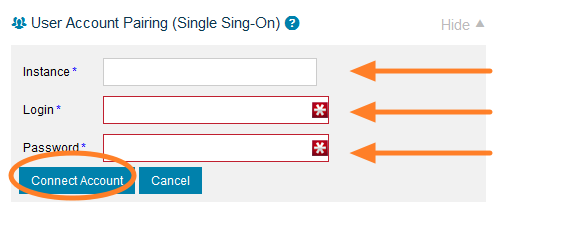
- Fill in your second instance address, login and password in the fields provided
- Click on Connect Account
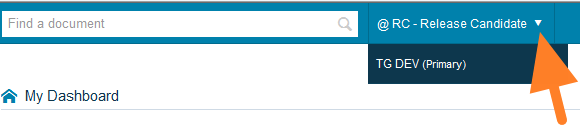
- Once your accounts are connected you can switch between your instances by clicking on the little arrow next to the instance name
Note:
- Once you pair your accounts your personal settings will be driven by your main instance – eg. if you change your password in your main instance it will be automatically changed for all other instances
- Pairing instances does not effect access rights
Note for administrators:
- A link to reset a password or to verify a user's account can only be sent from the user's primary TeamGuru instance.
- Deactivating users does not effect access to their other (linked) instances