Flags & Labels for actions
To highlight an action or put it into a group of actions that can be filtered, use flags or labels.
Flags
Available flags
Flags are predefined in the system configuration and cannot be changed at the action list level. All action lists have the same flags. There are 5 types of flags:
- Top Urgent
- Current Focus
- Do Soon
- Do Later
- Parked
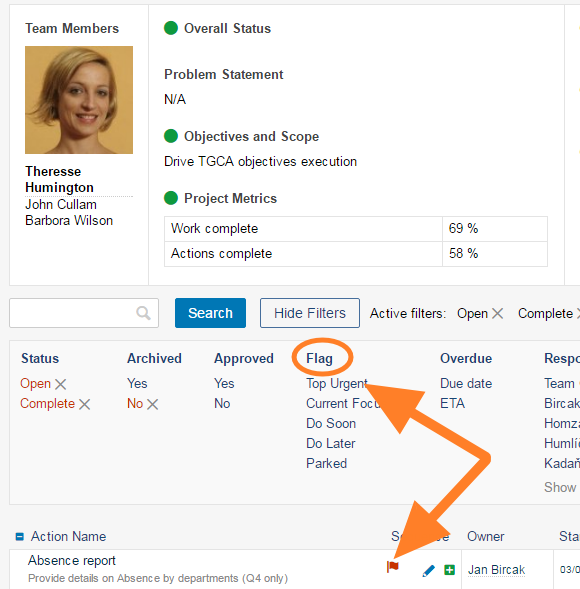
Flag an action
To mark an action with a flag, click the action name to open the action details and select a flag type. Then click Save or Save + Close.
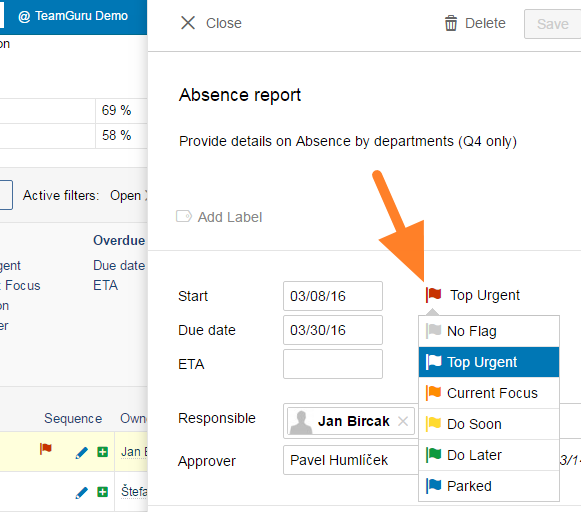
Remove a flag
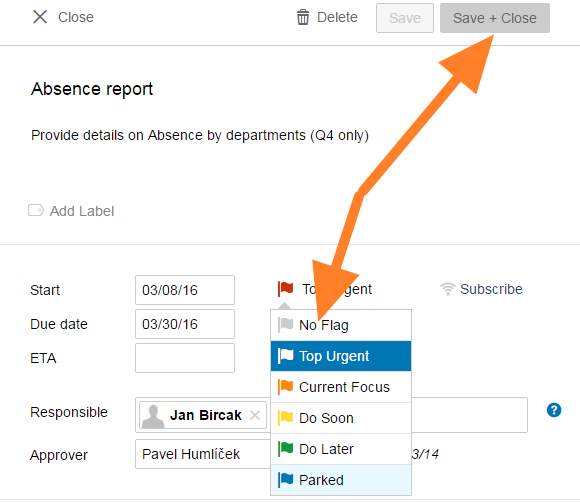
To remove a flag, open the action details, select No Flag and click Save + Close.
Labels
Default labels
Labels are also predefined, but at the action list level you can change their names and colors or create new ones as required. The default settings provide 4 label types:
- Kaizen
- Quick Fix
- Corrective Action
- Strategic Action
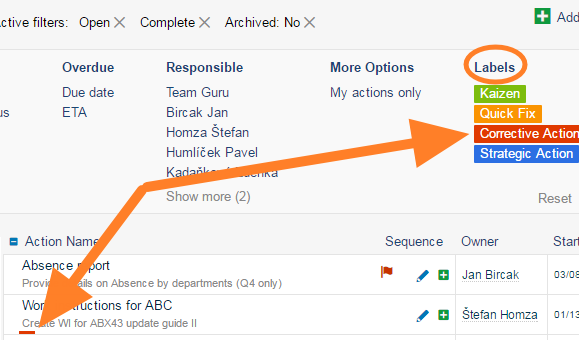
Label an action
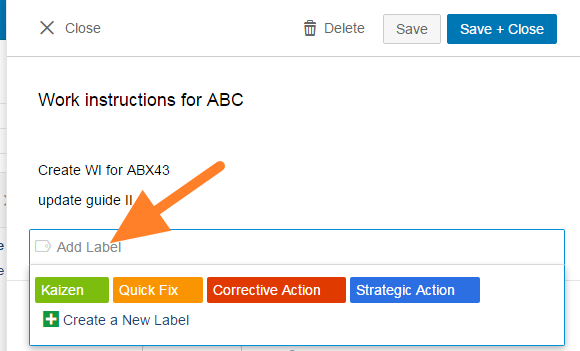
To mark an action with a label, click the action name to open the action details and click Add Label. Select one of the existing labels or click Create New Label.
Remove a label
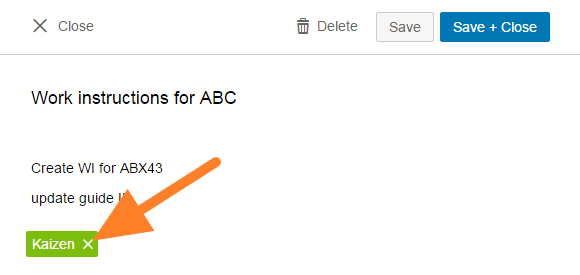
To remove a label, open the action details and click the cross on the label.
Edit a label
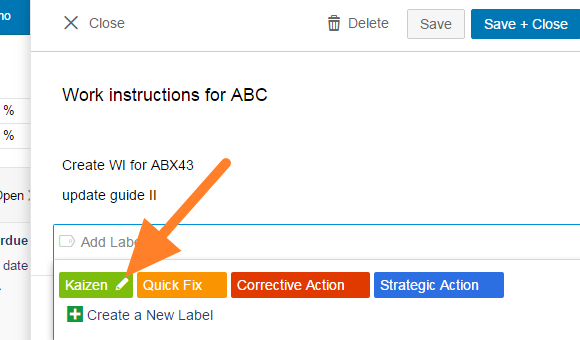
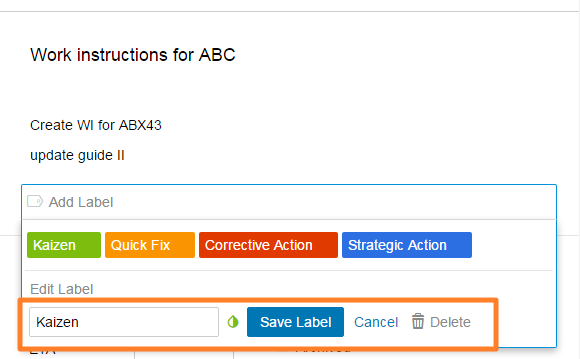
To edit (rename, change the color of or delete) an existing label, hover over the label and click the edit pencil.
The edit options then appear, as shown below.
Still need help?
Write to us. We usually reply within an hour on business days.