How to escalate action
The Escalate Action feature allows you to escalate an action when additional attention or support is needed. Select Escalate Action, choose the appropriate person, and provide any relevant details or comments.
Key Features
Any action in the system can be escalated to one or multiple users.
The system automatically sends an email notification when an action is escalated.
Escalated actions are clearly highlighted and can be easily filtered.
You can see when an action was escalated and, once it is resolved, view the resolution details as well
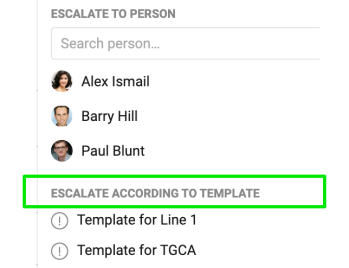
To escalate an action by user(s), open the action and click Escalate action. You will see a suggested list of users who may be relevant to the escalation, such as the project owner, internal team members, or action responsibles. You can also select any user who is not currently part of the project in the Search person field. Multiple users can be added. 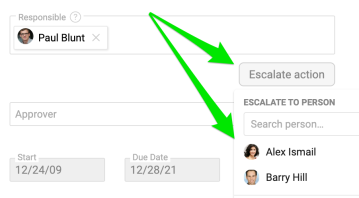
Once an action has been escalated, you can view the escalation details directly within the action. The user will receive an automatic email notification including live link to the action. The user it was escalated to will also see the action on their My/Dashboard page.
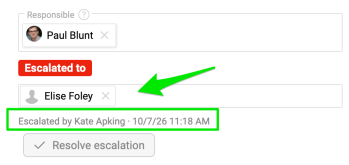


You can use the available filters to easily find escalated actions. The person the action was escalated to will also be clearly highlighted within the action.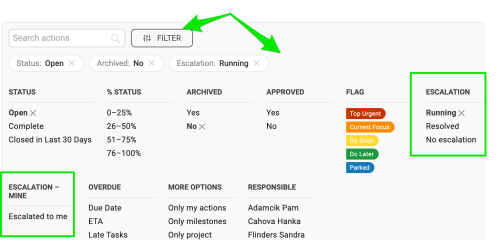

Once the issue has been resolved, click Resolve escalation. The escalation details will then be available in the History, including who escalated the action and when it was escalated. 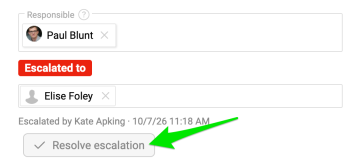
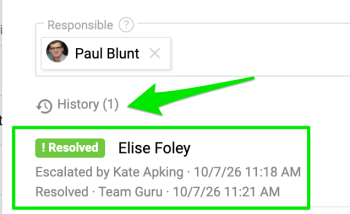
The process can be repeated if needed.
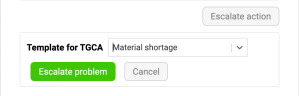
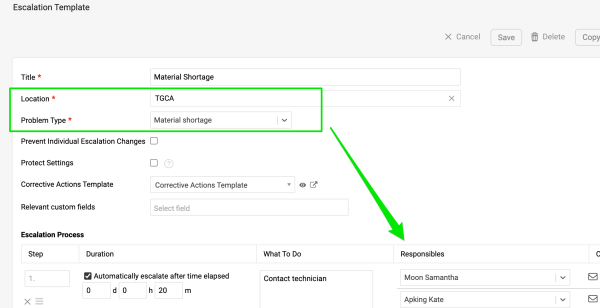
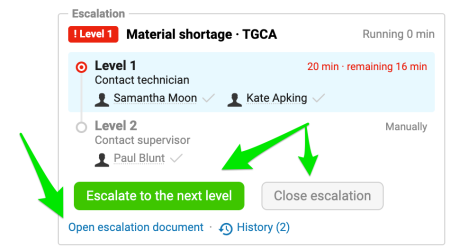
To escalate an action by using template choose from predefined Escalation Templates configured in the system by your administrator. The action will be then escalated to the person(s) according to the template. If there are several escalation levels, you can escalate to the next level.
Please note escalate an action by using templae is available only if the Problem Escalation module is enabled. Escalation using a template automatically creates a document under Problem Escalation module. The escalation can be closed directly from the action or from the Problem Escalation document itself. The two documents are linked.

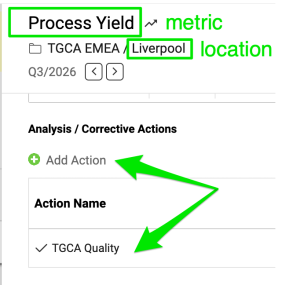
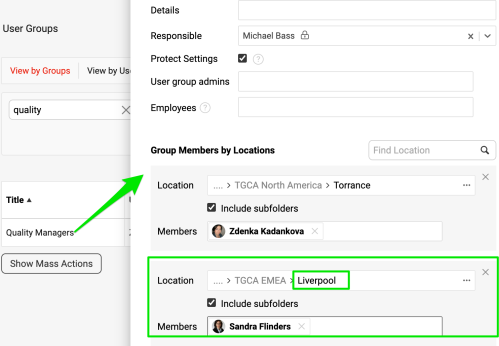
To escalate an action directly from a Metric, go to your metric, Add action and start the escalation process following the same steps as above. Your administrator can also predefine a user group in the system based on location. The appropriate person for the specific location will then be notified when an escalation occurs.