How to link priorities to projects and see their progress
Priorities (list 3 of the matrix) are the work that brings the change. Link every priority to a project in Action Lists and the review dashboard shows its progress for you.
Link a project, a metric dashboard or a child X-matrix
- Click Edit above the matrix.
- Click the pencil under Key Improvement Priorities (the list names come from the template of your plan).
- In the row of the priority, click + in the Documents column.
- Search for the document and pick it – an action list (project), a metric dashboard or another X-matrix. You can also create a new one straight from the picker.
- Click Done.
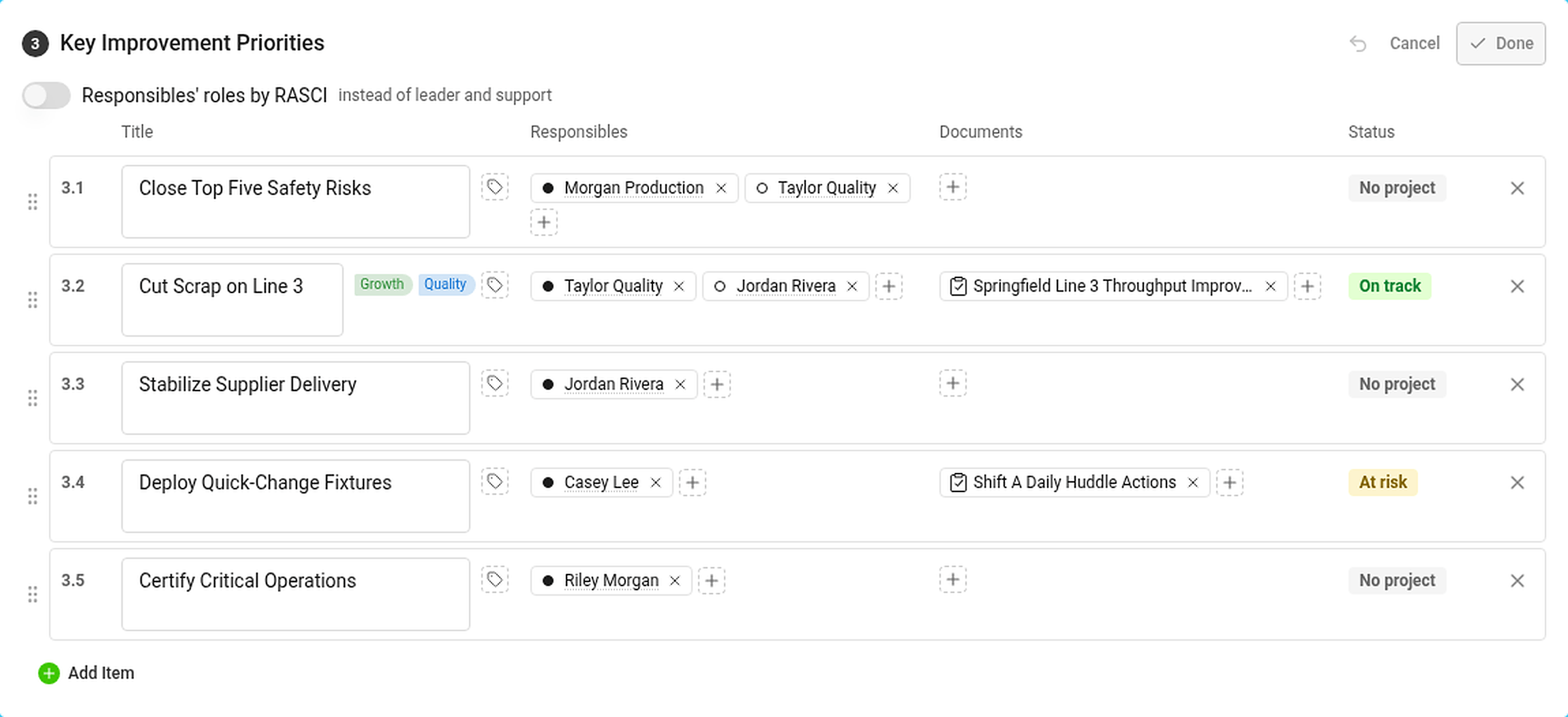
In the Responsibles column, click + to add the person who answers for the priority. The dot in front of the name is the role: filled for leader, hollow for support (or RASCI letters, if you turned RASCI on).
The Status column shows the status of the priority – see How statuses are calculated.
Where you see the progress

The Projects section lists every project linked to a priority:
- the status of the project and its progress bar – the black tick is where the project should be today according to its plan,
- the days left (or overdue) and the percentage done,
- the codes of the priorities and the pillars it belongs to.
Hover over a project for its leader, milestones and the number of tasks – total, closed and overdue. In the Strategic Plan view the projects are in the column Projects and documents.
If you are not allowed to open a project, its status still counts but its dates and progress are hidden.
A priority with its own X-matrix
Link another X-matrix to a priority and its overall status counts towards the status of the priority. Use this to connect the plan of a plant to the plan of a department. See How to link X-matrices into a plan hierarchy.