Creating a New User in TeamGuru
To create a new user, follow these steps.
Open the user list
-
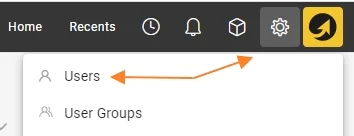
Open the Settings menu. Go to the Settings menu. Please note that the Settings menu is only visible to privileged users.
-
Select Users. In the submenu, select Users.
Create a single user
-
Click Create New. Click the Create New icon.

-
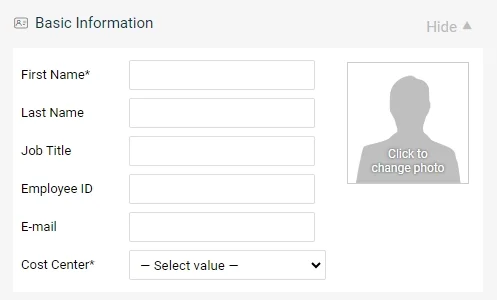
Fill in the basic information. Fill in all the basic information about the user, including their first and last name, email and cost center.
-
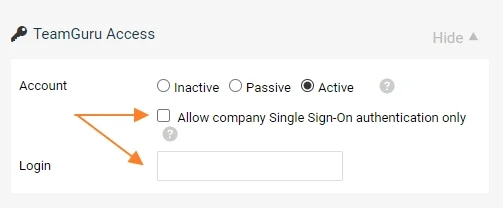
Choose the account type. Choose the type of user account you want to create:
- Active user: a user with access to the system.
- Passive user: a user without access to the system, who appears in searches and options.
- Inactive user: a deactivated account, for users who have left the company.
-
Set up the login. Select Active for a new user with system access. Tick the box for SSO login, or fill in the username for Login. The user receives an email that specifies the selected option and provides the details of the login name.
-
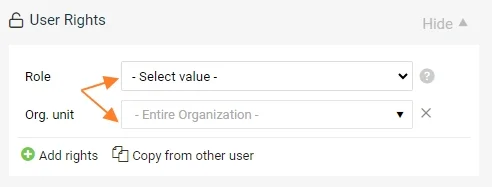
Assign the access rights. Select the user’s access rights by choosing the Role and the Org. unit the role applies to.
A user can have multiple user roles, allowing them, for example, to view documents at a higher level and edit documents at a lower level.
- To add another user role, click the plus icon Add rights.
- User rights can be copied from another user who already has an active account.
-
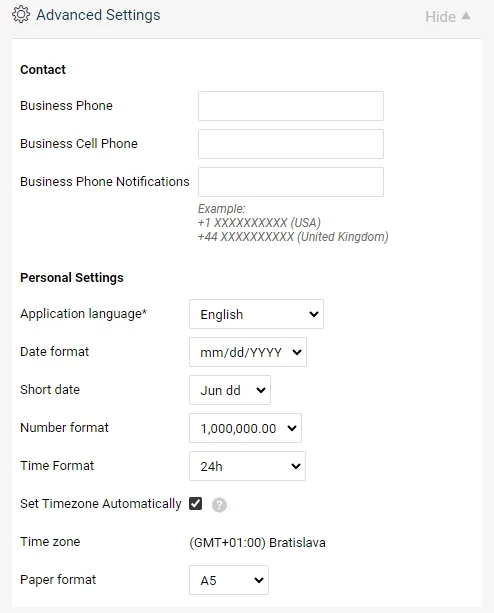
Adjust the advanced settings (optional). The Advanced Settings section is optional. Users with active accounts can customize it later in their profile.
Complete the user creation
-
Save and send the login link. Click Save and send login link.

-
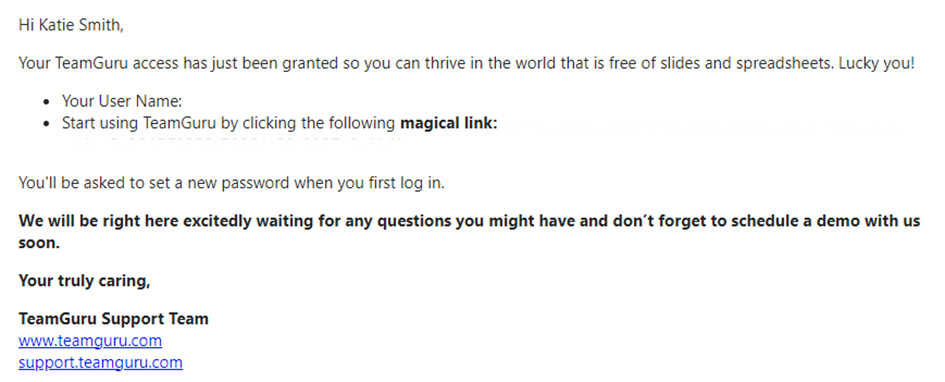
The user receives the login email. The new user receives an email with their login details and a link to create their password.
Troubleshoot a new user
-
Resend the login link. If the new user did not receive the email with their login details, you can resend the link.

-
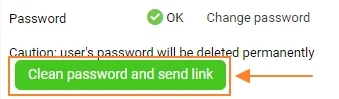
Reset the password. You can reset the user’s password and send a reset link to the user. The user can then set up a new password.
Still need help?
Write to us. We usually reply within an hour on business days.