Creating a New Process Approval Template
Setting up approvals should feel smooth and intentional—more like putting a clear plan in motion than chasing signatures.
Approval process templates can be applied across multiple modules in the system, e.g. Action Lists, Safety Alerts, Documents, and Kaizen. Creating a new approval template requires the appropriate permissions. If you need help setting one up, please feel free to contact your system administrator or support@teamguru.com.
Step 1:
Within Settings, select “Approval Process Templates.”
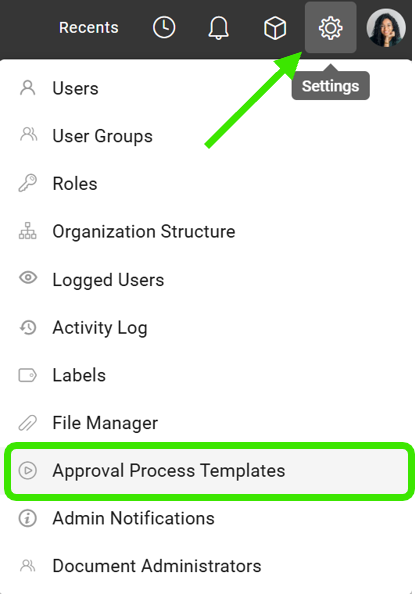
Step 2:
Give your process template a clear, purposeful title that reflects how it will be used. Then choose:
- Whether approvals can be executed via email.
- Whether individual steps can be reset at the document's level.
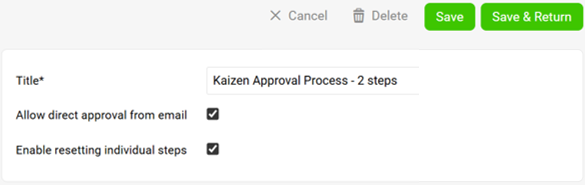
Step 3:
Decide if the approval flow should be sequential or parallel.
For each approval step:
- Indicate whether this should be saved as a reusable step template
- Assign a step title
- Configure the appropriate settings including the Approval Conditions and Close Process
- Next, select who should receive notifications for approvals and rejections.
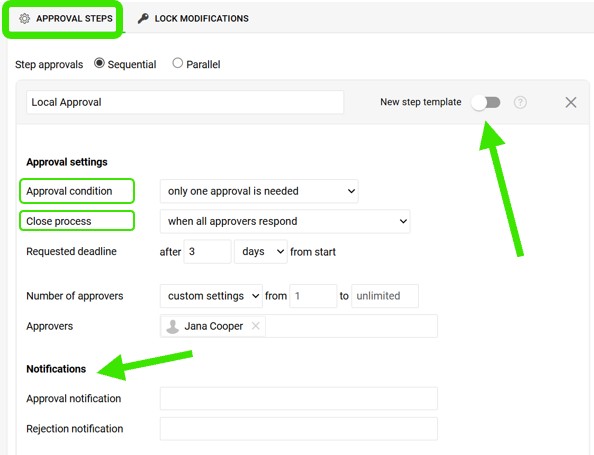
*A Note about the "New Step Template":
If using the standard step, it is fixed in the approval process
If you select to use the new step template, it will be an option that requestors can add for specific documents.
For example if you have a standard 1 level approval and for specific documents we can request 2 or more levels:
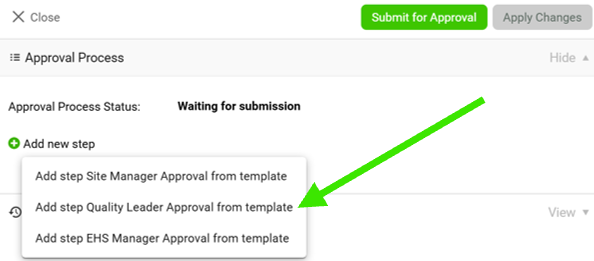
Step 4:
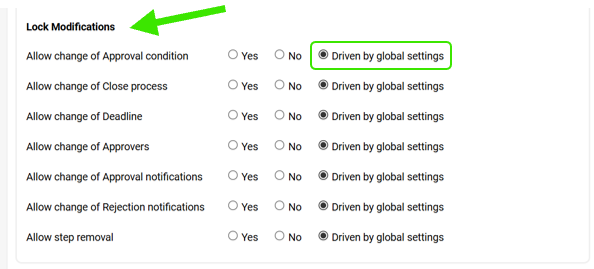
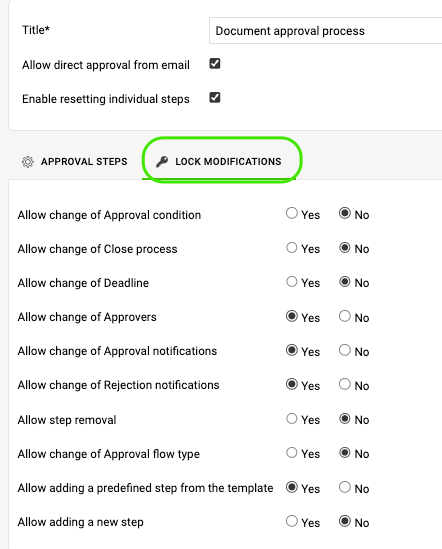
Determine the lock modifications that should apply to each step. Please note that lock modifications driven by global settings are configured under the Lock Modifications tab. You can still select different locks for each step if needed.
Step 5:
Once everything is configured, select “Save & Return” to finalize your approval process.
Use your new Approval Process Template in Project Stages, Document Approvals, Safety Alerts, and Kaizens.