LSW activity type, task duration and weekly summary view
Group similar Leadership Standardized Work (LSW) activities together, capture the duration of each task and monitor the weekly summary view.
Add your activities and time durations
-
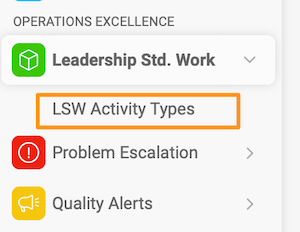
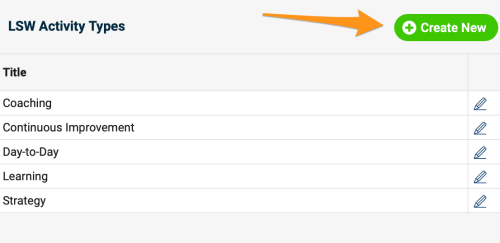
Create a new activity type. To create a new activity besides the existing default options, go to the LSW module submenu, click LSW Activity Types and create a new activity type. Please note that sufficient rights are required.
-
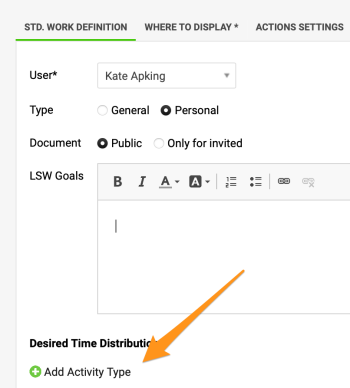
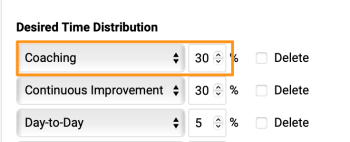
Set up the time distribution plan. Set up the time distribution plan for your weekly summary view.
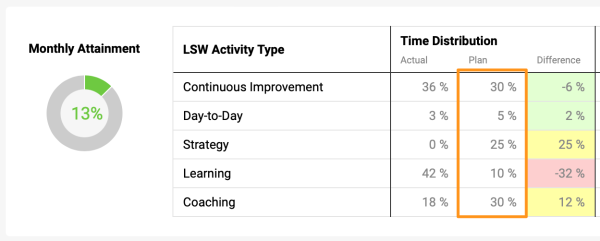
Go to the settings of your document and add the activity type(s) with the assigned time percentage.
-
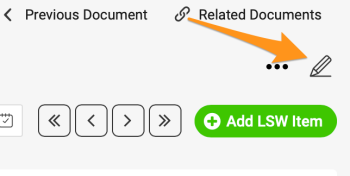
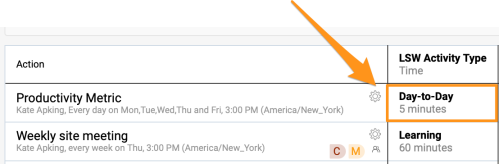
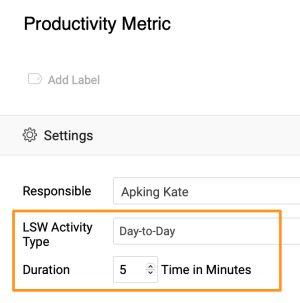
Add an activity to your tasks. Click the settings icon of a task and choose the activity type and the time duration (optional).
-
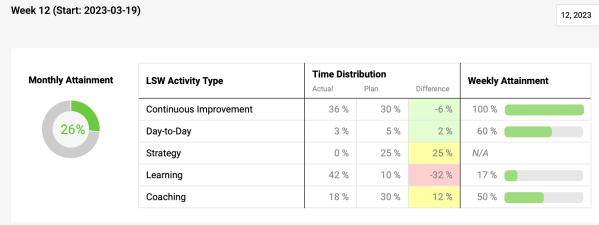
Monitor the weekly summary view. Monitor the weekly summary view and the monthly attainment percentage.
Still need help?
Write to us. We usually reply within an hour on business days.