如何用AI生成X-matrix草稿
本文由英文机器翻译。 当前显示英文原文。
Not sure how to start? Let TeamGuru AI propose a first draft of your goals, priorities and KPIs, then keep what fits and edit the rest.
This feature is available only if the AI feature X-matrix generator is enabled for your TeamGuru. If you do not see the button below, ask your administrator.
Generate a draft
- Click Edit above the matrix (or Edit strategic plan in the Strategic Plan view).
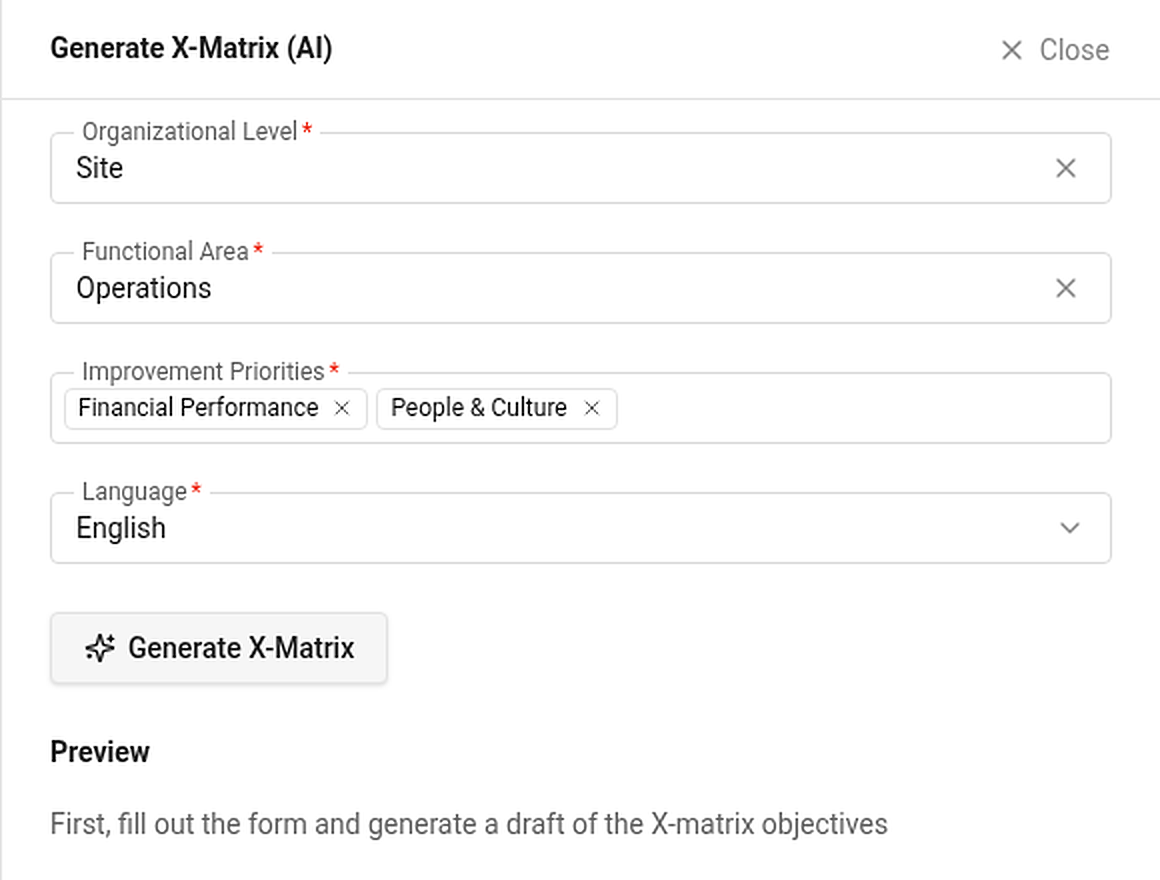
- Click Generate X-Matrix (AI) in the bar above the matrix. A panel opens on the right.
- Fill in the form:
- Organizational Level – the level of the plan (for example Site).
- Functional Area – for example Operations.
- Improvement Priorities – one or more strategic focuses.
- Language – the language of the proposal.
- Click Generate X-Matrix. The proposal appears in the Preview: proposed items for each of the four lists, each with the items above it that it supports.
- Tick the items you want and add them. They are appended to your matrix as unsaved changes and linked under the parents you picked. Titles are shortened to the maximum length of the list.
Nothing is saved until you click Done. Cancel throws the whole draft away. The proposal is only a starting point – review and rewrite it with your team.
不知道从何开始?让TeamGuru AI为您的目标、优先事项和KPI提出初稿,保留合适的内容,再修改其余部分。
仅当您的TeamGuru启用了AI功能X-matrix生成器时,此功能才可用。如果看不到下面提到的按钮,请询问管理员。
生成草稿
- 点击矩阵上方的编辑(在战略计划视图中点击编辑战略计划)。
- 点击矩阵上方栏中的生成X-Matrix(AI)。右侧会打开一个面板。
- 填写表单:
- 组织层级:计划所处的层级(例如现场)。
- 职能领域:例如运营。
- 改进优先事项:一个或多个战略重点。
- 语言:提案使用的语言。
- 点击生成X-Matrix。提案会显示在预览中:为四个列表分别建议的条目,每个条目都附有它所支持的上级条目。
- 勾选需要的条目并添加。这些条目会作为未保存的更改追加到矩阵中,并关联到您选择的上级条目之下。标题会缩短到该列表的最大长度。
点击完成之前,不会保存任何内容。取消会放弃整个草稿。提案只是一个起点,请与团队一起审阅并改写。
还需要帮助吗?
请给我们留言。工作日我们通常会在一小时内回复。