How the Strategy Deployment review dashboard works
Every Strategy Deployment plan opens as a review dashboard: the X-matrix and everything you need for a strategy review – overall status, KPIs, projects and responsible people – on one page.
What you see on the page
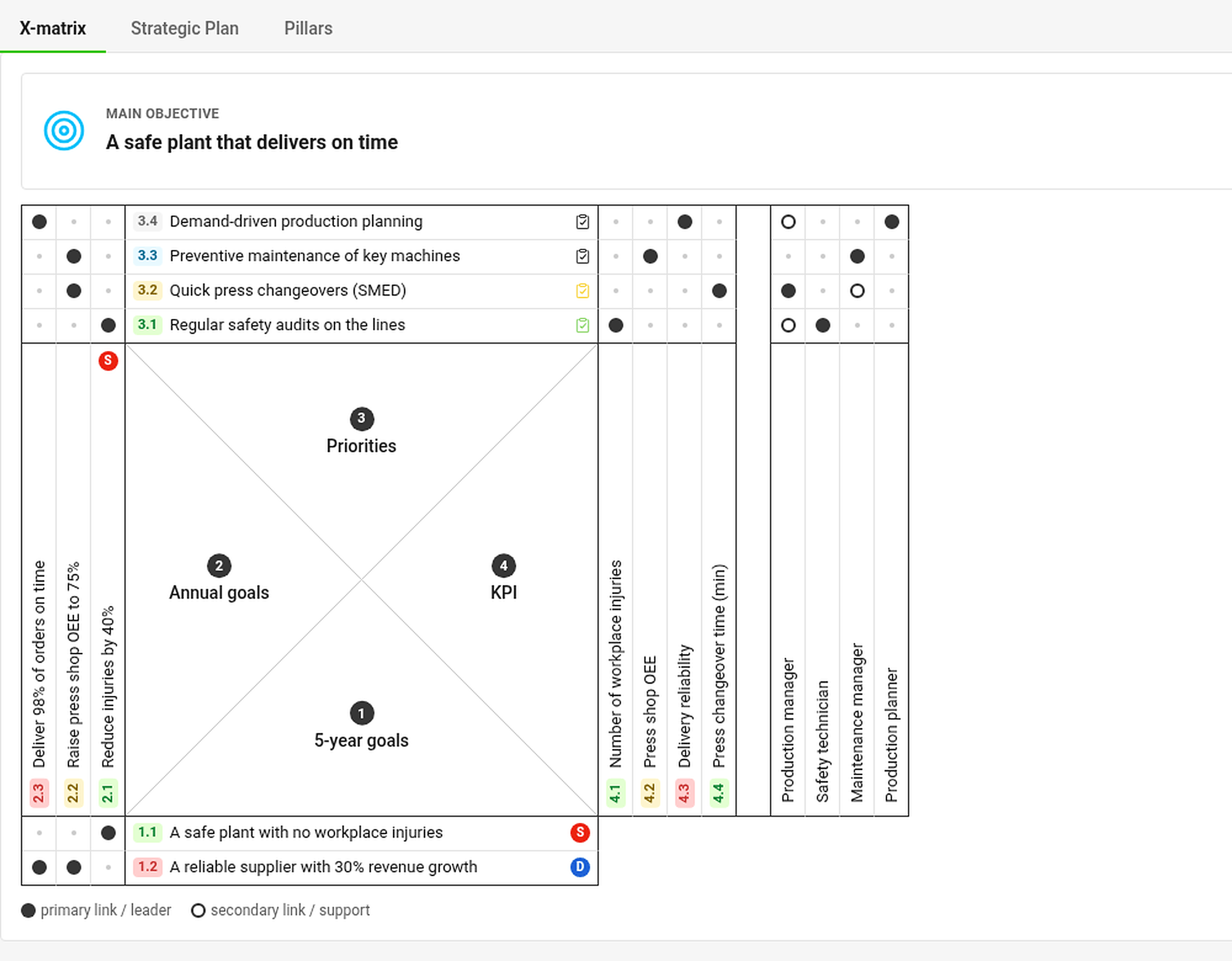
- Tabs – X-matrix, Strategic Plan and Pillars show the same plan in three different ways (see How to work with the Strategic Plan and Pillars views).
- Main objective and Plan hierarchy – the objective of the plan and the plans above and below it (see How to link X-matrices into a plan hierarchy).
- The X-matrix – the full matrix: 5-year goals at the bottom, annual goals on the left, priorities on top, KPIs (Targets to Improve) on the right and responsible people next to them. The names of the lists come from the template of the plan.
- Item codes – every item has a code made of the list number and its position, for example 2.3 is the third annual goal. The code is the same in the matrix and in every section below it.
- Dots – a filled dot is a primary link (leader), a hollow dot a secondary link (support). A small grey dot marks an empty cell that is not linked yet. The colour of the code shows the status of the item.
Click an item to see what is connected
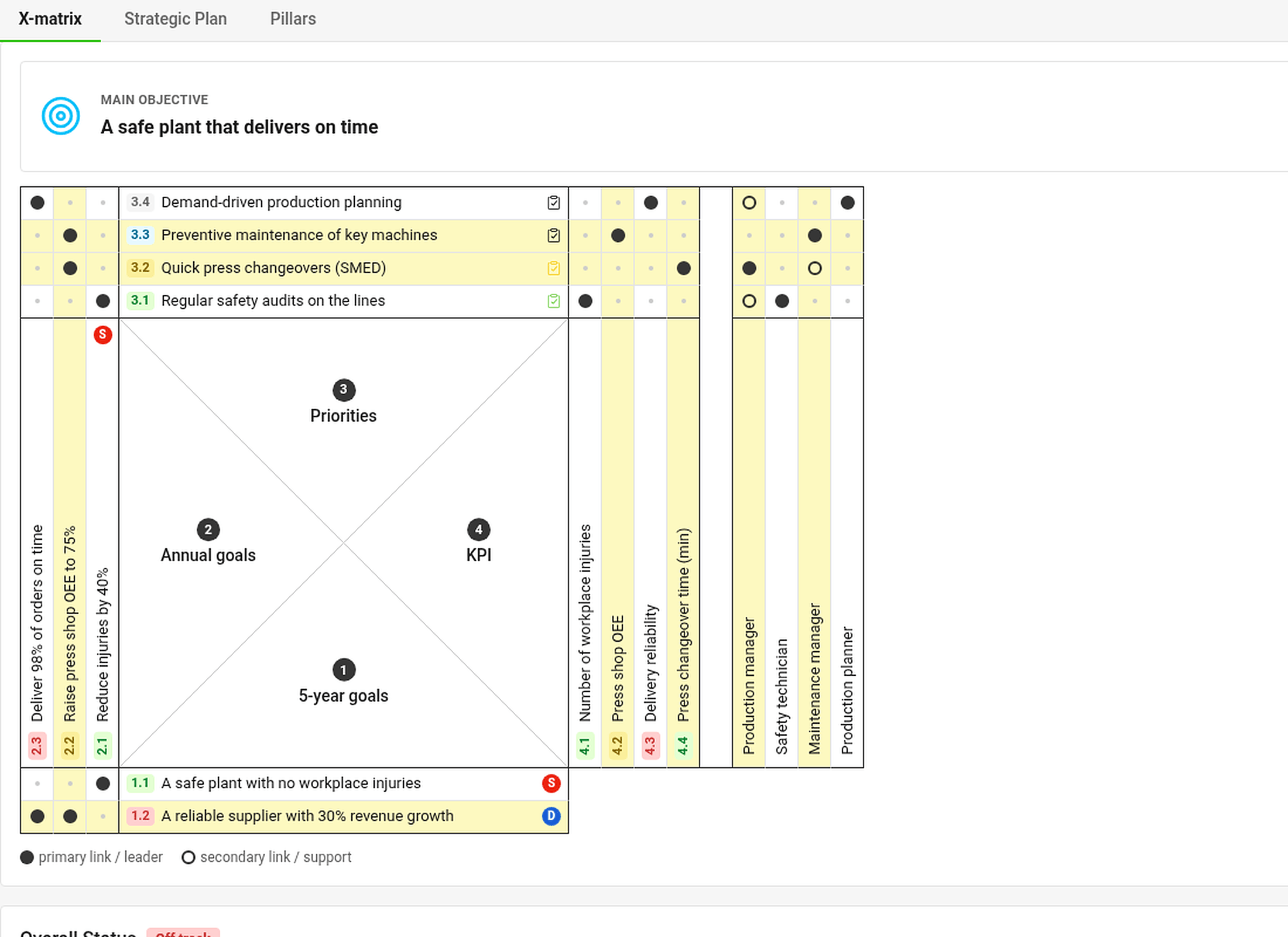
Click any label in the matrix. The item, everything above it and everything below it light up in yellow – the goals, priorities, KPIs and people that belong together. Click outside the matrix (or press Esc) to remove the highlight. The filter Show only the selected X-matrix items narrows the matrix to that chain.
Below the matrix

- Overall Status – one gauge per list of the matrix, showing how many items are on plan, and the share of the plan year that has already passed (Year elapsed). Click a gauge to jump to its section.
- Projects – every project linked to a priority, with its status, days left and percentage done (see How to link priorities to projects).
- Targets to Improve (KPIs) – a tile with a monthly chart for every KPI (see How to track KPIs).
- Responsibles – a card for every person with the codes of the priorities and KPIs they answer for.
Click any code (for example 3.2 in the Responsibles section) to jump to that item and see it briefly framed.
Who can do what
Everyone who may open the plan sees the same statuses. Buttons for editing and the settings icon appear only to people who may edit the plan. Projects, metrics and plans you are not allowed to open are shown as Hidden document or Hidden value – their status still counts, so everybody works with the same picture.