How to create summary metrics
Summary metrics group (summarize) the data from the data collection objects and display their sum or average at a higher level.
Objects you can summarize
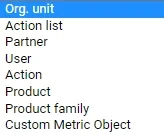
Summary metrics can be created for an Org. unit, Action list and Partner, and now also for a User, Action, Product and Product family.
Create a summary metric
-
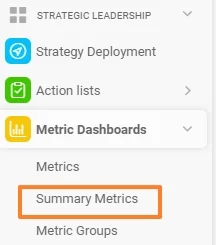
Open the summary metrics. Go to the Metric Dashboards module and select Summary Metrics in the submenu.
-
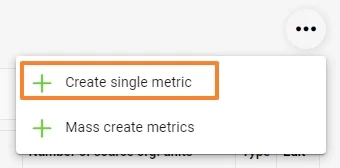
Create a single metric. Click the three dots in the upper right corner and choose Create single metric.
-
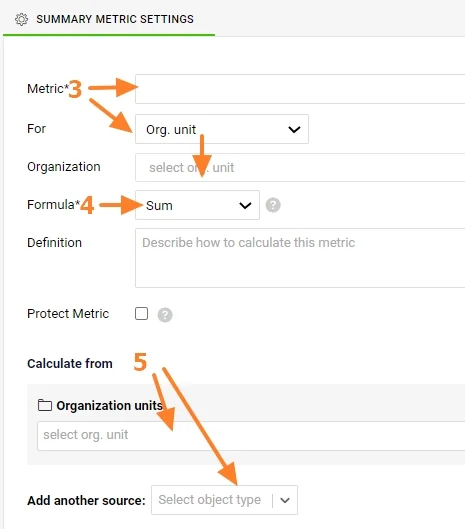
Select the metric and the object. Select a Metric and For which data collection object to summarize the data (Org. unit, Action list, Partner, Action, User, Product, Product family).
-
Select the formula. Select a Formula for the summary metric (Sum or Average, Minimum or Maximum, Multiple).
-
Select the source objects. Select From which data collection objects (or their combination) the sum or average should be calculated.
Protect and describe the metric
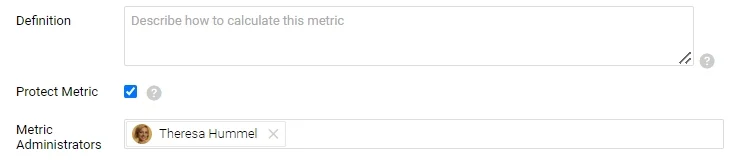
The summary metric can also be a Protected Metric and described in the Definition field.
To roll up a calculated metric (e.g. OTTR, PPM), you have to create summary metrics for the source values from which the calculated metric is calculated. For more information on calculated metrics, see Metrics driven by other metrics (calculated metrics).
Video guide: How to create summary metrics
Still need help?
Write to us. We usually reply within an hour on business days.