Metrics driven by other metrics - Calculated Metrics
You can set up an automatically calculated metric based on the values of other metrics (e.g. On Time Delivery %).
-
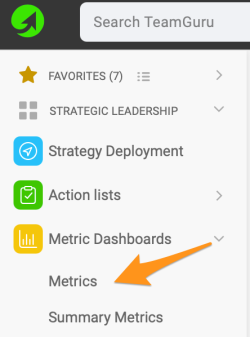
Open the metrics list. Go to the Metric Dashboards menu and select Metrics in the submenu.
-
Create a new metric. Click the Create New icon if the metric has not been created yet.

-
Or edit an existing metric. Click the edit icon if the metric already exists in the system.

-
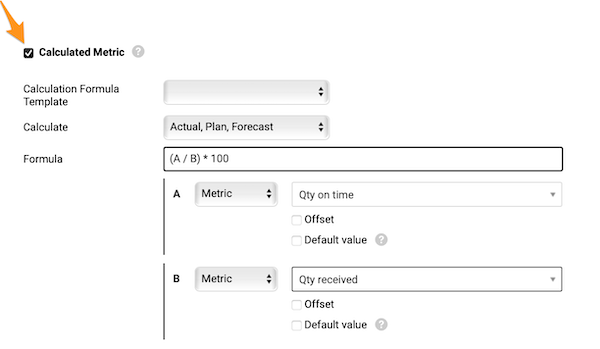
Turn on the calculation. Define all the metric details as for any other metric and tick the Calculated Metric checkbox.
-
Choose what to calculate. In Calculate, specify which values to calculate (actual, plan and forecast values, or just actual).
-
Enter the formula. In Formula, enter your formula. See the list of all available functions and examples of how to build a formula, or contact us if you need any assistance.
-
Set the offset. In Offset, set up your offset time period.
-
Set a default value. In Default view, tick the box and use a default value (most likely 0) for cases where an input metric has no value entered and the formula cannot be calculated without it.
-
Test and save. Test your calculation if needed and save.
-
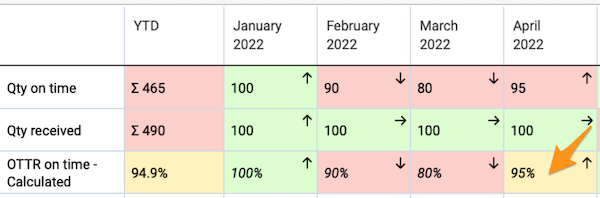
See the calculated value. The ratio value is now calculated automatically in your metric dashboard from the source values.
-
Use sources from any dashboard. The source values do not have to be in the same dashboard as the calculated one.
-
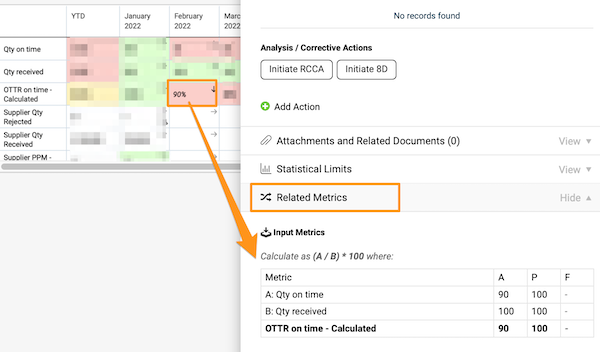
Check the calculation. To check how your metric is calculated, click the value cell and go to the Related Metrics field.
Related video guide: Set Up Calculated Metric
Still need help?
Write to us. We usually reply within an hour on business days.