How to create a new quality alert
The Quality Alerts module helps you keep all relevant people informed about a quality issue, its scope, impact and resolution status. You can easily launch a linked RPS (RCCA) or 8D Report for an in-depth root cause analysis and corrective actions.
-
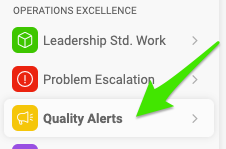
Create a new alert. Go to the Quality Alerts module and click the Create New button.

-
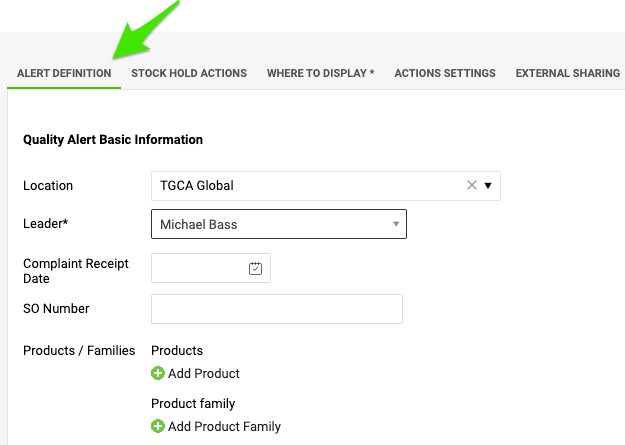
Define the alert. Fill in the title of the quality alert, select the location where the quality issue occurred, and add all available details about the product and the quantities.
-
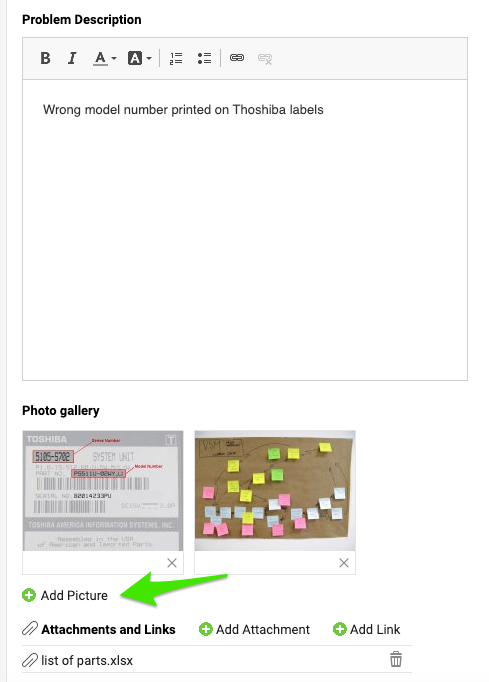
Describe the issue. Describe the quality issue and add pictures and attachments if needed.
-
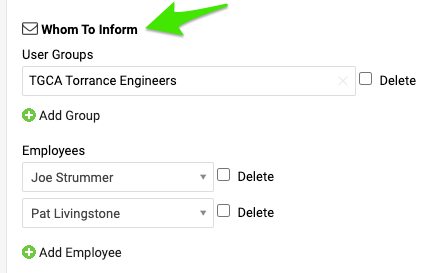
Choose whom to inform. Select the users or user groups that should be involved in this quality alert.
-
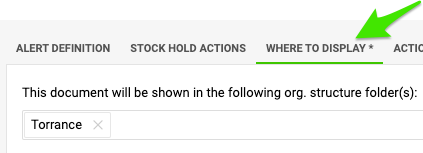
Choose where to display it. Before you save the document, open the Where to display tab and specify the organization unit that the document should be saved to.
-
Save the alert. Click Save & View.
Still need help?
Write to us. We usually reply within an hour on business days.