在哪里创建新的TeamGuru用户?
本文由英文机器翻译。 当前显示英文原文。
To create a new user, follow these steps.
Open the user list
-
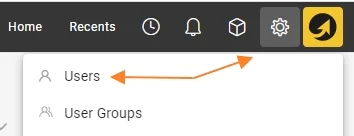
Open the Settings menu. Go to the Settings menu. Please note that the Settings menu is only visible to privileged users.
-
Select Users. In the submenu, select Users.
Create a single user
-
Click Create New. Click the Create New icon.
-
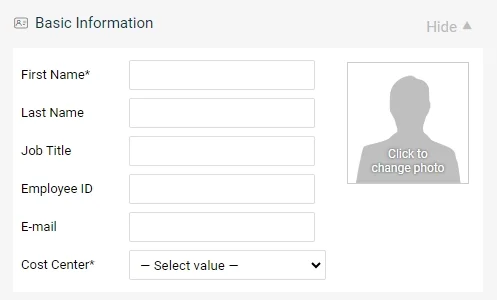
Fill in the basic information. Fill in all the basic information about the user, including their first and last name, email and cost center.
-
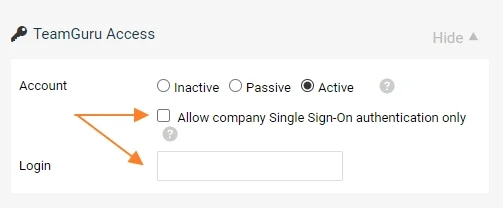
Choose the account type. Choose the type of user account you want to create:
- Active user: a user with access to the system.
- Passive user: a user without access to the system, who appears in searches and options.
- Inactive user: a deactivated account, for users who have left the company.
-
Set up the login. Select Active for a new user with system access. Tick the box for SSO login, or fill in the username for Login. The user receives an email that specifies the selected option and provides the details of the login name.
-
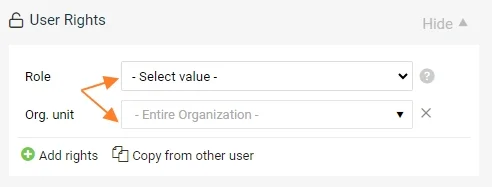
Assign the access rights. Select the user’s access rights by choosing the Role and the Org. unit the role applies to.
A user can have multiple user roles, allowing them, for example, to view documents at a higher level and edit documents at a lower level.
- To add another user role, click the plus icon Add rights.
- User rights can be copied from another user who already has an active account.
-
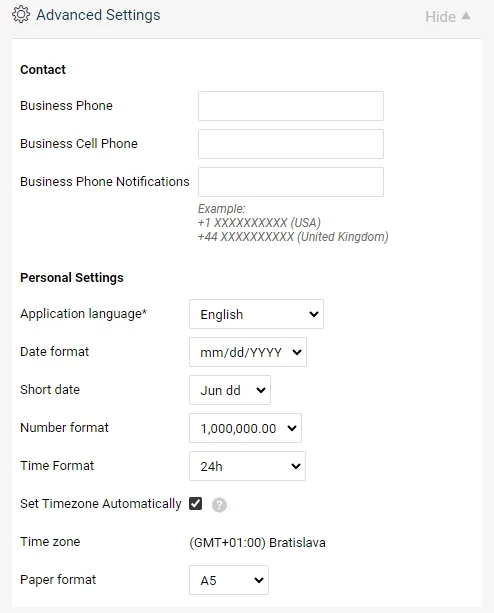
Adjust the advanced settings (optional). The Advanced Settings section is optional. Users with active accounts can customize it later in their profile.
Complete the user creation
-
Save and send the login link. Click Save and send login link.

-
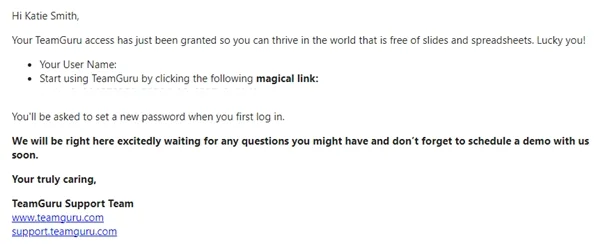
The user receives the login email. The new user receives an email with their login details and a link to create their password.
Troubleshoot a new user
-
Resend the login link. If the new user did not receive the email with their login details, you can resend the link.

-
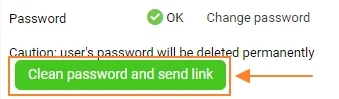
Reset the password. You can reset the user’s password and send a reset link to the user. The user can then set up a new password.
按以下步骤创建新用户。
打开用户列表
-
打开设置菜单。 进入 设置 菜单。请注意,只有具备相应权限的用户才能看到 设置 菜单。
-
选择用户。 在子菜单中选择 用户。
创建单个用户
-
点击新建。 点击 新建 图标。
-
填写基本信息。 填写用户的所有基本信息,包括名字、姓氏、电子邮件和成本中心。
-
选择账户类型。 选择要创建的用户账户类型:
- 活跃 用户:可以访问系统的用户。
- 被动 用户:无法访问系统,但会出现在搜索结果和选项中的用户。
- 停用 用户:已停用的账户,适用于已离职的用户。
-
设置登录方式。 为可访问系统的新用户选择 活跃。勾选SSO登录复选框,或在 登录名 中填写用户名。用户会收到一封电子邮件,其中说明所选的登录方式并提供登录名信息。
-
分配访问权限。 通过选择 角色 及该角色适用的 组织单元 来设置用户的访问权限。
一个用户可以拥有多个用户角色,例如可以查看较高层级的文档,同时编辑较低层级的文档。
- 要添加其他用户角色,请点击加号图标 添加权限。
- 可以从已有活跃账户的其他用户复制用户权限。
-
调整高级设置(可选)。 高级设置 部分为可选项。拥有活跃账户的用户之后可以在个人资料中自行设置。
完成用户创建
-
保存并发送登录链接。 点击 保存并发送登录链接。
-
用户收到登录邮件。 新用户会收到一封电子邮件,其中包含登录信息和创建密码的链接。
新用户问题排查
-
重新发送登录链接。 如果新用户没有收到包含登录信息的电子邮件,您可以重新发送链接。
-
重置密码。 您可以重置用户密码,并向用户发送重置链接。用户随后可以设置新密码。
还需要帮助吗?
请给我们留言。工作日我们通常会在一小时内回复。