单点登录/关联多个账户
本文由英文机器翻译。 当前显示英文原文。
TeamGuru allows you to link your accounts across multiple TeamGuru instances.
Link your accounts
-
Log in to your main instance. Log in to your main TeamGuru instance.
-
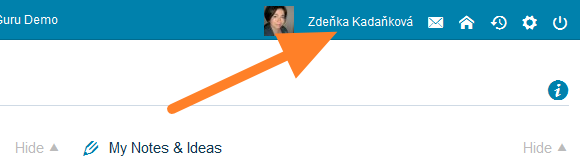
Open your account. Click your name in the top navigation bar.
-
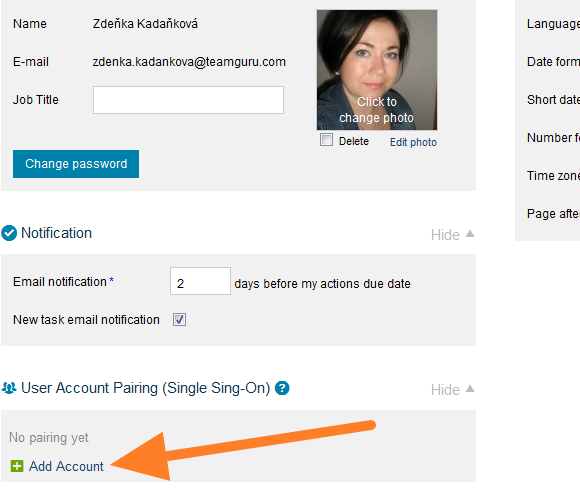
Add an account. Click Add Account in the User Account Pairing setup section.
-
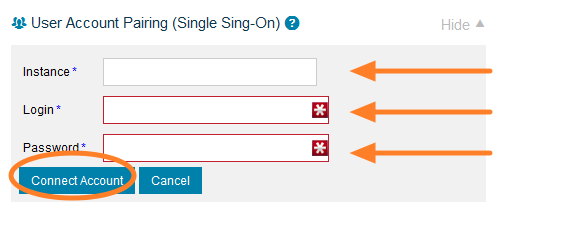
Fill in the second instance. Fill in your second instance address, login and password in the fields provided.
-
Connect the account. Click Connect Account.
-
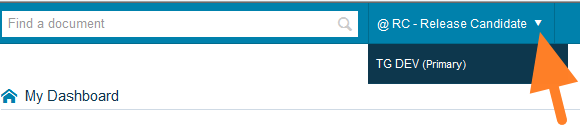
Switch between instances. Once your accounts are connected, you can switch between your instances by clicking the little arrow next to the instance name.
Good to know
- Once you pair your accounts, your personal settings are driven by your main instance – e.g. if you change your password in your main instance, it is automatically changed for all other instances.
- Pairing instances does not affect access rights.
Note for administrators
- A link to reset a password or to verify a user’s account can only be sent from the user’s primary TeamGuru instance.
- Deactivating users does not affect access to their other (linked) instances.
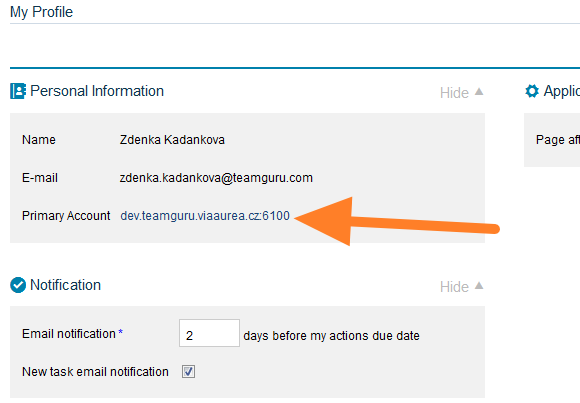
TeamGuru支持将您在多个TeamGuru实例中的账户相互关联。
关联账户
-
登录主实例。 登录您的主TeamGuru实例。
-
打开您的账户。 点击顶部导航栏中的 您的姓名。
-
添加账户。 在 用户账户配对 设置部分点击 添加账户。
-
填写第二个实例的信息。 在相应字段中填写第二个实例的 实例地址、登录名 和 密码。
-
关联账户。 点击 关联账户。
-
在实例之间切换。 账户关联后,点击实例名称旁边的小箭头即可在各实例之间切换。
须知
- 账户配对后,您的个人设置以主实例为准。例如,在主实例中更改密码后,所有其他实例的密码也会自动更改。
- 实例配对不影响访问权限。
管理员须知
- 密码重置链接或用户账户验证链接只能从用户的主TeamGuru实例发送。
- 停用用户不影响其对其他(已关联)实例的访问。
还需要帮助吗?
请给我们留言。工作日我们通常会在一小时内回复。