How to view My/All or other users' actions
You can easily view your own or other users’ actions across all TeamGuru documents (Action Lists, RPS, Checklists, etc.) with an advanced filter.
Video Guide (text instructions below)
-
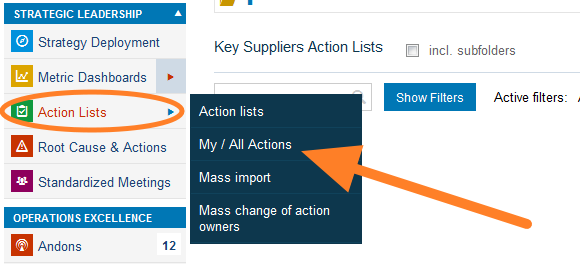
Open My / All Actions. Go to the Action Lists module and select My / All Actions from the submenu.
-
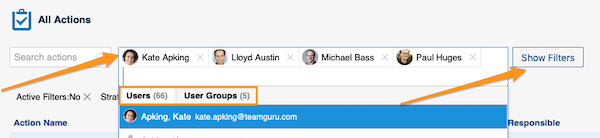
Select the people and filter the actions. Select the person(s) or user groups whose actions you want to view. You can narrow down the list further with the filters below the user name field: click the Show Filters button.
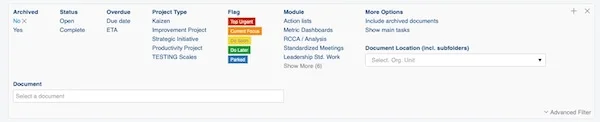
You will find more options when you click Advanced Filter.

-
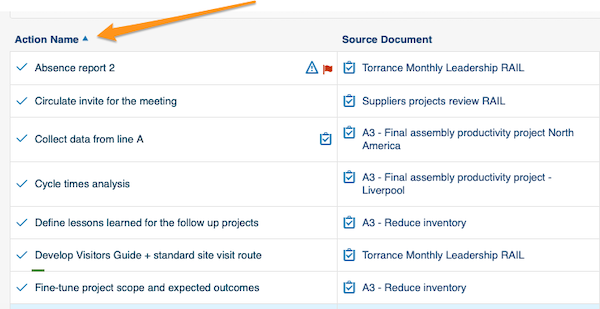
Sort the actions. You can sort the actions by columns: simply click a column title.
-
Open linked documents. Actions, source documents and the actions’ related documents are live links. Click a link to go directly to that document.

-
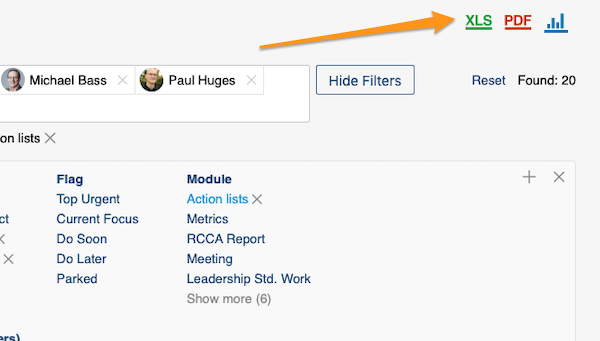
Export and view statistics. You can export your actions to an XLS or PDF file, and also view statistics.
Still need help?
Write to us. We usually reply within an hour on business days.