Jak zobrazit své, všechny nebo cizí akce
Strojový překlad z angličtiny. Zobrazen anglický originál.
You can easily view your own or other users’ actions across all TeamGuru documents (Action Lists, RPS, Checklists, etc.) with an advanced filter.
Video Guide (text instructions below)
-
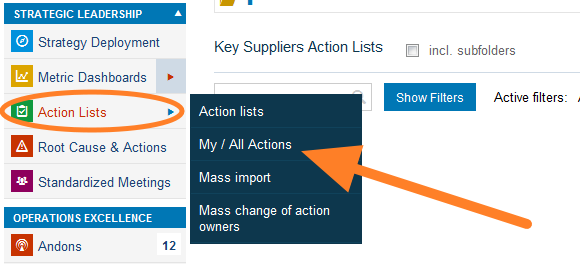
Open My / All Actions. Go to the Action Lists module and select My / All Actions from the submenu.
-
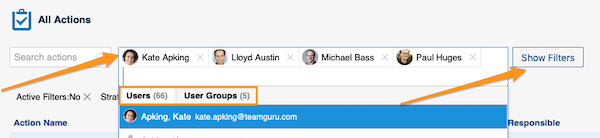
Select the people and filter the actions. Select the person(s) or user groups whose actions you want to view. You can narrow down the list further with the filters below the user name field: click the Show Filters button.
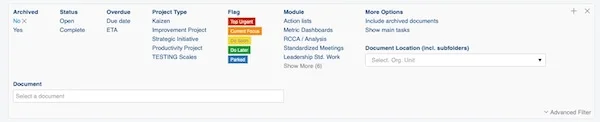
You will find more options when you click Advanced Filter.

-
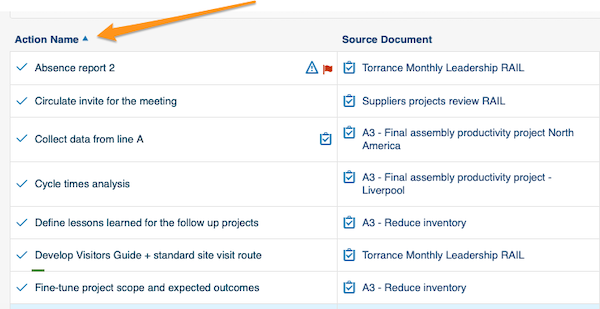
Sort the actions. You can sort the actions by columns: simply click a column title.
-
Open linked documents. Actions, source documents and the actions’ related documents are live links. Click a link to go directly to that document.

-
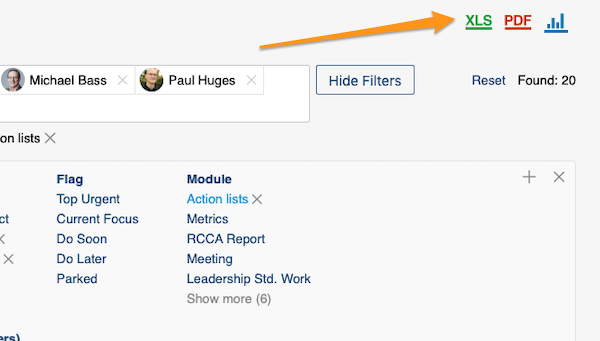
Export and view statistics. You can export your actions to an XLS or PDF file, and also view statistics.
Pomocí rozšířeného filtru snadno zobrazíte své akce i akce ostatních uživatelů napříč všemi dokumenty TeamGuru (Akční listy, RPS, Checklisty atd.).
Video návod (textový postup najdete níže)
-
Otevřete Moje / všechny akce. V modulu Akční listy vyberte v podmenu Moje / všechny akce.
-
Vyberte osoby a vyfiltrujte akce. Vyberte osobu (osoby) nebo skupiny uživatelů, jejichž akce chcete zobrazit. Seznam můžete dál zúžit filtry pod polem se jménem uživatele: klikněte na tlačítko Zobrazit filtry.
Další možnosti najdete po kliknutí na Rozšířený filtr.
-
Seřaďte akce. Akce můžete řadit podle sloupců: stačí kliknout na název sloupce.
-
Otevřete propojené dokumenty. Akce, zdrojové dokumenty i související dokumenty akcí jsou živé odkazy. Kliknutím na odkaz přejdete přímo do daného dokumentu.
-
Exportujte a zobrazte statistiky. Akce můžete exportovat do souboru XLS nebo PDF a zobrazit si statistiky.
Potřebujete další pomoc?
Napište nám. V pracovní dny obvykle odpovídáme do hodiny.