How to enable statistical control limits
TeamGuru can determine the control limits automatically using the principles of SPC (Statistical Process Control). This helps you react quickly to abnormal variations in your process.
Open the Statistical Limits tab
To enable the control limits, click into the relevant metric value cell to open the metric data entry window, and switch to the Statistical Limits tab.

Choose how the limits are set
-
Automatic. The system calculates the limits automatically from a selected number of historical values.
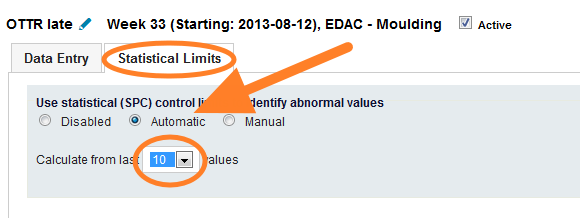
-
Manual. You set the control limits manually. To set them correctly, TeamGuru recommends following the limits calculated from historical data, which are displayed in the chart below the fields.
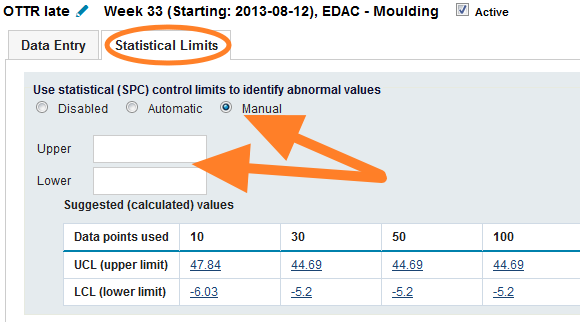
Set natural limits for a metric
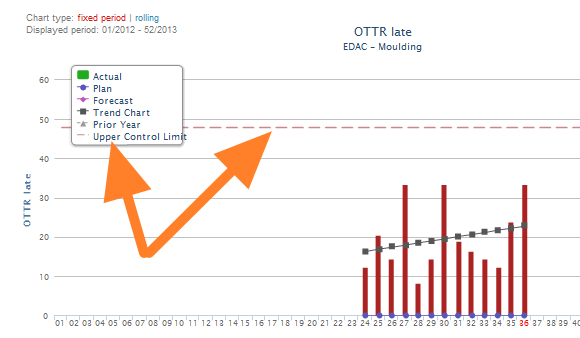
If your metric has natural limits (e.g. it cannot be lower than 0), you can set them in the metric definition screen. This setting is global and affects the control limits of all org. units. See the pictures below.
-
Without natural limits. The control limits before natural limits are set for the metric.
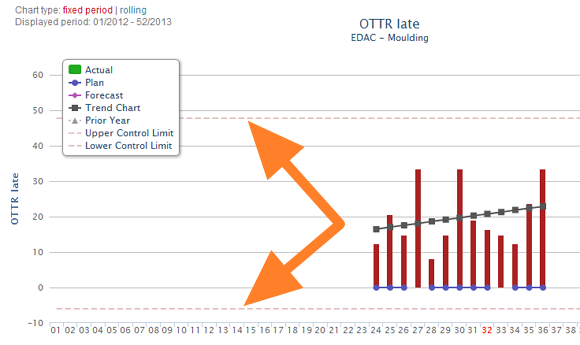
-
Natural limits in the metric setup. The control limits setup of the metric.
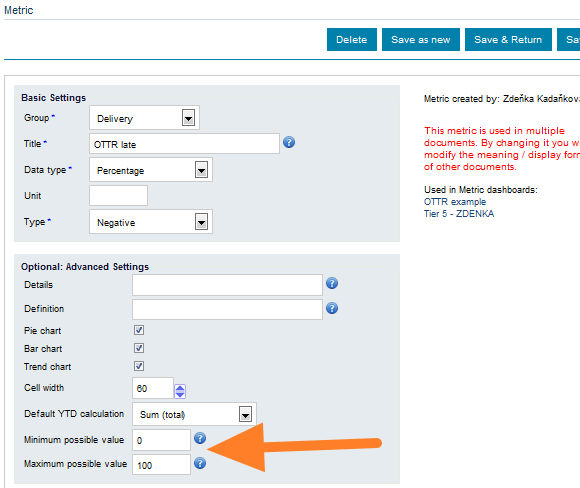
-
With natural limits. The control limits after natural limits are set for the metric.
Still need help?
Write to us. We usually reply within an hour on business days.