How to set up a metric roll-up
The metric roll-up function calculates monthly values from weekly or daily values. You can collect a metric on a weekly or daily basis, and once the roll-up is set up, the values are automatically recalculated for your monthly view.
-
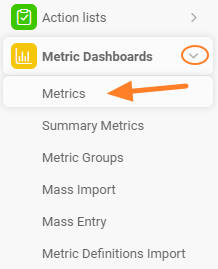
Open the metrics list. Go to the metrics list via the Metrics submenu of the Metric Dashboards module.
-
Edit the metric. Choose the metric you want to set up and click the edit icon next to it.
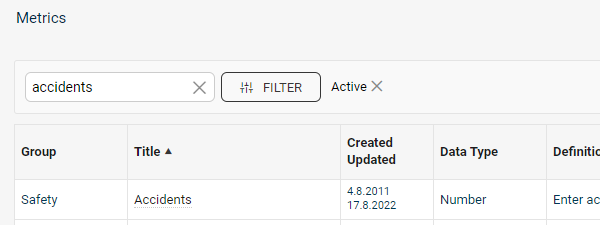

If the metric is locked, you need user rights for editing metric settings.
-
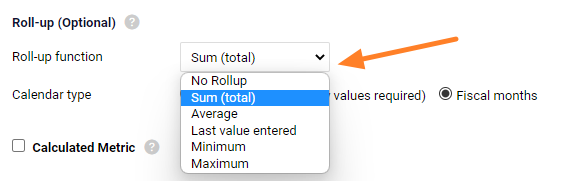
Choose the roll-up method. Define how the metric rolls up: Sum, Average, Last entered value, Minimum or Maximum. You can also choose No Rollup.
Choose the source of monthly values
The monthly values can be rolled up either from daily or from weekly data.
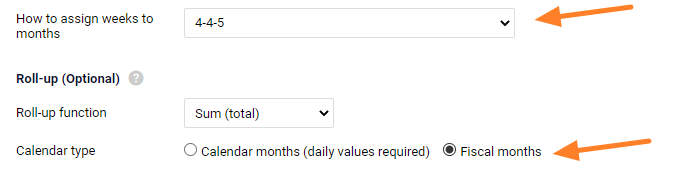
With the Calendar month (daily values required) option, the monthly values are calculated from the first day to the last day of the month (calendar month).
With the Fiscal months option, the monthly values are calculated according to the settings in the How to assign weeks to months (e.g. 4-4-5) section.
Rolled-up values are displayed in italics in the dashboard. You can overwrite them by entering values manually, unless a lock against manual overwriting is set up.
Related video guide: Set up a metric roll-up
Still need help?
Write to us. We usually reply within an hour on business days.