How to set up responsible in metric dashboard
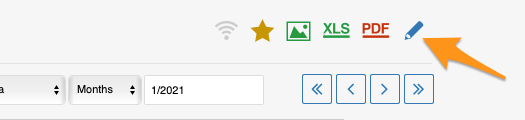
You can set up the responsible in the metric dashboard settings, on the Dashboard Setup tab.
Set up the responsible manually
Responsible for an org. unit and metric
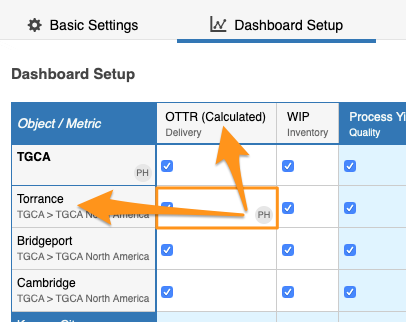
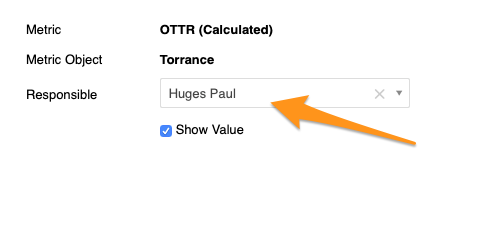
To set up the responsible for a combination of an org. unit and a metric, click the cell, choose your responsible and apply the changes.
Responsible for a whole org. unit
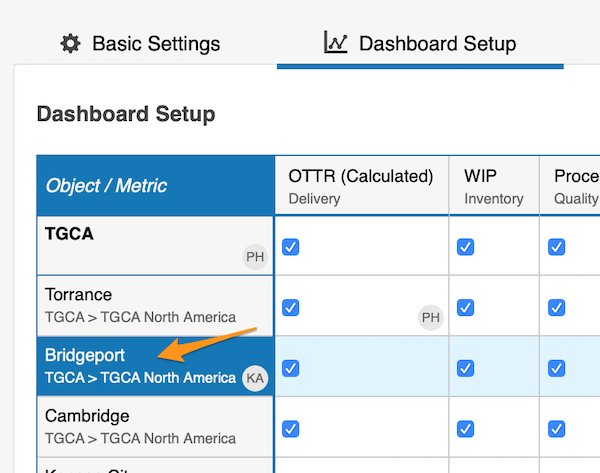
To set up the responsible for the whole org. unit, click the org. unit, choose the responsible and apply the changes.
See the responsible in the dashboard
The initials of the responsible for the whole org. unit are displayed in the dashboard right next to that org. unit. In this view, however, the responsible for an org. unit and metric combination is shown only when you hover over the cell.
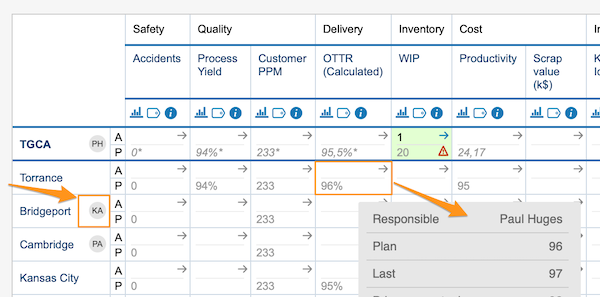
In a dashboard view set up as “show time periods in columns” by metrics or units, you also see the initials per metric or org. unit right next to it.
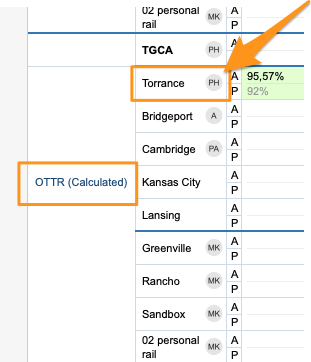
Set up the responsible automatically
Use the project leader in automatic dashboards
You can also set up the responsible for your projects in automatic metric dashboards. When you use an automatic metric dashboard for your projects, just tick the Set project leader as responsible box in the settings, and the responsible is added to your dashboard automatically.
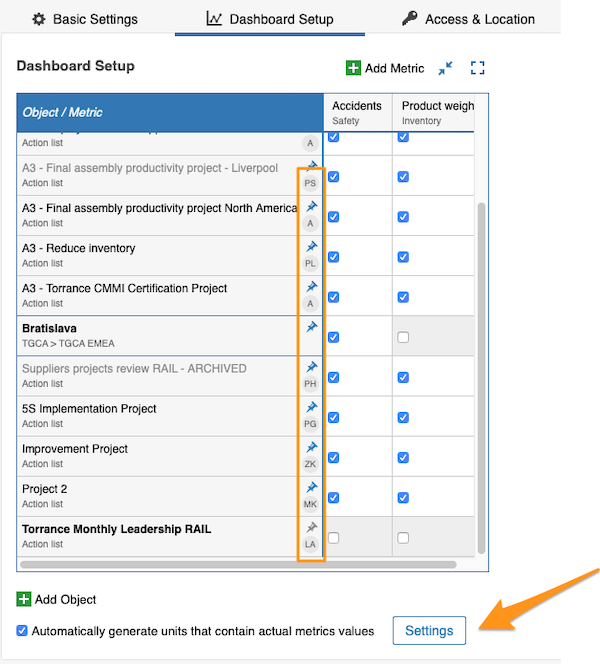
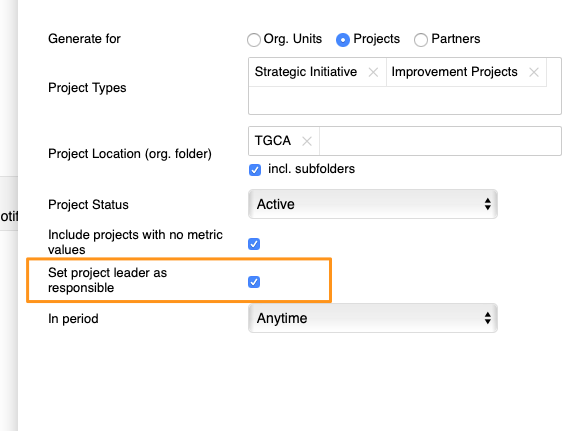
You can assign only one responsible per project.
Still need help?
Write to us. We usually reply within an hour on business days.