Ako zobraziť Moje/všetky akcie alebo akcie iných používateľov
Strojový preklad z angličtiny. Zobrazený je anglický originál.
You can easily view your own or other users’ actions across all TeamGuru documents (action lists, RPS, checklists, etc.) with an advanced filter.
Video guide (text instructions below):
View the actions
-
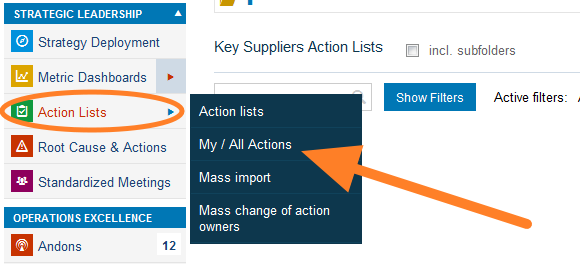
Open My/All Actions. Go to the Action Lists module and select My/All Actions from the submenu.
-
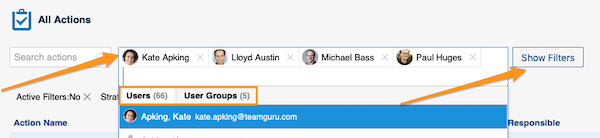
Select the people. Select the person(s) or user groups whose actions you want to view. You can narrow down the list of actions with the filters below the user name field: click the Show filters button.
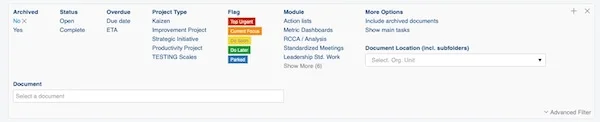
You can find more options when you click Advanced Filter.

-
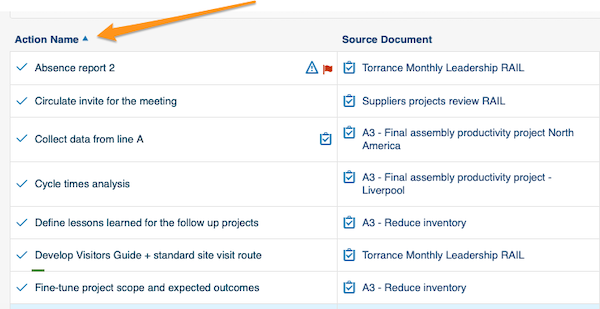
Sort the actions. You can sort the actions by columns: simply click a column title.
-
Open the linked documents. Actions, source documents and the actions’ related documents have live links. Click a link to go directly to that document.

-
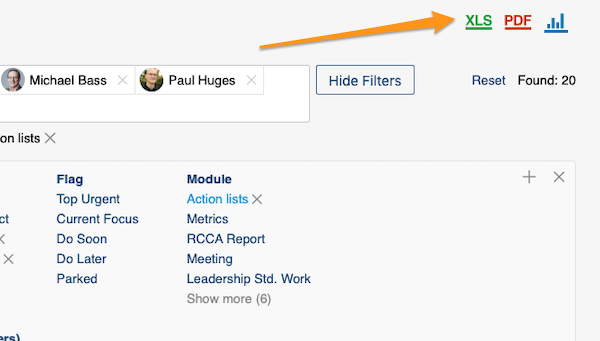
Export the actions. You can export your actions to an XLS or PDF file, and also view statistics.
Svoje akcie aj akcie iných používateľov zo všetkých dokumentov TeamGuru (akčné zoznamy, RPS, checklisty atď.) ľahko zobrazíte pomocou rozšíreného filtra.
Video návod (textový postup nižšie):
Zobrazenie akcií
-
Otvorte Moje/všetky akcie. Prejdite do modulu Akčné zoznamy a v podmenu zvoľte Moje/všetky akcie.
-
Vyberte ľudí. Vyberte osoby alebo skupiny používateľov, ktorých akcie chcete zobraziť. Zoznam akcií môžete zúžiť filtrami pod poľom s menom používateľa: kliknite na tlačidlo Zobraziť filtre.
Ďalšie možnosti nájdete po kliknutí na Rozšírený filter.
-
Zoraďte akcie. Akcie môžete zoradiť podľa stĺpcov: stačí kliknúť na názov stĺpca.
-
Otvorte prepojené dokumenty. Akcie, zdrojové dokumenty aj súvisiace dokumenty akcií majú aktívne odkazy. Kliknutím na odkaz prejdete priamo do daného dokumentu.
-
Exportujte akcie. Akcie môžete exportovať do súboru XLS alebo PDF a zobraziť aj štatistiky.
Potrebujete ďalšiu pomoc?
Napíšte nám. V pracovné dni zvyčajne odpovedáme do hodiny.