What is user verification and how does it work?
User verification is a routine check that an individual is still affiliated with your company. It maintains system security and accuracy. Users have to go through verification periodically, typically every year, although the interval can be adjusted as needed. To complete the verification successfully, users must have a valid email address in their profile.
Verify your account
-
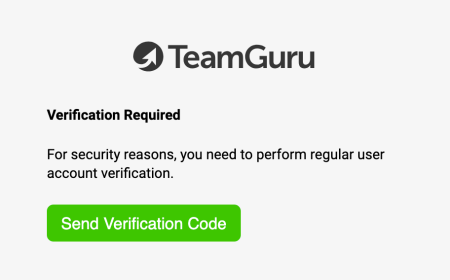
Get the verification notice. When you log in to your TeamGuru instance, you receive a notification saying Verification Required.
-
Send the verification code. Click the Send Verification Code button. The verification code is sent to your email.
-
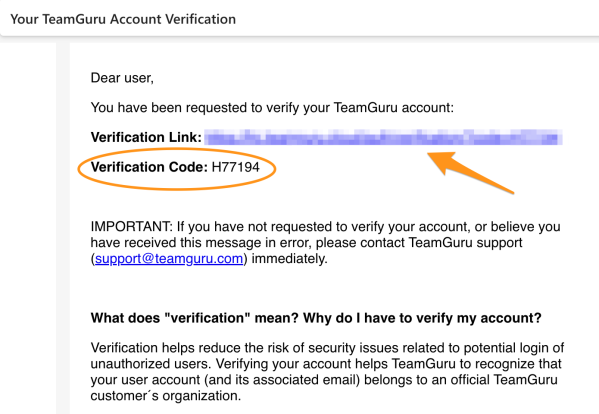
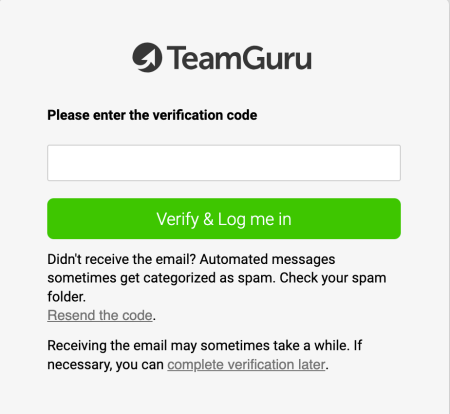
Verify with the link or code. In the notification email, either click the verification link, or copy the verification code and enter it in the Verify & Log me in field.
-
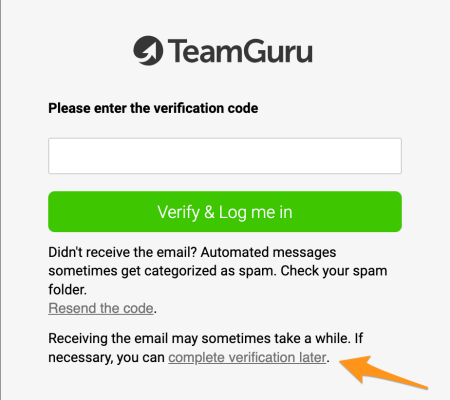
Or verify later. You can also complete your verification later. If you choose this option, make sure you complete it promptly: otherwise the system automatically logs you out and blocks your account.
-
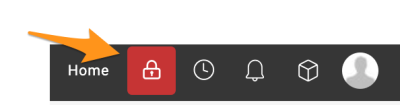
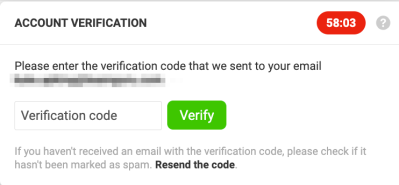
Check the remaining time. If you postpone the verification, a red lock icon appears in the top banner. Click it to see the remaining time before your account gets blocked and to enter the verification code. You can also request the code to be resent.
-
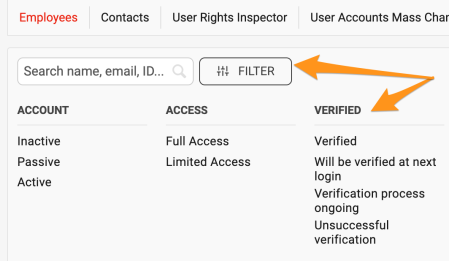
Monitor the verification (administrators). Administrators can monitor the users’ verification status through the filtering options in their user management section.
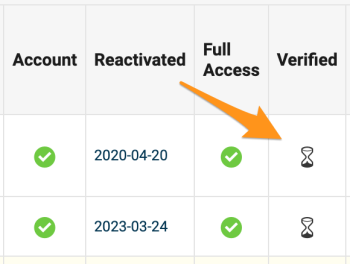
Icons in the Verified column
Verification completed
A green tick means that the verification was completed successfully.

Verification pending
A sandglass means that the user will be verified at the next login, or that the verification process is ongoing.

Verification failed
A red dot means that the verification has failed.

Related article: How to unblock the user? Manual verification.
Still need help?
Write to us. We usually reply within an hour on business days.