Jak předvybrat štítky v projektu
Strojový překlad z angličtiny. Zobrazen anglický originál.
Help the people responsible for your actions find and choose the correct labels: preselect the labels in your action list.
Preselect the labels
Edit the action list settings
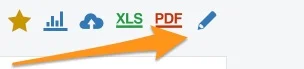
Go to your action list settings and click the edit pencil.
Allow preselected labels only
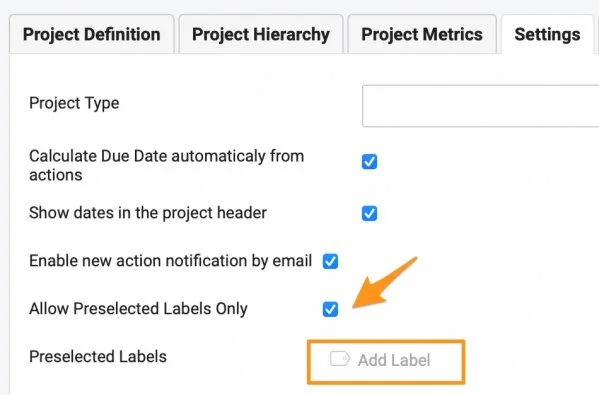
Scroll down to the Settings tab, tick Allow Preselected Labels Only and click Add Label.
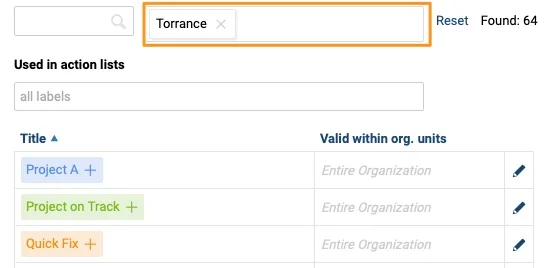
Here you see all the labels available in the system, based on the filter setup. You can filter by location and by document.
Filter labels by location
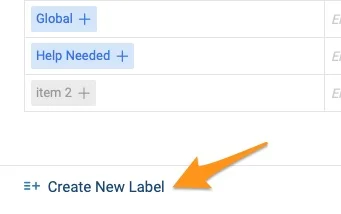
Choose from the existing labels of the location, or remove the location from the filter and search the entire organization. If you don’t find the label you need, you can create a new one.
Filter labels by document
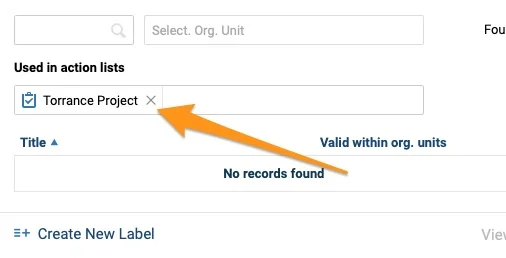
To copy labels from a different action list, use the document filter option (Used in Action Lists).
Select the labels
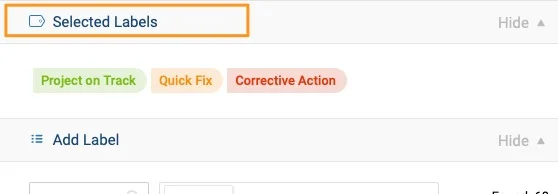
Click a label to add it at the top, among the Selected Labels.
Save the settings
When you close the window, the preselected labels appear in your project settings. Click Save.

Use the preselected labels
Add a label to an action
The action owner sees the available labels when adding a label to an action.

Pomozte odpovědným osobám za vaše akce najít a vybrat správné štítky: předvyberte štítky v akčním listu.
Předvýběr štítků
Upravte nastavení akčního listu
Otevřete nastavení akčního listu a klikněte na ikonu tužky.
Povolte pouze předvybrané štítky
Sjeďte dolů na kartu Nastavení, zaškrtněte Povolit pouze předvybrané štítky a klikněte na Přidat štítek.
Zobrazí se všechny štítky dostupné v systému podle nastaveného filtru. Filtrovat můžete podle umístění a podle dokumentu.
Filtrujte štítky podle umístění
Vyberte z existujících štítků daného umístění, nebo umístění z filtru odeberte a hledejte v celé organizaci. Pokud potřebný štítek nenajdete, můžete vytvořit nový.
Filtrujte štítky podle dokumentu
Chcete-li převzít štítky z jiného akčního listu, použijte filtr dokumentů (Použito v akčních listech).
Vyberte štítky
Kliknutím na štítek ho přidáte nahoru mezi Vybrané štítky.
Uložte nastavení
Po zavření okna se předvybrané štítky zobrazí v nastavení projektu. Klikněte na Uložit.
Použití předvybraných štítků
Přidejte štítek k akci
Odpovědná osoba za akci uvidí dostupné štítky, když k akci přidává štítek.
Potřebujete další pomoc?
Napište nám. V pracovní dny obvykle odpovídáme do hodiny.