Document Approval Process (Multi-Level)
TeamGuru provides a multi-level approval process for your documents. Your system administrator sets up the approval template, and you set up your document based on it.
Watch the video guide
The text instructions are included below the video.
Set up the approval
-
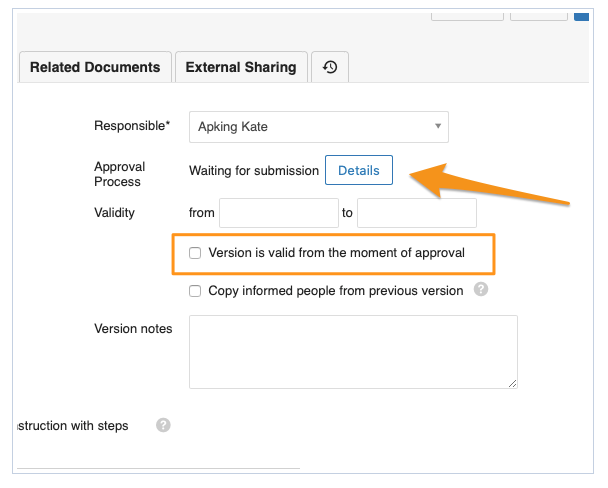
Open the approval details. To choose the approvers for your document, click Details under the Current Version tab of your document settings. You can also select the automated option Version is valid from the moment of approval for the validity of your document.
-
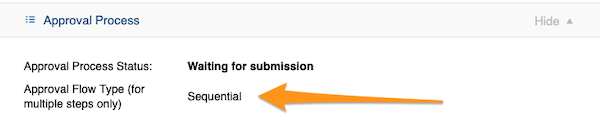
Check the approval flow type. The approval flow type is either Parallel (the document can be approved at any time, regardless of the other approvers) or Sequential (the document is approved by approval levels, e.g. once the 1st level has approved it, it needs to be approved by the 2nd level, if selected, and so on).
The approval flow type can be changed only in the approval template.
-
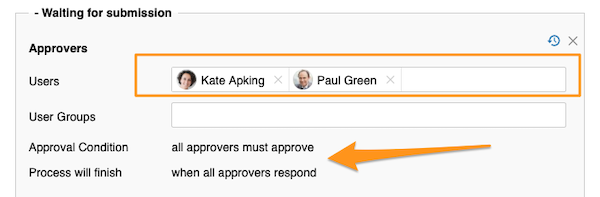
Choose the approvers. Choose your approver(s): individual users or user groups. This section also shows the Approval condition and Process will finish requirements, which are set up and can be changed only in the approval template.
-
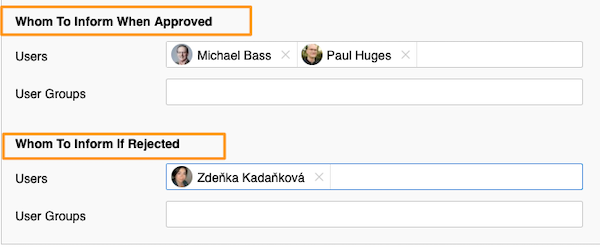
Choose whom to inform. Choose Whom to Inform When Approved and Whom to Inform if Rejected. These fields are optional and differ from Whom to inform in the document settings under the Notifications & Settings tab.
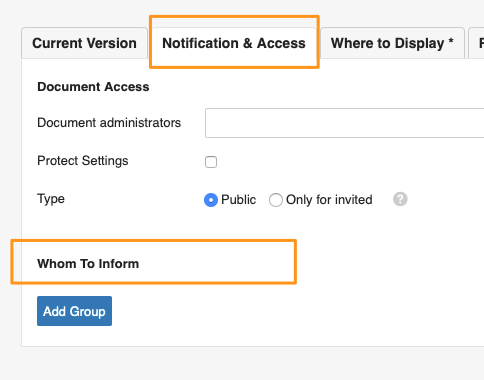
-
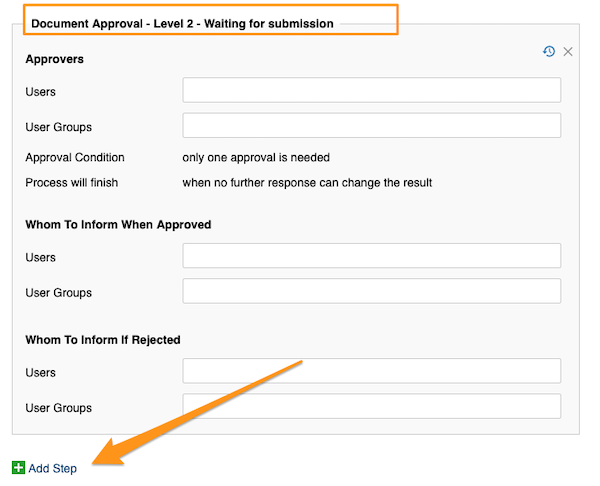
Set up further levels. If you have several approval levels (they can be enabled in the approval process template), repeat the process in Level 2 the same way as in Level 1: select the approvers and the people to be informed.
You can add as many levels as you need. To add a level, click the green plus button Add Step.
Edit the approval process template
Note for system administrators: to edit an approval process template, go to Settings and select Approval Process Templates from the submenu.


Still need help?
Write to us. We usually reply within an hour on business days.