How to display Year-to-date values
Metric dashboards give you the option to see all “to date” values.
Define the to-date formula
The formula for the YTD/QTD/MTD/WTD calculation is defined directly in the metric’s general settings, under Optional: Advanced Settings, as shown in the picture below.
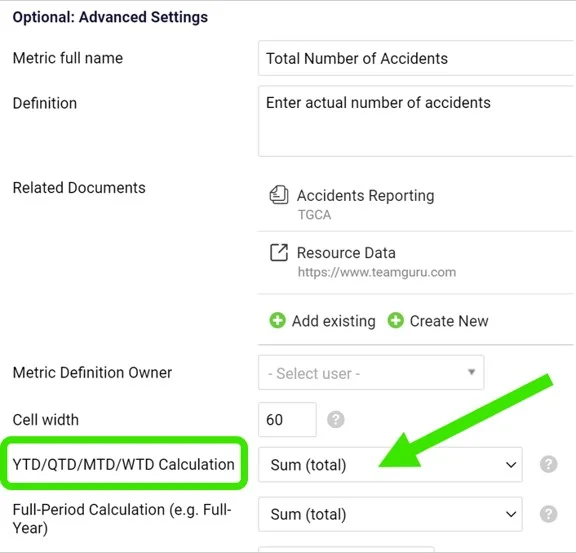
The calculation is usually defined when creating a new metric.
Show to-date values in the dashboard
To see the values in your metric dashboard, open the dashboard’s edit screen and follow these steps:
-
Open the dashboard settings. Go to the metric dashboard and click the Edit icon.

-
Select the metric. Click the particular metric you want to set up the to-date calculation for.
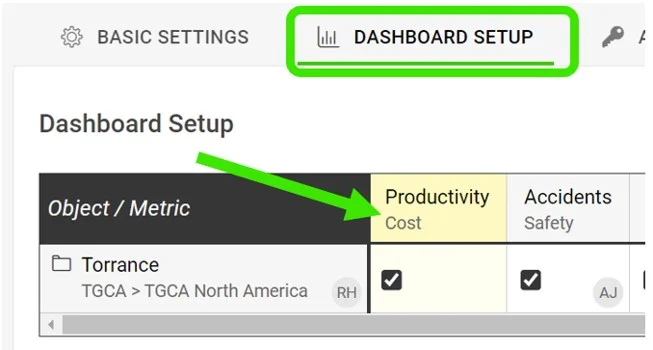
-
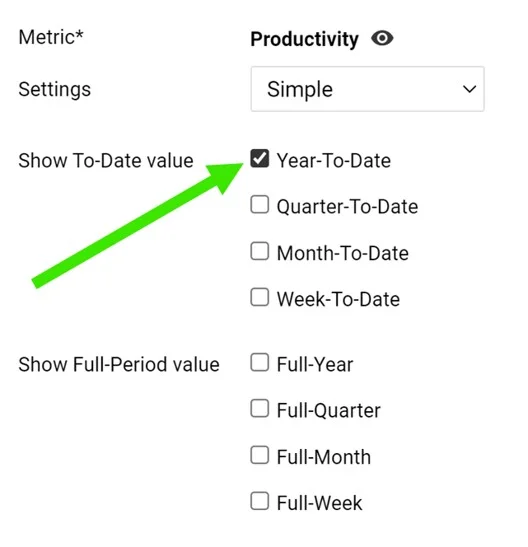
Tick the to-date values. Tick the boxes for YTD, QTD, MTD or WTD to display the values.
-
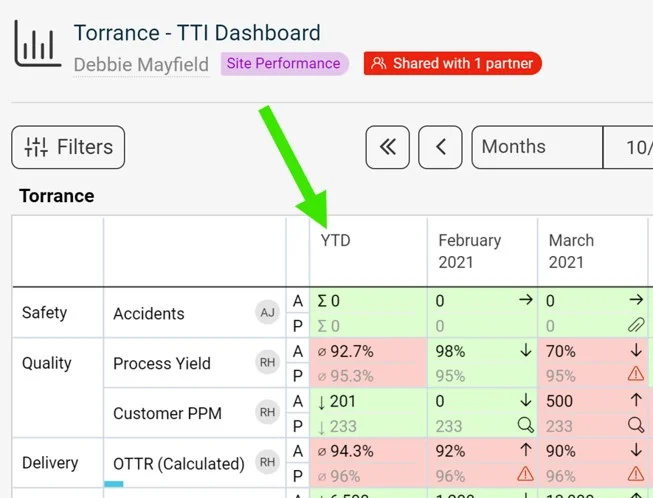
Save and view the dashboard. Click Save, then Save & View.
Still need help?
Write to us. We usually reply within an hour on business days.