How to view comments in a row
You can view all actions and comments right next to your dashboard. You can also view comments in a row next to your projects, org. units or partners per time period.
Watch the video guide, or follow the text instructions below.
View comments in a row
-
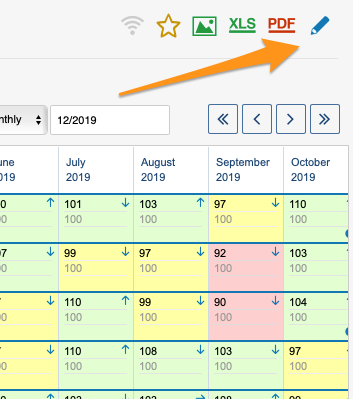
Open the dashboard settings. Go to the metric dashboard settings: click the edit pencil.
-
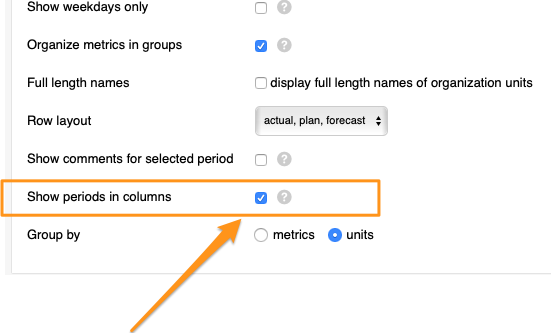
Show periods in columns. Tick the Show periods in columns box.
-
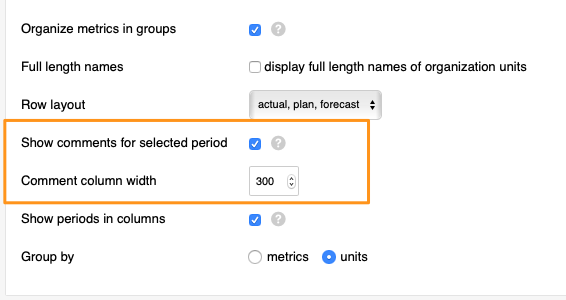
Show comments for the selected period. After you tick the box, tick another box above it, Show comments for selected period (you can also select the comment column width), and save your changes.
-
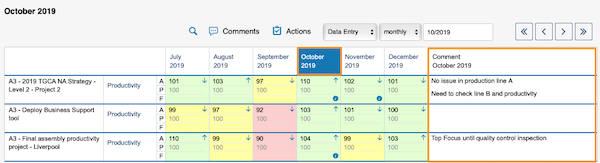
View the comments. Select a time period in your dashboard and view the comments.
Still need help?
Write to us. We usually reply within an hour on business days.