Wskaźniki wyliczane z innych wskaźników – wskaźniki obliczane
Tłumaczenie maszynowe z angielskiego. Wyświetlany jest oryginał po angielsku.
You can set up an automatically calculated metric based on the values of other metrics (e.g. On Time Delivery %).
-
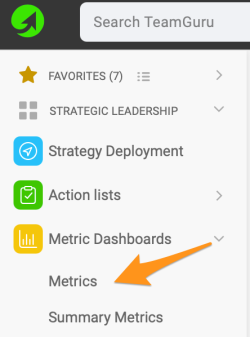
Open the metrics list. Go to the Metric Dashboards menu and select Metrics in the submenu.
-
Create a new metric. Click the Create New icon if the metric has not been created yet.
-
Or edit an existing metric. Click the edit icon if the metric already exists in the system.

-
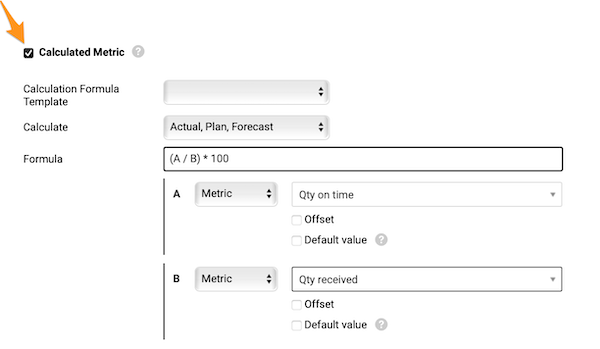
Turn on the calculation. Define all the metric details as for any other metric and tick the Calculated Metric checkbox.
-
Choose what to calculate. In Calculate, specify which values to calculate (actual, plan and forecast values, or just actual).
-
Enter the formula. In Formula, enter your formula. See the list of all available functions and examples of how to build a formula, or contact us if you need any assistance.
-
Set the offset. In Offset, set up your offset time period.
-
Set a default value. In Default view, tick the box and use a default value (most likely 0) for cases where an input metric has no value entered and the formula cannot be calculated without it.
-
Test and save. Test your calculation if needed and save.
-
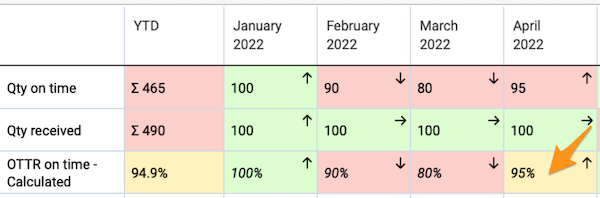
See the calculated value. The ratio value is now calculated automatically in your metric dashboard from the source values.
-
Use sources from any dashboard. The source values do not have to be in the same dashboard as the calculated one.
-
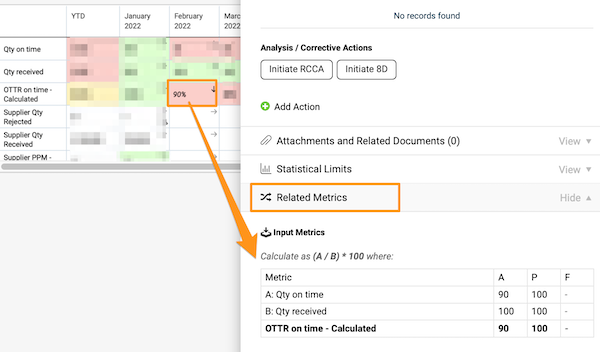
Check the calculation. To check how your metric is calculated, click the value cell and go to the Related Metrics field.
Related video guide: Set Up Calculated Metric
Możesz ustawić wskaźnik obliczany automatycznie na podstawie wartości innych wskaźników (np. terminowość dostaw w %).
-
Otwórz listę wskaźników. Otwórz menu Dashboardy KPI i w podmenu wybierz Wskaźniki.
-
Utwórz nowy wskaźnik. Jeśli wskaźnika jeszcze nie ma, kliknij ikonę Utwórz nowy.
-
Albo edytuj istniejący wskaźnik. Jeśli wskaźnik już jest w systemie, kliknij ikonę edycji.
-
Włącz obliczanie. Ustaw wszystkie szczegóły wskaźnika jak dla każdego innego i zaznacz pole Wskaźnik obliczany.
-
Wybierz, co obliczać. W polu Oblicz wskaż, które wartości mają być obliczane (rzeczywiste, planowane i prognozowane albo tylko rzeczywiste).
-
Wpisz formułę. W polu Formuła wpisz formułę. Zobacz listę wszystkich dostępnych funkcji i przykłady budowania formuł albo napisz do nas, jeśli potrzebujesz pomocy.
-
Ustaw przesunięcie. W polu Przesunięcie ustaw okres przesunięcia.
-
Ustaw wartość domyślną. W polu Widok domyślny zaznacz pole i podaj wartość domyślną (zwykle 0) na wypadek, gdy wskaźnik wejściowy nie ma wpisanej wartości, a bez niej formuły nie da się obliczyć.
-
Przetestuj i zapisz. W razie potrzeby przetestuj obliczenie i zapisz.
-
Zobacz obliczoną wartość. Wartość wskaźnika jest teraz obliczana w dashboardzie KPI automatycznie z wartości źródłowych.
-
Korzystaj ze źródeł z dowolnego dashboardu. Wartości źródłowe nie muszą być w tym samym dashboardzie co wartość obliczana.
-
Sprawdź obliczenie. Aby sprawdzić, jak wskaźnik jest obliczany, kliknij komórkę z wartością i przejdź do pola Powiązane wskaźniki.
Powiązane wideo: Ustaw wskaźnik obliczany
Potrzebujesz dalszej pomocy?
Napisz do nas. W dni robocze zwykle odpowiadamy w ciągu godziny.