Indicadores calculados a partir de otros indicadores
Traducción automática del inglés. Se muestra el original en inglés.
You can set up an automatically calculated metric based on the values of other metrics (e.g. On Time Delivery %).
-
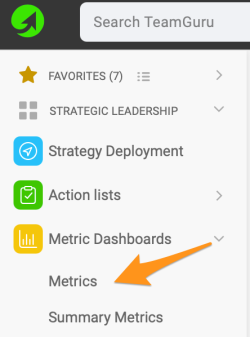
Open the metrics list. Go to the Metric Dashboards menu and select Metrics in the submenu.
-
Create a new metric. Click the Create New icon if the metric has not been created yet.

-
Or edit an existing metric. Click the edit icon if the metric already exists in the system.

-
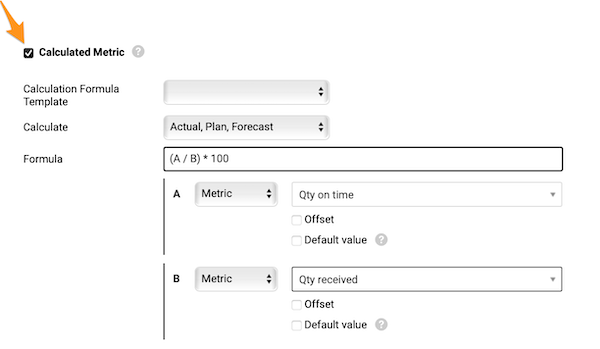
Turn on the calculation. Define all the metric details as for any other metric and tick the Calculated Metric checkbox.
-
Choose what to calculate. In Calculate, specify which values to calculate (actual, plan and forecast values, or just actual).
-
Enter the formula. In Formula, enter your formula. See the list of all available functions and examples of how to build a formula, or contact us if you need any assistance.
-
Set the offset. In Offset, set up your offset time period.
-
Set a default value. In Default view, tick the box and use a default value (most likely 0) for cases where an input metric has no value entered and the formula cannot be calculated without it.
-
Test and save. Test your calculation if needed and save.
-
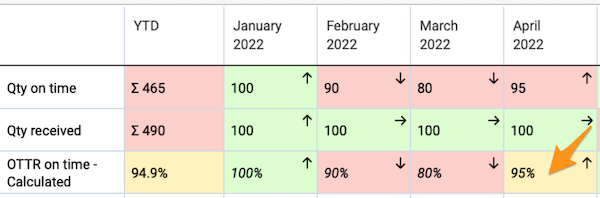
See the calculated value. The ratio value is now calculated automatically in your metric dashboard from the source values.
-
Use sources from any dashboard. The source values do not have to be in the same dashboard as the calculated one.
-
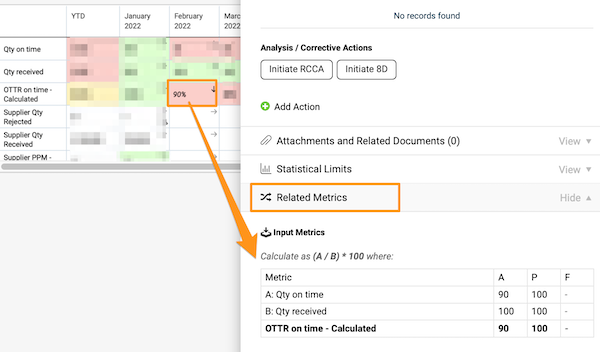
Check the calculation. To check how your metric is calculated, click the value cell and go to the Related Metrics field.
Related video guide: Set Up Calculated Metric
Puede configurar un indicador que se calcula automáticamente a partir de los valores de otros indicadores (por ejemplo, % de entregas a tiempo).
-
Abra la lista de indicadores. Vaya al menú Dashboards de KPI y elija Indicadores en el submenú.
-
Cree un nuevo indicador. Haga clic en el ícono Crear nuevo si el indicador aún no existe.
-
O edite un indicador existente. Haga clic en el ícono de edición si el indicador ya existe en el sistema.
-
Active el cálculo. Defina todos los datos del indicador como en cualquier otro y marque la casilla Indicador calculado.
-
Elija qué se calcula. En Calcular, indique qué valores se calculan (real, plan y pronóstico, o solo el real).
-
Escriba la fórmula. En Fórmula, escriba su fórmula. Consulte la lista de todas las funciones disponibles y los ejemplos de cómo armar una fórmula, o contáctenos si necesita ayuda.
-
Defina el desfase. En Desfase, configure el periodo de desfase.
-
Defina un valor predeterminado. En Vista predeterminada, marque la casilla y use un valor predeterminado (normalmente 0) para los casos en que un indicador de entrada no tenga valor y la fórmula no se pueda calcular sin él.
-
Pruebe y guarde. Si lo necesita, pruebe el cálculo y guarde.
-
Vea el valor calculado. El valor del cociente se calcula ahora automáticamente en su dashboard de KPI a partir de los valores de origen.
-
Use orígenes de cualquier dashboard. Los valores de origen no tienen que estar en el mismo dashboard que el valor calculado.
-
Revise el cálculo. Para ver cómo se calcula su indicador, haga clic en la celda del valor y vaya al campo Indicadores relacionados.
Video relacionado: Configurar un indicador calculado
¿Necesita más ayuda?
Escríbanos. En días laborables solemos responder en menos de una hora.