Display actions in your Report
You can display actions in a report and filter them as needed.
Add the Actions widget
-
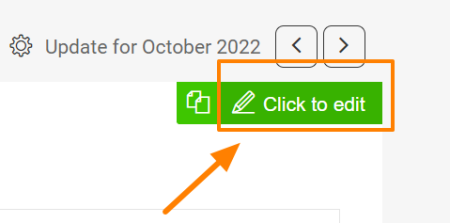
Open the slide in edit mode. Go to a slide and click the Click to edit icon in the upper right corner.
-
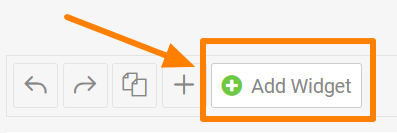
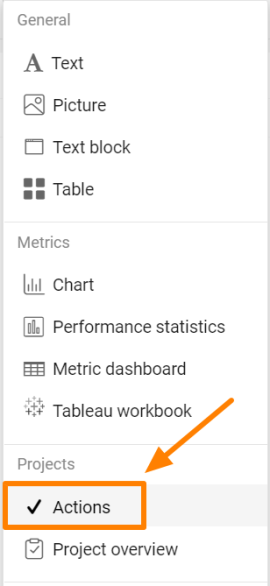
Add the Actions widget. Click the green plus button Add Widget and select Actions from the submenu.
-
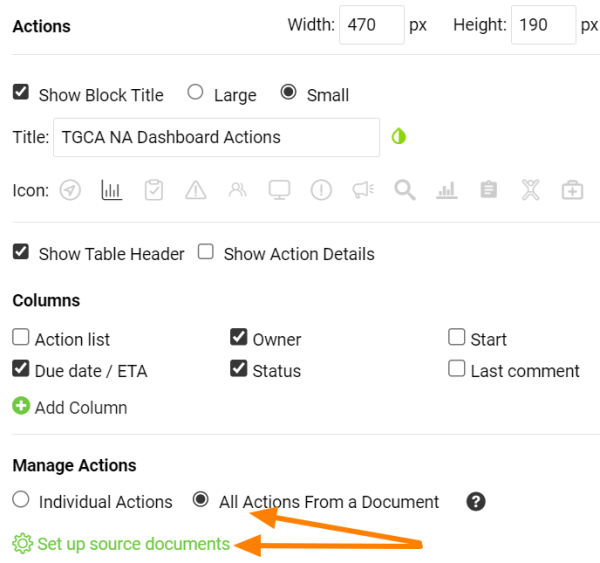
Choose the type of actions. Choose All Actions From a Document or Individual Actions, then click Set up source documents.
-
Select the source documents. Select the source document(s) and use the filter below to set up the criteria.
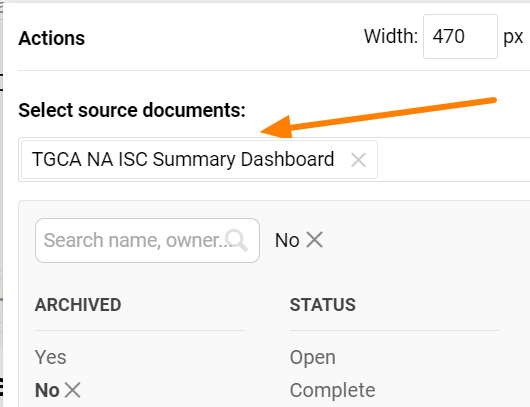
Please note that the Actions widget doesn’t display live data. It shows the latest status at the time the report was updated. To display the current status of the actions, refresh the widget.
Refresh the actions
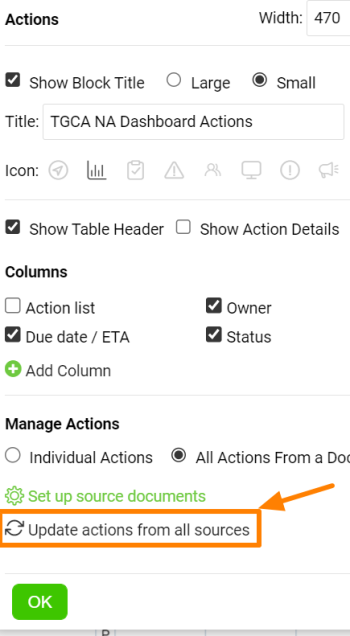
Refresh a single widget
You can update each Actions widget separately.
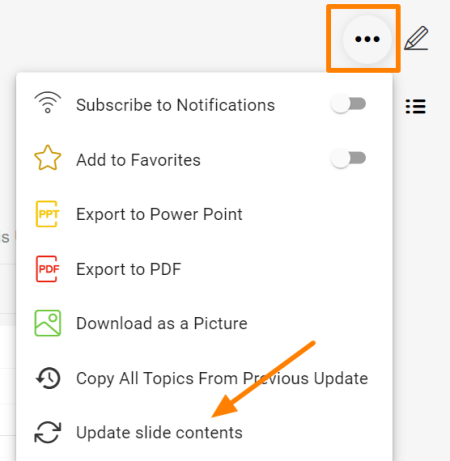
Refresh all Actions widgets
Or you can update all Actions widgets in your report at once with this function in the upper right corner of the report.
Still need help?
Write to us. We usually reply within an hour on business days.