Zobrazení akcí v reportu
Strojový překlad z angličtiny. Zobrazen anglický originál.
You can display actions in a report and filter them as needed.
Add the Actions widget
-
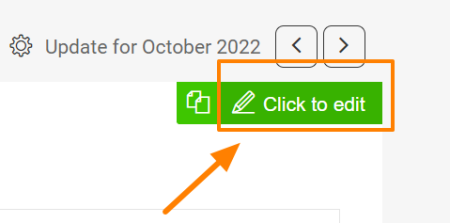
Open the slide in edit mode. Go to a slide and click the Click to edit icon in the upper right corner.
-
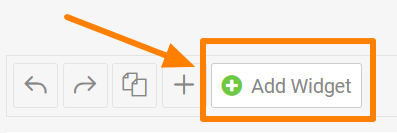
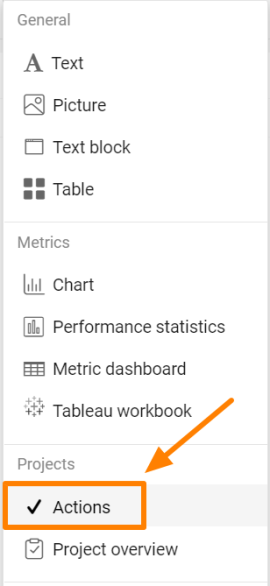
Add the Actions widget. Click the green plus button Add Widget and select Actions from the submenu.
-
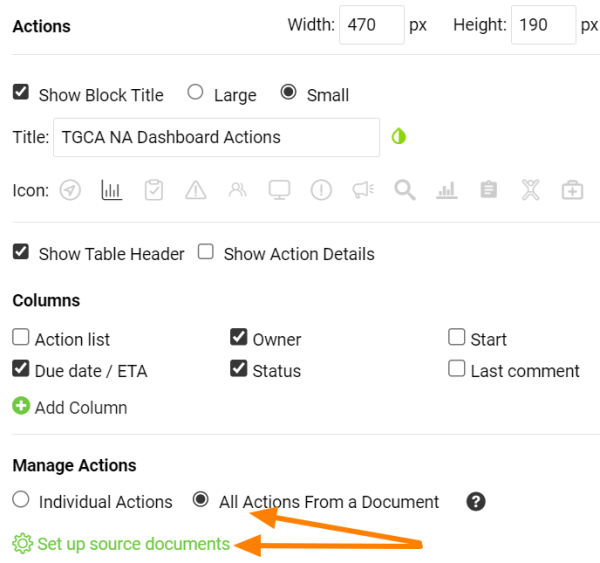
Choose the type of actions. Choose All Actions From a Document or Individual Actions, then click Set up source documents.
-
Select the source documents. Select the source document(s) and use the filter below to set up the criteria.
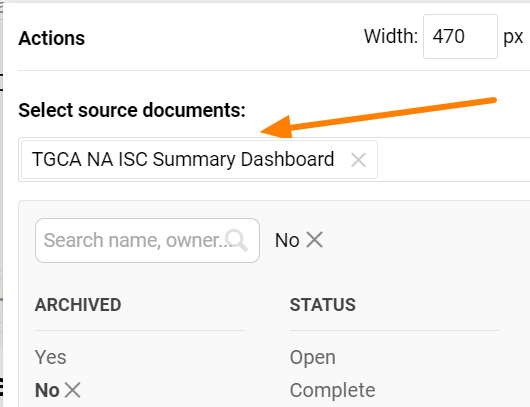
Please note that the Actions widget doesn’t display live data. It shows the latest status at the time the report was updated. To display the current status of the actions, refresh the widget.
Refresh the actions
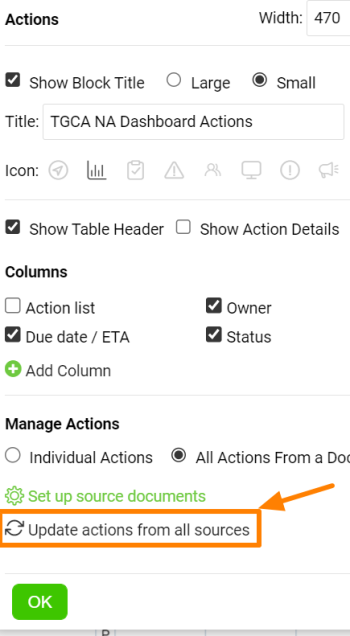
Refresh a single widget
You can update each Actions widget separately.
Refresh all Actions widgets
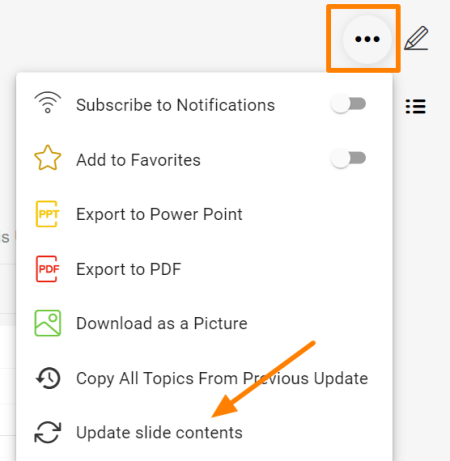
Or you can update all Actions widgets in your report at once with this function in the upper right corner of the report.
V reportu můžete zobrazit akce a podle potřeby je filtrovat.
Přidání widgetu Akce
-
Otevřete snímek v režimu úprav. Přejděte na snímek a klikněte na ikonu Klikněte pro úpravy vpravo nahoře.
-
Přidejte widget Akce. Klikněte na zelené tlačítko plus Přidat widget a v podnabídce vyberte Akce.
-
Zvolte typ akcí. Zvolte Všechny akce z dokumentu nebo Jednotlivé akce a klikněte na Nastavit zdrojové dokumenty.
-
Vyberte zdrojové dokumenty. Vyberte zdrojový dokument (nebo více dokumentů) a filtrem pod nimi nastavte kritéria.
Upozornění: Widget Akce nezobrazuje živá data. Ukazuje poslední stav z doby, kdy byl report aktualizován. Aktuální stav akcí zobrazíte obnovením widgetu.
Obnovení akcí
Obnovení jednoho widgetu
Každý widget Akce můžete aktualizovat zvlášť.
Obnovení všech widgetů Akce
Všechny widgety Akce v reportu můžete také aktualizovat najednou touto funkcí vpravo nahoře v reportu.
Potřebujete další pomoc?
Napište nám. V pracovní dny obvykle odpovídáme do hodiny.