在报告中显示行动
本文由英文机器翻译。 当前显示英文原文。
You can display actions in a report and filter them as needed.
Add the Actions widget
-
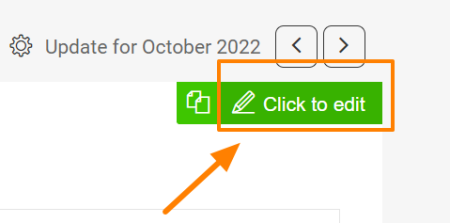
Open the slide in edit mode. Go to a slide and click the Click to edit icon in the upper right corner.
-
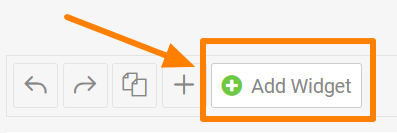
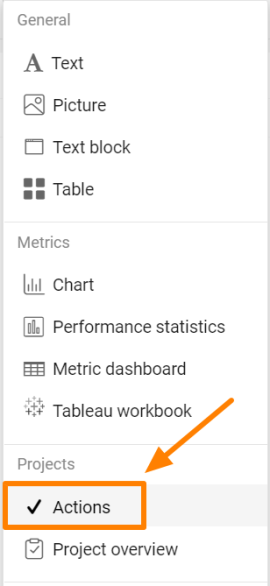
Add the Actions widget. Click the green plus button Add Widget and select Actions from the submenu.
-
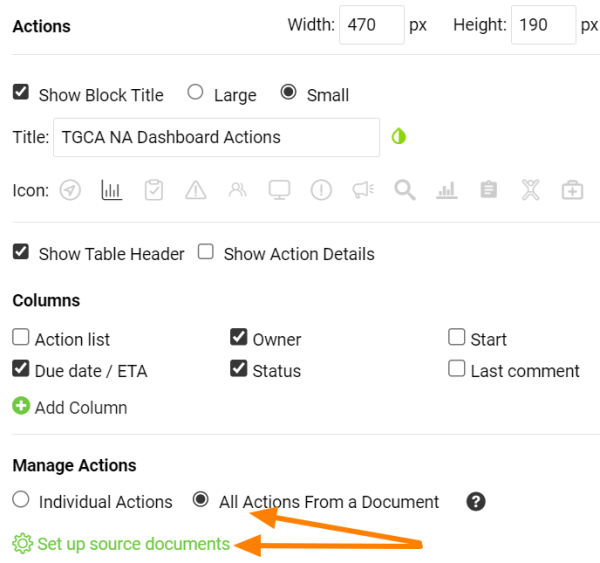
Choose the type of actions. Choose All Actions From a Document or Individual Actions, then click Set up source documents.
-
Select the source documents. Select the source document(s) and use the filter below to set up the criteria.
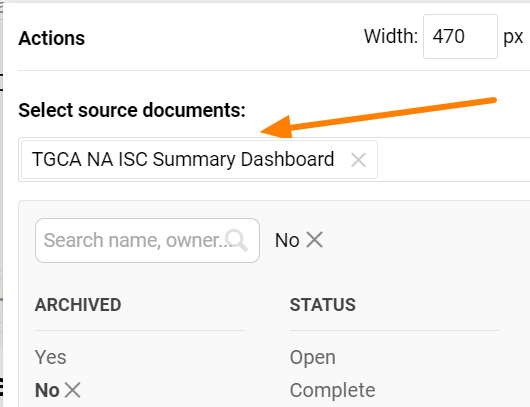
Please note that the Actions widget doesn’t display live data. It shows the latest status at the time the report was updated. To display the current status of the actions, refresh the widget.
Refresh the actions
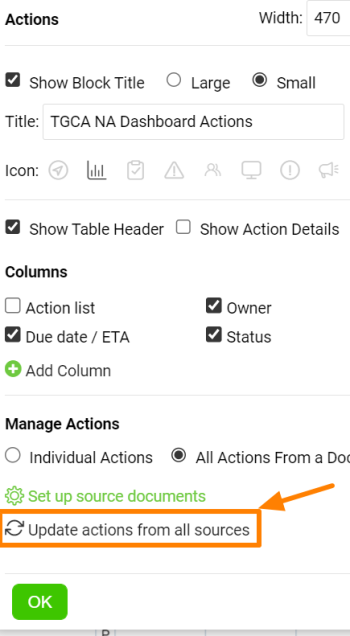
Refresh a single widget
You can update each Actions widget separately.
Refresh all Actions widgets
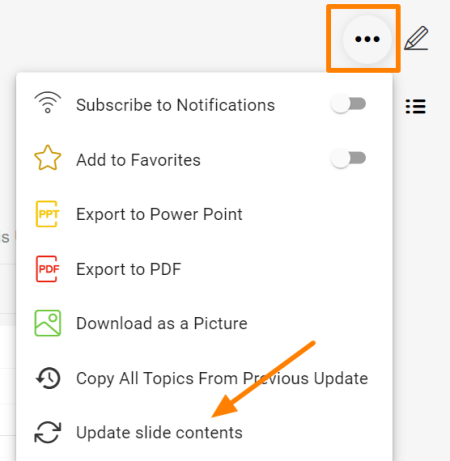
Or you can update all Actions widgets in your report at once with this function in the upper right corner of the report.
您可以在报告中显示行动,并按需筛选。
添加行动小部件
-
进入幻灯片编辑模式。 进入幻灯片,点击右上角的 点击编辑 图标。
-
添加行动小部件。 点击绿色加号按钮 添加小部件,从子菜单中选择 行动。
-
选择行动类型。 选择 文档中的所有行动 或 单个行动,然后点击 设置源文档。
-
选择源文档。 选择一个或多个源文档,并使用下方的筛选器设置条件。
请注意,行动小部件不显示实时数据,而是显示报告更新时的最新状态。要显示行动的当前状态,请刷新小部件。
刷新行动
刷新单个小部件
您可以分别更新每个行动小部件。
刷新所有行动小部件
也可以使用报告右上角的此功能,一次性更新报告中的所有行动小部件。
还需要帮助吗?
请给我们留言。工作日我们通常会在一小时内回复。