Protect Report and Slide settings
You can use one of these three layers of data protection on your report, or combine them:
- Protect the content of your report against viewing.
- Lock the settings of the report definition.
- Lock the settings on the slide level.
Protect the report
Restrict who can view the report
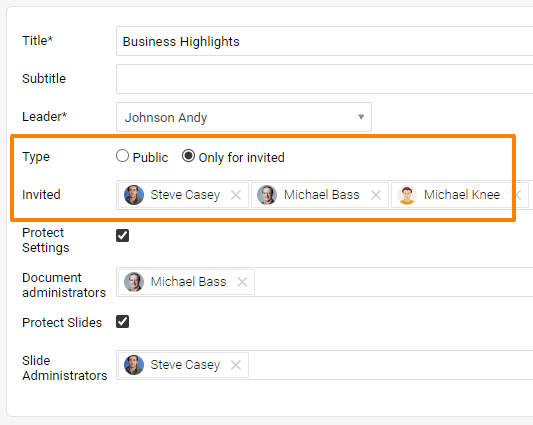
If your report contains sensitive data that only specific team members may view, lock the report by changing its Type from Public to Only for invited, and list these members below.
Lock the report definition
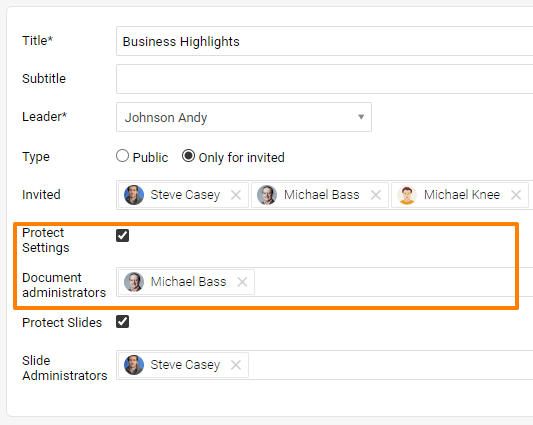
You can lock the settings of the report definition, including the slide update (= topic update). To make sure that the report definition doesn’t get changed and the report itself isn’t copied, use the Protect Settings function and list the users who are allowed to do so as Document Administrators. These administrators can change the report definition as well as the content of the slides (topic update).
Lock the slide settings
Let users edit all slides
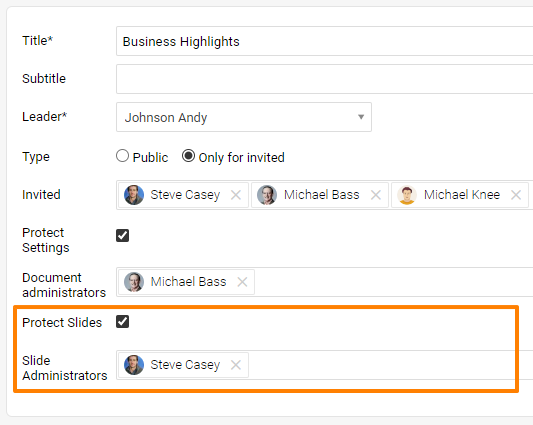
Sometimes you need to allow some team members to edit the slides (do the topic update) in a locked report. Use the Protect Slides function and then decide whether a user can edit all the slides or just some of them.
If the user can edit all the slides in the report, just set this person up as a Slide Administrator.
Let users edit selected slides
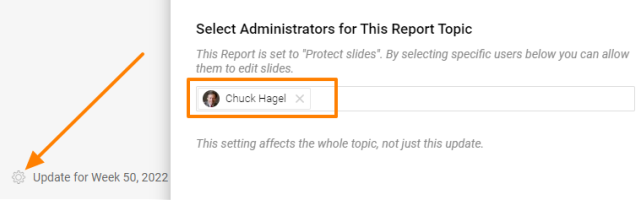
If this person should edit just some of the slides (topics), go to the particular slide and set the person up there.
Still need help?
Write to us. We usually reply within an hour on business days.