Ochrana nastavení reportu a snímok
Strojový preklad z angličtiny. Zobrazený je anglický originál.
You can use one of these three layers of data protection on your report, or combine them:
- Protect the content of your report against viewing.
- Lock the settings of the report definition.
- Lock the settings on the slide level.
Protect the report
Restrict who can view the report
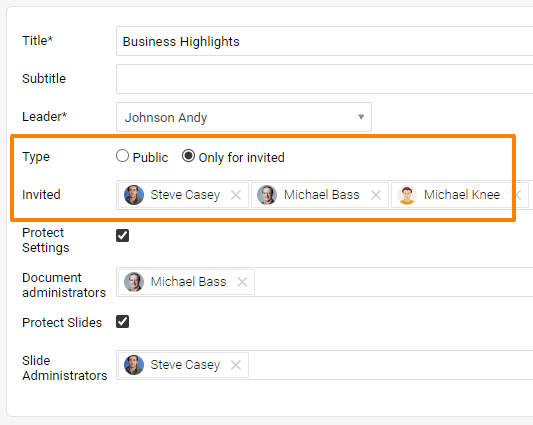
If your report contains sensitive data that only specific team members may view, lock the report by changing its Type from Public to Only for invited, and list these members below.
Lock the report definition
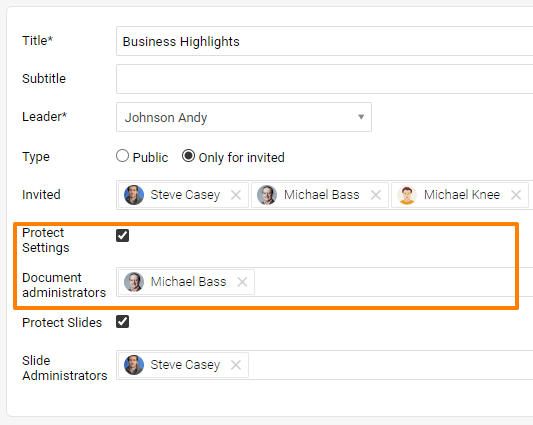
You can lock the settings of the report definition, including the slide update (= topic update). To make sure that the report definition doesn’t get changed and the report itself isn’t copied, use the Protect Settings function and list the users who are allowed to do so as Document Administrators. These administrators can change the report definition as well as the content of the slides (topic update).
Lock the slide settings
Let users edit all slides
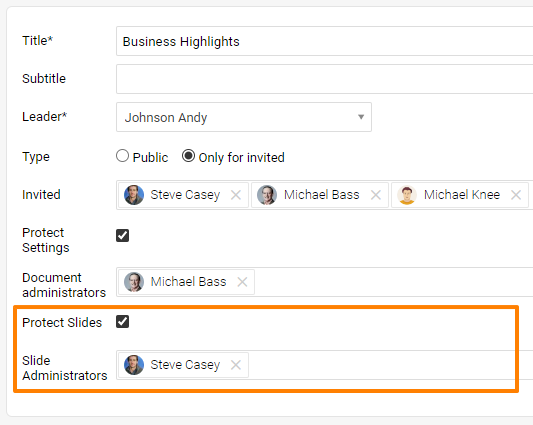
Sometimes you need to allow some team members to edit the slides (do the topic update) in a locked report. Use the Protect Slides function and then decide whether a user can edit all the slides or just some of them.
If the user can edit all the slides in the report, just set this person up as a Slide Administrator.
Let users edit selected slides
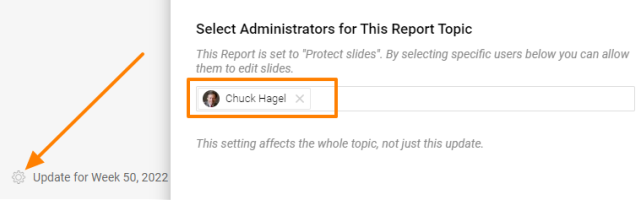
If this person should edit just some of the slides (topics), go to the particular slide and set the person up there.
Na ochranu údajov v reporte môžete použiť jednu z týchto troch úrovní alebo ich kombinovať:
- Chráňte obsah reportu pred zobrazením.
- Uzamknite nastavenia definície reportu.
- Uzamknite nastavenia na úrovni snímok.
Chráňte report
Obmedzte, kto môže report zobraziť
Ak report obsahuje citlivé údaje, ktoré smú vidieť len niektorí členovia tímu, uzamknite ho: zmeňte jeho Typ z Verejný na Len pre pozvaných a nižšie týchto členov uveďte.
Uzamknite definíciu reportu
Nastavenia definície reportu môžete uzamknúť vrátane aktualizácie snímok (= aktualizácie tém). Aby sa definícia reportu nezmenila a samotný report sa neskopíroval, použite funkciu Chrániť nastavenia a používateľov, ktorí to smú robiť, uveďte ako Administrátorov dokumentu. Títo administrátori môžu meniť definíciu reportu aj obsah snímok (aktualizáciu tém).
Uzamknite nastavenia snímok
Povoľte používateľom upravovať všetky snímky
Niekedy potrebujete niektorým členom tímu povoliť úpravu snímok (aktualizáciu tém) v uzamknutom reporte. Použite funkciu Chrániť snímky a potom rozhodnite, či používateľ môže upravovať všetky snímky, alebo len niektoré.
Ak má používateľ upravovať všetky snímky v reporte, stačí ho nastaviť ako Administrátora snímok.
Povoľte používateľom upravovať vybrané snímky
Ak má tento používateľ upravovať len niektoré snímky (témy), prejdite na konkrétnu snímku a nastavte ho priamo tam.
Potrebujete ďalšiu pomoc?
Napíšte nám. V pracovné dni zvyčajne odpovedáme do hodiny.