Ochrana nastavení reportu a slidů
Strojový překlad z angličtiny. Zobrazen anglický originál.
You can use one of these three layers of data protection on your report, or combine them:
- Protect the content of your report against viewing.
- Lock the settings of the report definition.
- Lock the settings on the slide level.
Protect the report
Restrict who can view the report
If your report contains sensitive data that only specific team members may view, lock the report by changing its Type from Public to Only for invited, and list these members below.
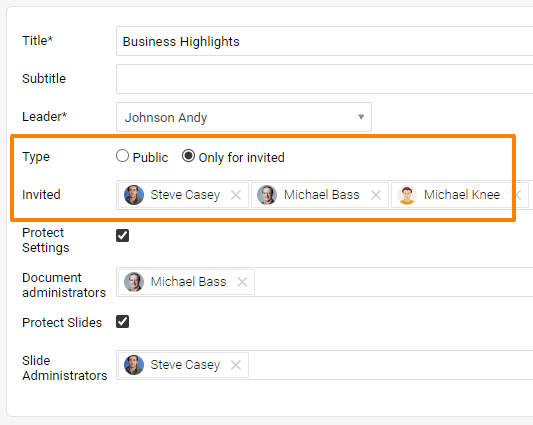
Lock the report definition
You can lock the settings of the report definition, including the slide update (= topic update). To make sure that the report definition doesn’t get changed and the report itself isn’t copied, use the Protect Settings function and list the users who are allowed to do so as Document Administrators. These administrators can change the report definition as well as the content of the slides (topic update).
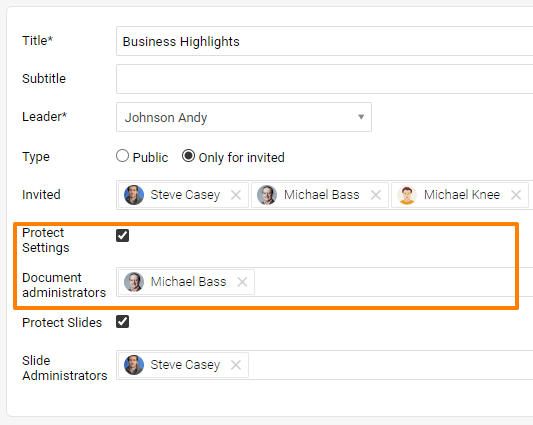
Lock the slide settings
Let users edit all slides
Sometimes you need to allow some team members to edit the slides (do the topic update) in a locked report. Use the Protect Slides function and then decide whether a user can edit all the slides or just some of them.
If the user can edit all the slides in the report, just set this person up as a Slide Administrator.
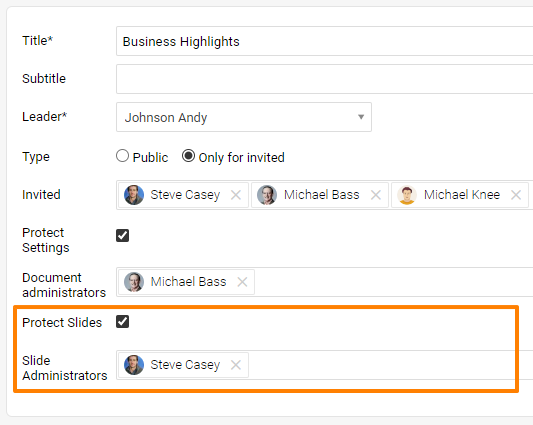
Let users edit selected slides
If this person should edit just some of the slides (topics), go to the particular slide and set the person up there.
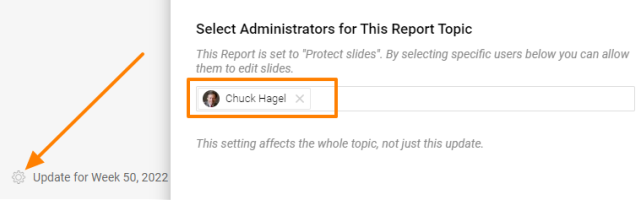
Report můžete chránit jednou z těchto tří úrovní ochrany dat, případně je kombinovat:
- Chraňte obsah reportu před zobrazením.
- Zamkněte nastavení definice reportu.
- Zamkněte nastavení na úrovni slidů.
Chraňte report
Omezte, kdo report uvidí
Pokud report obsahuje citlivá data, která smějí vidět jen určití členové týmu, zamkněte ho: změňte jeho Typ z Veřejný na Jen pro pozvané a tyto členy uveďte níže.
Zamkněte definici reportu
Nastavení definice reportu můžete zamknout, včetně aktualizace slidů (= aktualizace témat). Aby nikdo definici reportu nezměnil a report nezkopíroval, použijte funkci Chránit nastavení a uživatele, kteří to smějí, uveďte jako Administrátory dokumentu. Tito administrátoři mohou měnit definici reportu i obsah slidů (aktualizaci témat).
Zamkněte nastavení slidů
Povolte úpravu všech slidů
Někdy potřebujete některým členům týmu povolit úpravu slidů (aktualizaci témat) v zamčeném reportu. Použijte funkci Chránit slidy a rozhodněte, zda uživatel smí upravovat všechny slidy, nebo jen některé.
Pokud má uživatel upravovat všechny slidy reportu, stačí ho nastavit jako Administrátora slidů.
Povolte úpravu vybraných slidů
Pokud má uživatel upravovat jen některé slidy (témata), přejděte na konkrétní slide a nastavte ho tam.
Potřebujete další pomoc?
Napište nám. V pracovní dny obvykle odpovídáme do hodiny.