批量上传新用户
本文由英文机器翻译。 当前显示英文原文。
If you want to create several users at the same time, use the mass upload of new users.
-
Prepare the user data. Prepare an Excel sheet with the user details as shown below: name, surname, login, email and job title (optional).

-
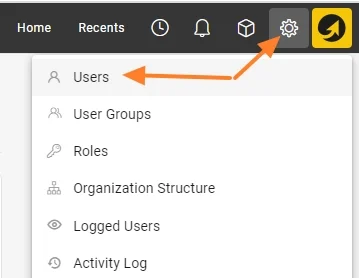
Open the user list. Go to the Settings menu and the Users submenu.
-
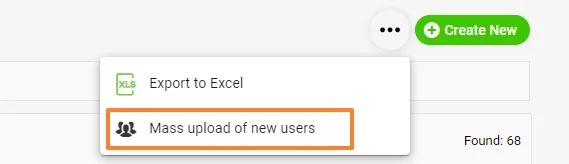
Start the mass upload. Click the three dots in the upper right corner, then the Mass upload of new users icon.
-
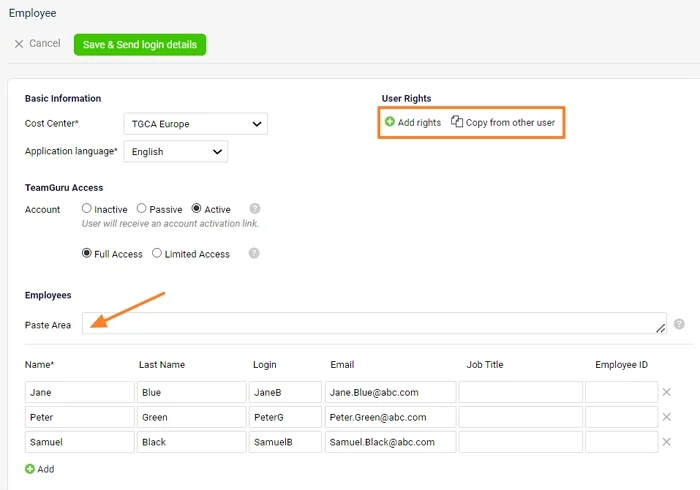
Paste the user data. Fill in the basic information and copy the data from your Excel sheet to the Paste Area. The new users’ details are uploaded.
-
Set up the user rights. If all new users should have the same user rights, you can set them up right now: either choose a specific folder they should have access to, or copy the access from an existing user. You can also set up the user rights individually once the users are created.
-
Save and send the login details. Click the green Save & Send login details button.
如需同时创建多个用户,请使用批量上传新用户功能。
-
准备用户数据。 按下图准备一份包含用户详细信息的Excel表格:名字、姓氏、登录名、电子邮件和职位(可选)。
-
打开用户列表。 进入 设置 菜单的 用户 子菜单。
-
开始批量上传。 点击右上角的三个点,然后点击 批量上传新用户 图标。
-
粘贴用户数据。 填写基本信息,并将Excel表格中的数据复制到 粘贴区。新用户的详细信息随即上传。
-
设置用户权限。 如果所有新用户的用户权限相同,可以现在就进行设置:选择他们应有权访问的特定文件夹,或复制现有用户的访问权限。也可以在创建用户后再分别设置用户权限。
-
保存并发送登录信息。 点击绿色的 保存并发送登录信息 按钮。
还需要帮助吗?
请给我们留言。工作日我们通常会在一小时内回复。