如何更改X-matrix的设置
本文由英文机器翻译。 当前显示英文原文。
All settings of a plan are in one panel. Click the settings icon (the cogwheel) next to the title of the plan. The icon is available to users who may manage the plan. While the matrix has unsaved changes the icon is disabled – finish or cancel them first.
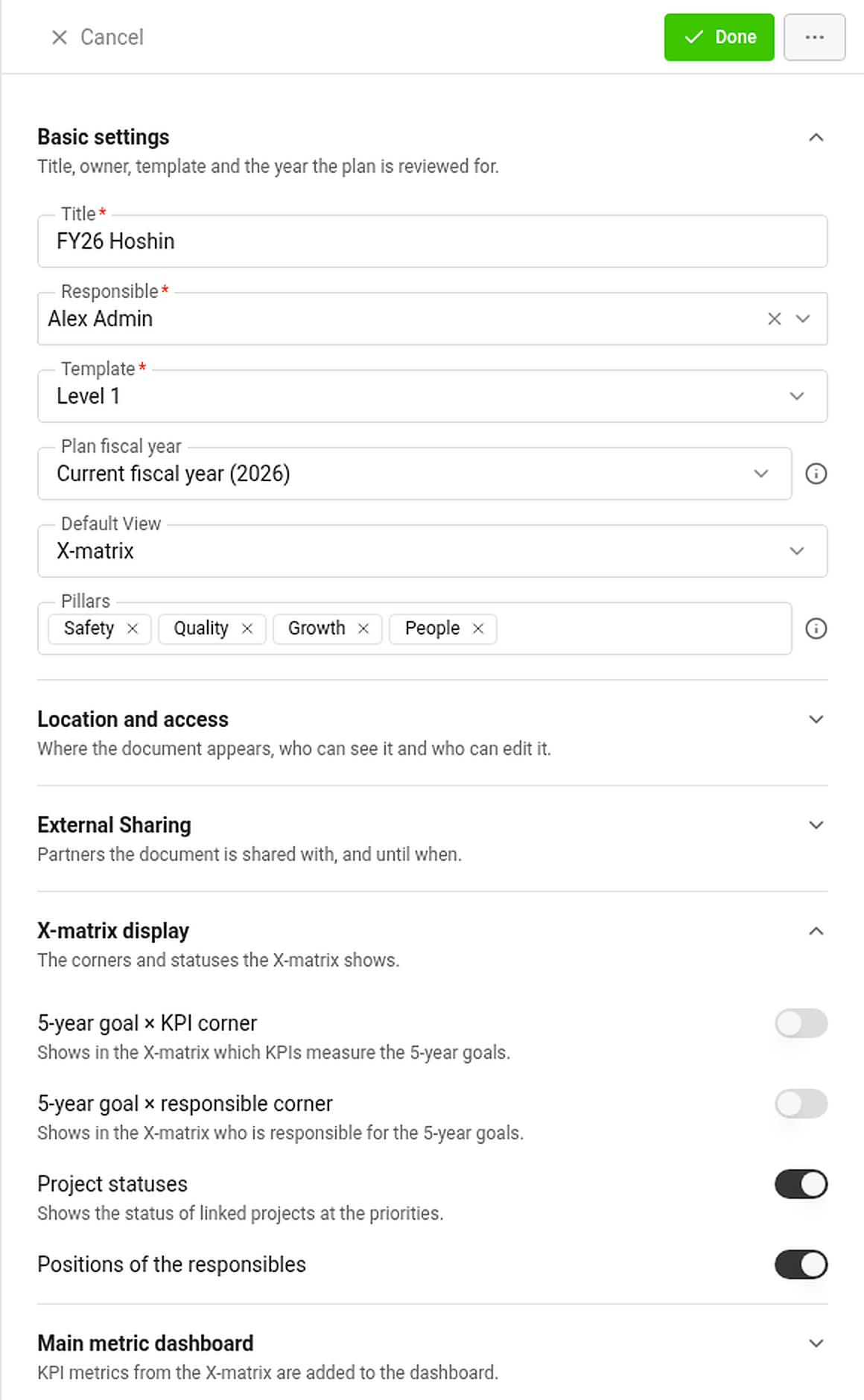
Sections of the panel
Basic settings
- Title, Responsible (owner) and Template. The template decides the names of the four lists.
- Plan fiscal year – the year the whole page reviews: elapsed time, year-to-date values and charts. Choose the current fiscal year or any other one, for example to look back at last year.
- Default View – the tab the plan opens in: X-matrix, Strategic Plan or Pillars.
- Pillars – the tags the Strategic Plan and Pillars views group the plan by, in the order you choose.
Location and access – where the document appears, whether it is private, and who may see and edit it.
External sharing – partners the document is shared with, and until when.
X-matrix display
- 5-year goal × KPI corner – shows in the matrix which KPIs measure the 5-year goals.
- 5-year goal × responsible corner – shows who is responsible for the 5-year goals.
- Project statuses – shows the status of linked projects next to the priorities.
- Positions of the responsibles – shows the job position next to the name.
The two corners are for orientation only: their links never change a status. Switching a corner off hides its links but keeps them for when you switch it on again.
Main metric dashboard – the dashboard the KPIs of the matrix read from. KPI metrics are added to it automatically.
Saving
The panel has no Save button. Done, Esc or a click outside the panel saves your changes and close it. If saving fails, the panel stays open and shows the errors. Cancel discards the changes after a confirmation.
Copy and archive
The … menu at the top of the panel offers Copy (a copy of the plan in the same template), Copy to: … (a copy in the template of the next level – it leaves out the 5-year goals) and Archive.
Change history
Change History in the … menu next to the title opens the log of changes made to the plan.
计划的所有设置都在一个面板中。点击计划标题旁的设置图标(齿轮)。有权管理该计划的用户才能使用此图标。矩阵中有未保存的更改时,该图标不可用,请先完成或取消这些更改。
面板的各个部分
基本设置
- 标题、负责人(所有者)和模板。模板决定四个列表的名称。
- 计划财年:整个页面评审的年度,包括已过时间、年初至今的数值和图表。可以选择当前财年或其他任意年度,例如回顾去年。
- 默认视图:计划打开时显示的选项卡:X-matrix、战略计划或支柱。
- 支柱:战略计划和支柱视图对计划进行分组所依据的标签,按您选择的顺序排列。
位置和访问权限:文档显示的位置、是否为私有,以及谁可以查看和编辑。
外部共享:文档共享给哪些合作伙伴,以及共享截止时间。
X-matrix显示
- 5年目标 × KPI角:在矩阵中显示哪些KPI衡量5年目标。
- 5年目标 × 负责人角:显示谁负责5年目标。
- 项目状态:在优先事项旁显示关联项目的状态。
- 负责人职位:在姓名旁显示职位。
这两个角仅供参考:其中的关联不会改变任何状态。关闭某个角会隐藏其关联,但关联会保留,重新开启后即可恢复显示。
主指标仪表板:矩阵中KPI读取数据的仪表板。KPI指标会自动添加到该仪表板中。
保存
面板中没有保存按钮。点击完成、按Esc键或点击面板外部,即可保存更改并关闭面板。如果保存失败,面板会保持打开并显示错误。点击取消并确认后,将放弃更改。
复制和归档
面板顶部的 … 菜单提供复制(使用相同模板复制计划)、复制到:…(使用下一层级的模板复制,不包含5年目标)和归档。
更改历史记录
标题旁 … 菜单中的更改历史记录可打开计划的更改日志。
还需要帮助吗?
请给我们留言。工作日我们通常会在一小时内回复。