Action Dependencies - Predecessors and Successors
Support your project planning by setting up dependencies between your actions. Start dates are set automatically based on the due date of the preceding actions.
Please note that dependencies impose no restrictions; they are intended only for project planning.
Set up dependencies
Add a successor to an action
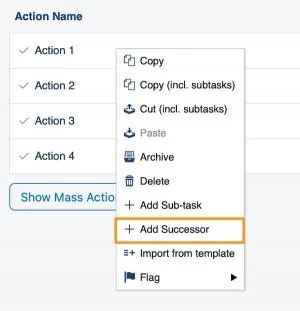
To set up a successor directly from an existing action, right-click the action and select Add Successor.
Define the successor action
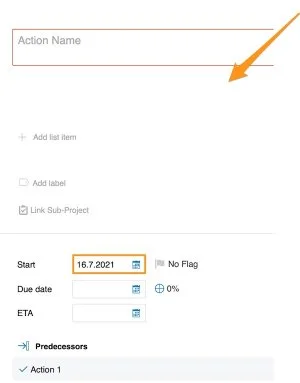
Define the details of the successor action (action name, labels, flag, status, etc.). The start date is filled in automatically based on the due date of the preceding action.
Add a predecessor in the action
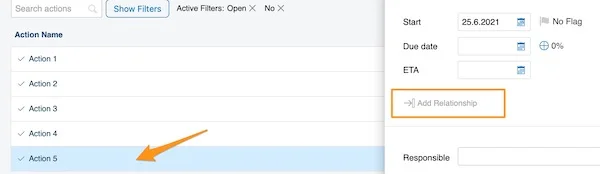
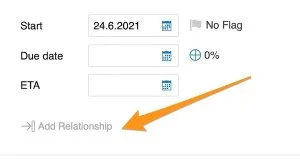
You can also set up predecessors directly in the action: open the action and click the Add Relationship icon.
Select the predecessor action
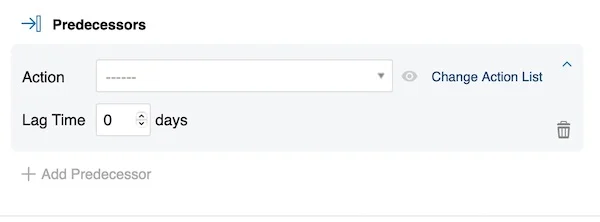
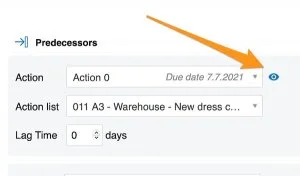
Select the Action, set a Lag Time and, if needed, click the plus button (Add Predecessor) to add more predecessors. Click the eye icon to open the action. Please note that the Action List is automatically set to the action list you currently have open.
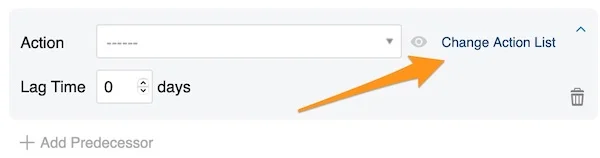
Pick an action from another action list
To select an action from a different action list, click Change Action List.
Add predecessors to a new action
If you create a completely new action with the green plus button in the upper right corner above the actions, you can set up predecessors by clicking the Add Relationship icon.
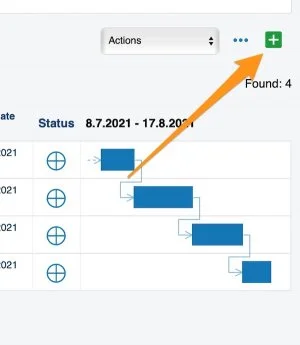
See dependencies in the Gantt chart
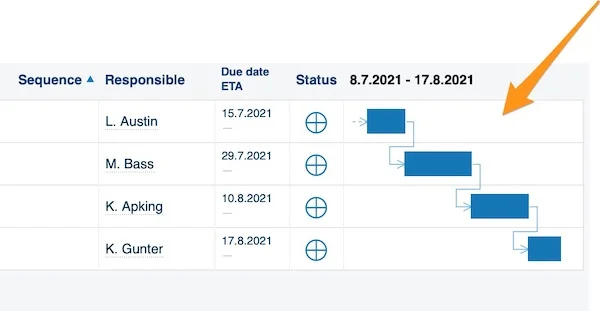
The Gantt chart shows your dependencies visually.
Resolve date conflicts
Spot a date conflict
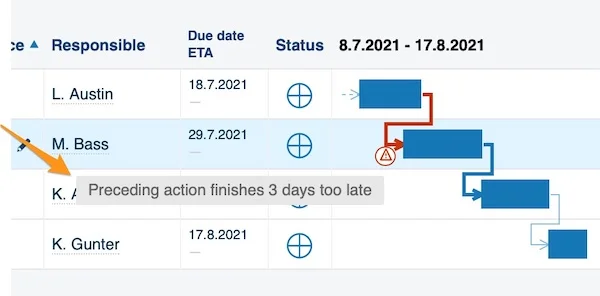
If you change the start or due date of an action, a red triangle alert indicates a conflict of dates. Hover over the triangle to see what the issue is.
Choose how to resolve it
Right-click the triangle to get three options for how to proceed.
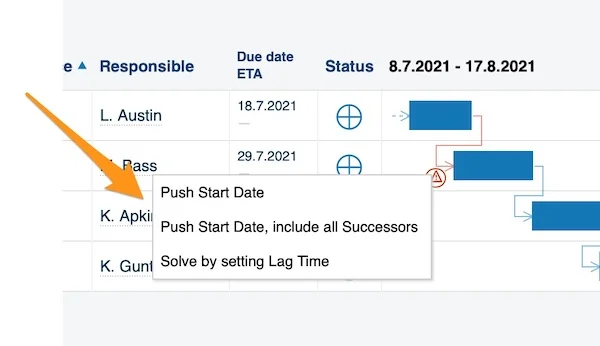
- Push Start Date: the start date changes only for the first successor action. It moves by the same number of days as the due date of the preceding action changed (e.g., if the due date was extended by three days, the start date is pushed by three days as well).
- Push Start Date, include all Successors: the start date changes for all the following actions at once.
- Solve by setting Lag Time: choose a number of days of lag time for your actions.
Work with dependencies across action lists
Link a predecessor from another action list
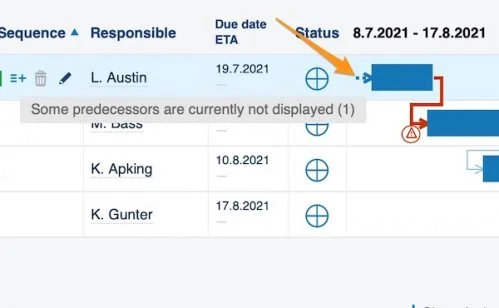
You can also add a preceding action from a different action list document. The link to the predecessor is shown as a small arrow right next to your Gantt chart.
Open the linked action
To get to this action, open your current action and click the eye icon.
Edit predecessors and successors
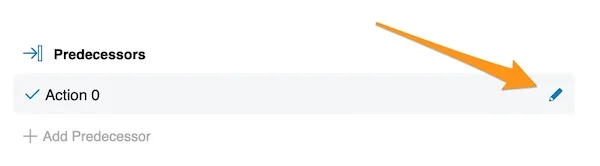
To edit existing predecessors and successors, open your action and click the edit pencil next to the action under Predecessors or Successors.
Still need help?
Write to us. We usually reply within an hour on business days.