行动依赖关系:前置行动和后续行动
本文由英文机器翻译。 当前显示英文原文。
Support your project planning by setting up dependencies between your actions. Start dates are set automatically based on the due date of the preceding actions.
Please note that dependencies impose no restrictions; they are intended only for project planning.
Set up dependencies
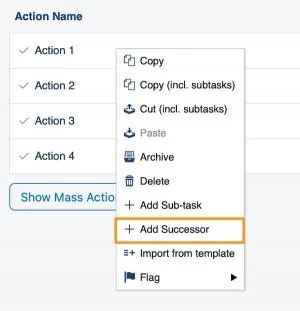
Add a successor to an action
To set up a successor directly from an existing action, right-click the action and select Add Successor.
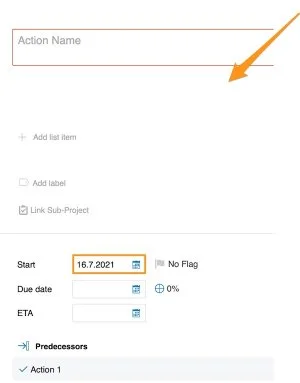
Define the successor action
Define the details of the successor action (action name, labels, flag, status, etc.). The start date is filled in automatically based on the due date of the preceding action.
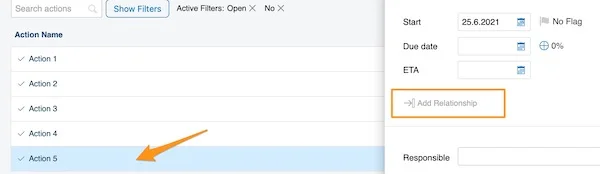
Add a predecessor in the action
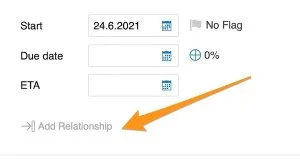
You can also set up predecessors directly in the action: open the action and click the Add Relationship icon.
Select the predecessor action
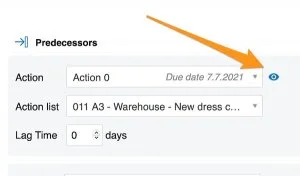
Select the Action, set a Lag Time and, if needed, click the plus button (Add Predecessor) to add more predecessors. Click the eye icon to open the action. Please note that the Action List is automatically set to the action list you currently have open.
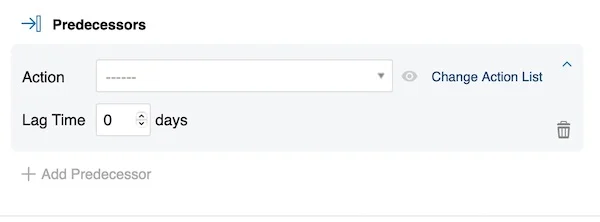
Pick an action from another action list
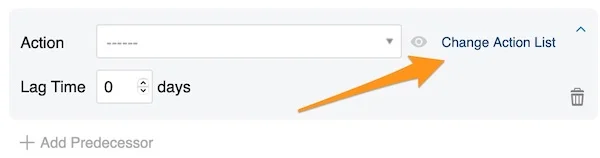
To select an action from a different action list, click Change Action List.
Add predecessors to a new action
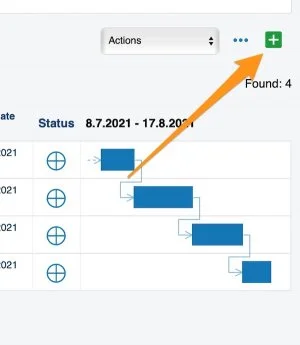
If you create a completely new action with the green plus button in the upper right corner above the actions, you can set up predecessors by clicking the Add Relationship icon.
See dependencies in the Gantt chart
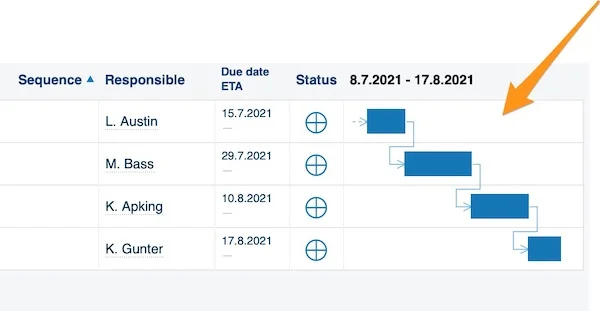
The Gantt chart shows your dependencies visually.
Resolve date conflicts
Spot a date conflict
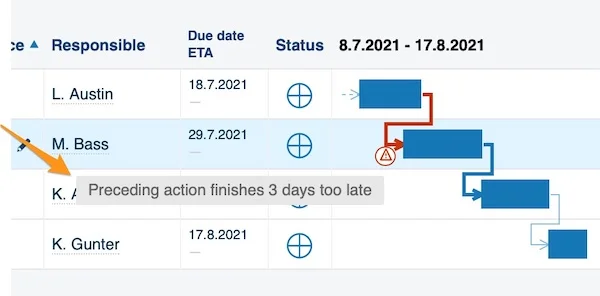
If you change the start or due date of an action, a red triangle alert indicates a conflict of dates. Hover over the triangle to see what the issue is.
Choose how to resolve it
Right-click the triangle to get three options for how to proceed.
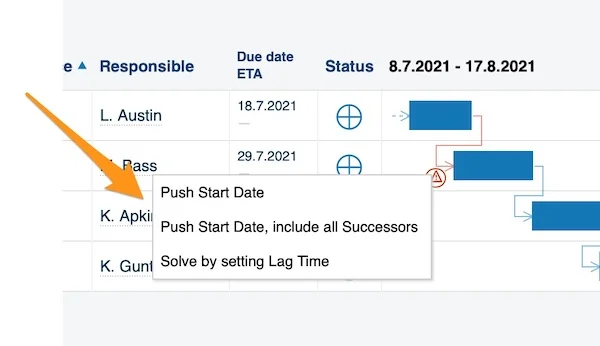
- Push Start Date: the start date changes only for the first successor action. It moves by the same number of days as the due date of the preceding action changed (e.g., if the due date was extended by three days, the start date is pushed by three days as well).
- Push Start Date, include all Successors: the start date changes for all the following actions at once.
- Solve by setting Lag Time: choose a number of days of lag time for your actions.
Work with dependencies across action lists
Link a predecessor from another action list
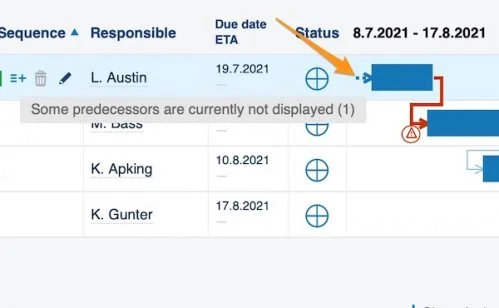
You can also add a preceding action from a different action list document. The link to the predecessor is shown as a small arrow right next to your Gantt chart.
Open the linked action
To get to this action, open your current action and click the eye icon.
Edit predecessors and successors
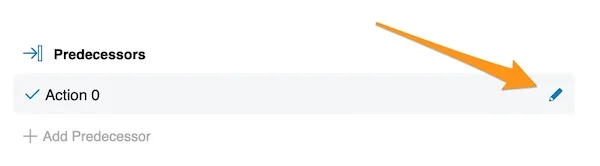
To edit existing predecessors and successors, open your action and click the edit pencil next to the action under Predecessors or Successors.
在行动之间设置依赖关系,为项目计划提供支持。开始日期会根据前置行动的截止日期自动设置。
请注意,依赖关系不会施加任何限制,仅用于项目计划。
设置依赖关系
为行动添加后续行动
要直接从现有行动设置后续行动,请右键单击该行动并选择添加后续行动。
定义后续行动
定义后续行动的详情(行动名称、标签、标记、状态等)。开始日期会根据前置行动的截止日期自动填写。
在行动中添加前置行动
您也可以直接在行动中设置前置行动:打开行动,点击添加关系图标。
选择前置行动
选择行动,设置滞后时间,如有需要,点击加号按钮(添加前置行动)添加更多前置行动。点击眼睛图标可打开该行动。请注意,行动清单会自动设为您当前打开的行动清单。
从其他行动清单选择行动
要从其他行动清单中选择行动,请点击更改行动清单。
为新行动添加前置行动
如果您通过行动上方右上角的绿色加号按钮创建全新的行动,可以点击添加关系图标设置前置行动。
在甘特图中查看依赖关系
甘特图会直观地显示依赖关系。
解决日期冲突
发现日期冲突
如果更改了行动的开始日期或截止日期,红色三角形警报会提示日期冲突。将鼠标悬停在三角形上,即可查看具体问题。
选择解决方式
右键单击三角形,可以从三个处理选项中选择。
- 推迟开始日期:仅更改第一个后续行动的开始日期。推迟的天数与前置行动截止日期变更的天数相同(例如,截止日期延长了三天,开始日期也推迟三天)。
- 推迟开始日期,包括所有后续行动:一次性更改所有后续行动的开始日期。
- 通过设置滞后时间解决:为行动设置滞后天数。
跨行动清单使用依赖关系
关联其他行动清单中的前置行动
您还可以添加其他行动清单文档中的前置行动。指向前置行动的链接会以小箭头的形式显示在甘特图旁边。
打开关联的行动
要进入该行动,请打开当前行动并点击眼睛图标。
编辑前置行动和后续行动
要编辑现有的前置行动和后续行动,请打开行动,点击前置行动或后续行动下相应行动旁的编辑铅笔图标。
还需要帮助吗?
请给我们留言。工作日我们通常会在一小时内回复。