How to display custom fields in your action list header?
Your TeamGuru administrator can create custom fields in the system, and you can choose whether to display them in your action list header.
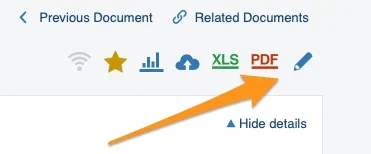
Open the action list in edit mode
To display custom fields, go to your action list and enter edit mode.
Find the custom fields
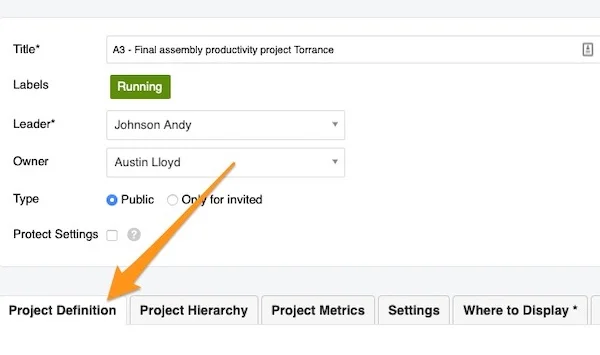
Go to the Project Definition tab and scroll down to the custom field box.
Fill in the custom fields
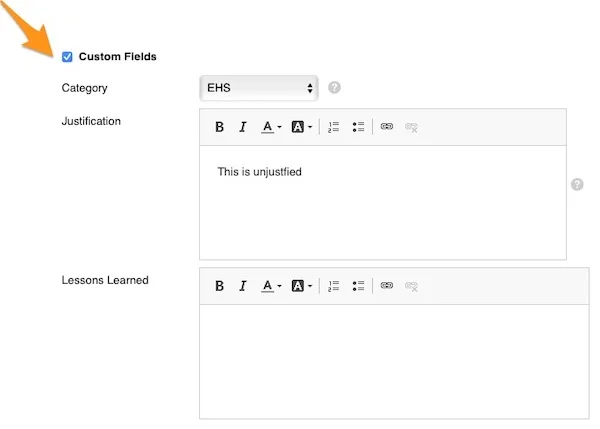
Tick the box to display the custom fields and enter the information needed.
Check the header
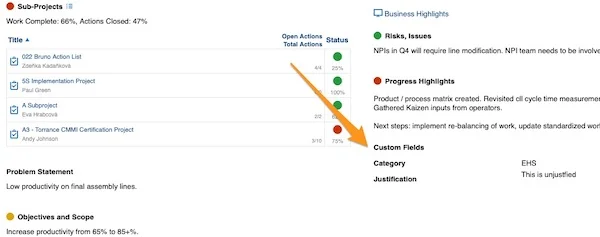
Please note that a custom field is displayed in the action list header only when it is filled in and the option is selected. If a custom field is left blank or no option is selected, its title does not appear in the header (e.g., the Lessons Learned field in the screenshot above).
Please contact your system administrator or support@teamguru.com if you need a new custom field to be created.
Still need help?
Write to us. We usually reply within an hour on business days.