Jak wyświetlić pola niestandardowe w nagłówku listy działań
Tłumaczenie maszynowe z angielskiego. Wyświetlany jest oryginał po angielsku.
Your TeamGuru administrator can create custom fields in the system, and you can choose whether to display them in your action list header.
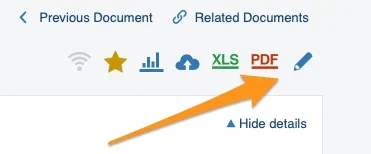
Open the action list in edit mode
To display custom fields, go to your action list and enter edit mode.
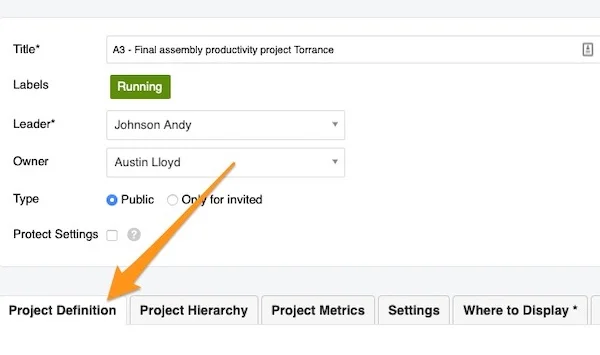
Find the custom fields
Go to the Project Definition tab and scroll down to the custom field box.
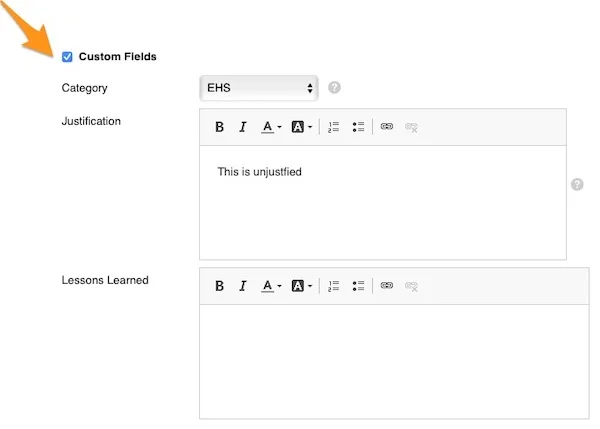
Fill in the custom fields
Tick the box to display the custom fields and enter the information needed.
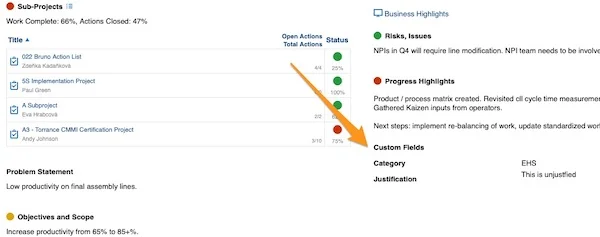
Check the header
Please note that a custom field is displayed in the action list header only when it is filled in and the option is selected. If a custom field is left blank or no option is selected, its title does not appear in the header (e.g., the Lessons Learned field in the screenshot above).
Please contact your system administrator or support@teamguru.com if you need a new custom field to be created.
Administrator TeamGuru może utworzyć w systemie pola niestandardowe, a ty decydujesz, czy wyświetlać je w nagłówku listy działań.
Otwórz listę działań w trybie edycji
Aby wyświetlić pola niestandardowe, otwórz listę działań i przejdź do trybu edycji.
Znajdź pola niestandardowe
Przejdź na kartę Definicja projektu i przewiń w dół do sekcji pól niestandardowych.
Wypełnij pola niestandardowe
Zaznacz pole wyboru, aby wyświetlić pola niestandardowe, i wpisz potrzebne informacje.
Sprawdź nagłówek
Pole niestandardowe pojawia się w nagłówku listy działań tylko wtedy, gdy jest wypełnione, a opcja jest zaznaczona. Jeśli pole zostanie puste lub opcja nie jest zaznaczona, jego nazwa nie pojawi się w nagłówku (np. pole Wnioski na zrzucie ekranu powyżej).
Jeśli potrzebujesz nowego pola niestandardowego, skontaktuj się z administratorem systemu lub napisz na support@teamguru.com.
Potrzebujesz dalszej pomocy?
Napisz do nas. W dni robocze zwykle odpowiadamy w ciągu godziny.