如何在行动清单标题栏中显示自定义字段
本文由英文机器翻译。 当前显示英文原文。
Your TeamGuru administrator can create custom fields in the system, and you can choose whether to display them in your action list header.
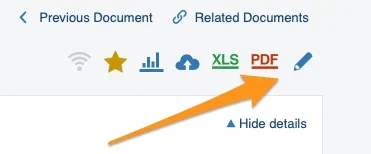
Open the action list in edit mode
To display custom fields, go to your action list and enter edit mode.
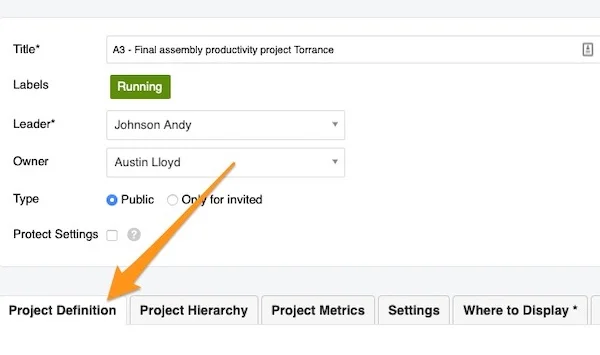
Find the custom fields
Go to the Project Definition tab and scroll down to the custom field box.
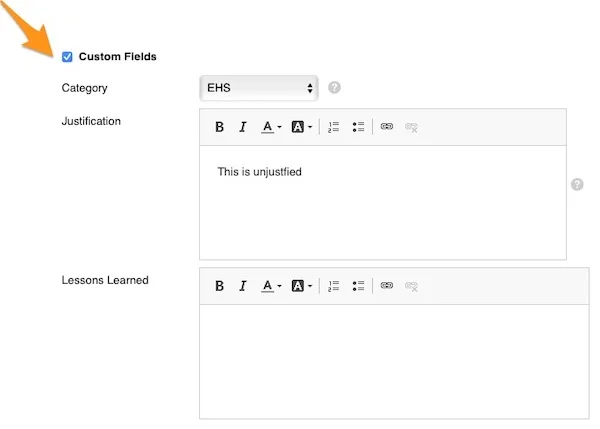
Fill in the custom fields
Tick the box to display the custom fields and enter the information needed.
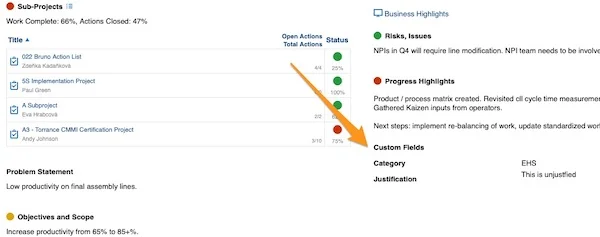
Check the header
Please note that a custom field is displayed in the action list header only when it is filled in and the option is selected. If a custom field is left blank or no option is selected, its title does not appear in the header (e.g., the Lessons Learned field in the screenshot above).
Please contact your system administrator or support@teamguru.com if you need a new custom field to be created.
TeamGuru管理员可以在系统中创建自定义字段,您可以选择是否在行动清单标题栏中显示这些字段。
以编辑模式打开行动清单
要显示自定义字段,请打开行动清单并进入编辑模式。
找到自定义字段
进入项目定义选项卡,向下滚动到自定义字段区域。
填写自定义字段
勾选复选框以显示自定义字段,并填写所需信息。
检查标题栏
请注意,只有在填写了自定义字段并选中该选项后,它才会显示在行动清单标题栏中。如果自定义字段留空或未选中该选项,其标题就不会出现在标题栏中(例如上方截图中的经验教训字段)。
如需创建新的自定义字段,请联系系统管理员或support@teamguru.com。
还需要帮助吗?
请给我们留言。工作日我们通常会在一小时内回复。