What is 'My Dashboard'?
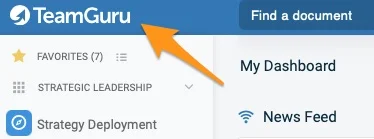
The My Dashboard screen shows updates, news and your open actions in the system. It opens automatically when you log in to TeamGuru, and you can open it anytime by clicking the TeamGuru logo in the upper left corner of the application.
Dashboard sections
-
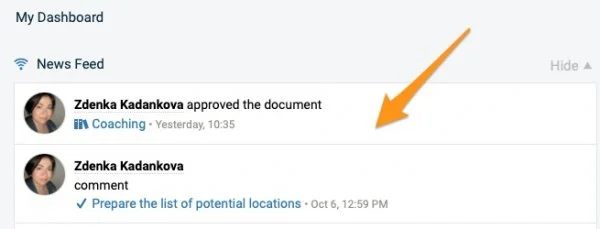
News Feed. The News Feed section displays the key system information (e.g. a document’s request for approval, a new document, etc.).
Please note: to subscribe to the news related to a specific document, click the icon in the upper right corner above the document.
-
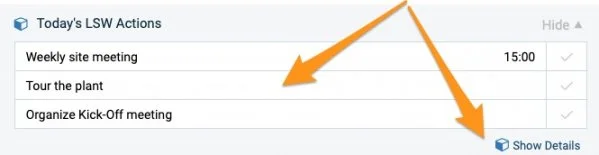
Today’s LSW Actions. The Today’s LSW Actions section shows the actions due today and helps you manage them easily with the Show Details icon. Please note that only users with access to the LSW module can see it.
-
My Notes & To-Do List. The My Notes & To-Do List section contains your personal notes and items to do (private, not shared with others).
To add an item, click the plus icon and press Enter.
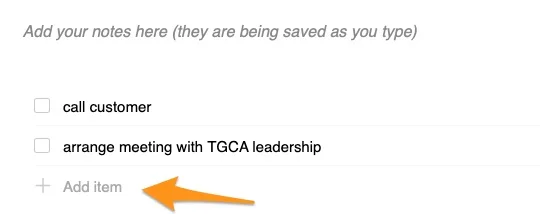
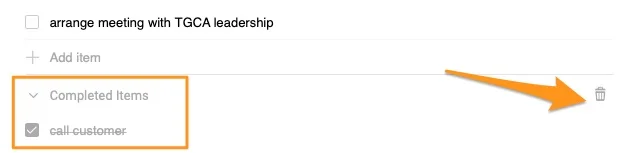
To remove an item, click the x icon on the right. To move your items, drag and drop them using the handle on the left. To mark an item as done, tick its box: the item moves to the completed items.

To delete completed items, click the trash icon.
-
My Actions. The My Actions section displays only open actions, sorted by due date. You can update an action directly from here by clicking its title in the first column. To open the action’s main document, click the source document’s title in the second column.
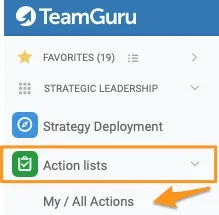
Please note that once you close an action, it disappears from this list, but you can still find it in the My/All Actions section.


-
Items to Review or Approve. The Items to Review or Approve section lists all actions that need your attention.

Still need help?
Write to us. We usually reply within an hour on business days.