Leadership Standardized Work - LSW
A Leadership Standardized Work document helps you manage the regular activities performed by leaders at all levels.
Designing a robust system of regular checks, actions and reviews into the standard work of every leader will significantly improve the performance of your teams. You can also reduce the need for traditional process audits.
Video guide
Create an LSW document
-
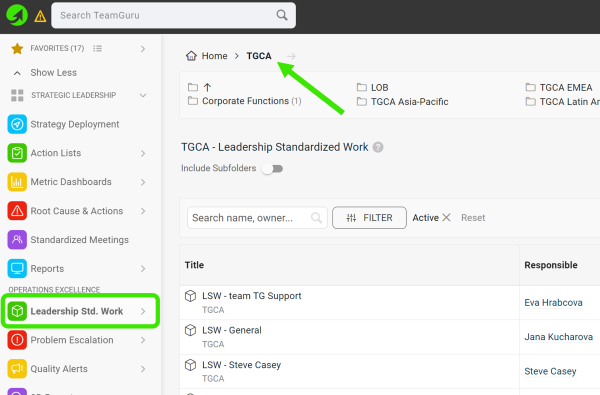
Select a folder. Go to the Leadership Std. Work module and select a folder (the location of your LSW document).
-
Create a new LSW document. Click the green Create New icon in the upper right corner.

-
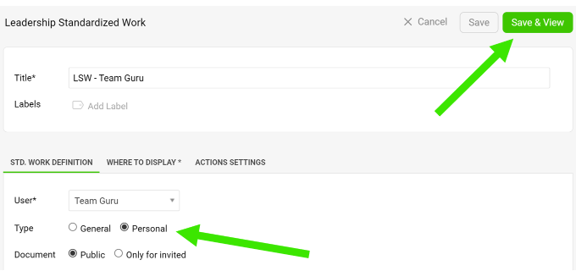
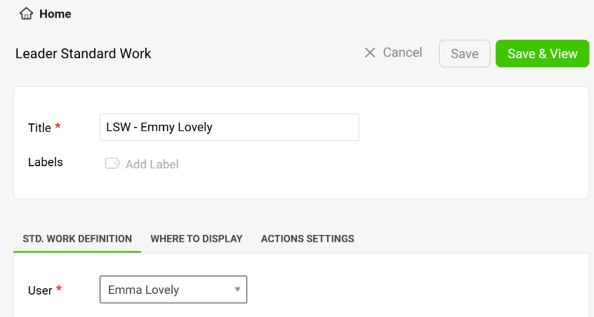
Define the settings. Define all the settings, select the type and click the Save & View button. The General type is a team LSW, the Personal type is an individual LSW.
-
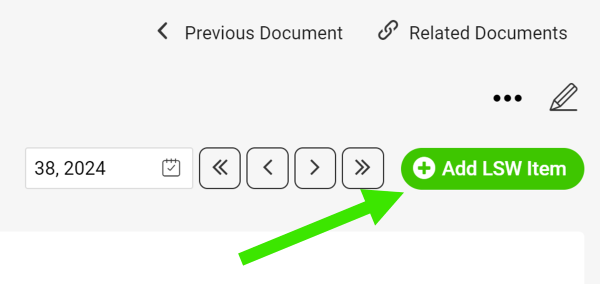
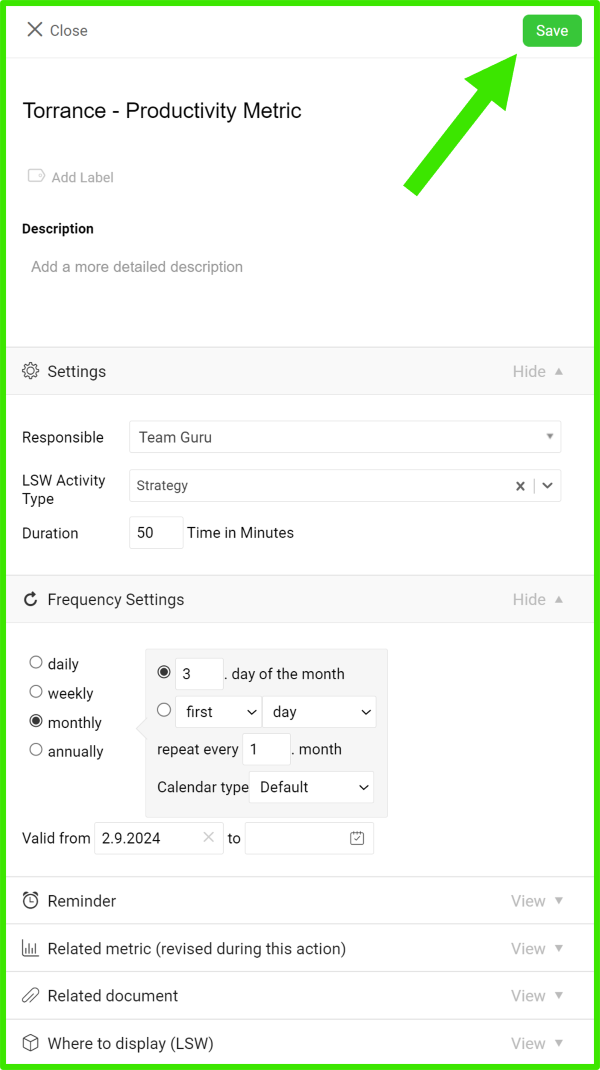
Add an LSW item. Add your LSW item, define its settings and click Save.
-
Edit an LSW item. To edit the settings of an LSW item (action), click the edit icon next to the item.

-
Manage your actions.
-
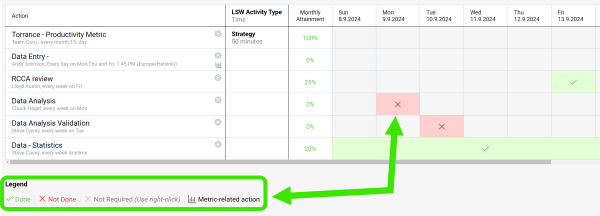
Click into each field and select a status based on the Legend.
-
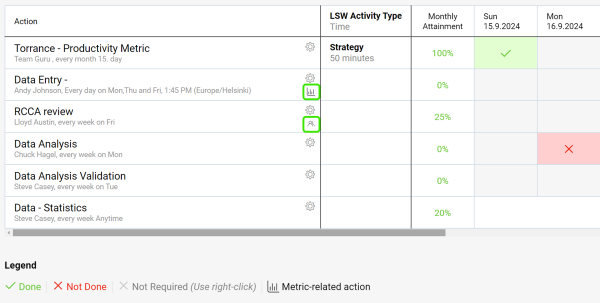
Use live links to get directly to other related documents (e.g. metric dashboards, meetings, etc.).
-
-
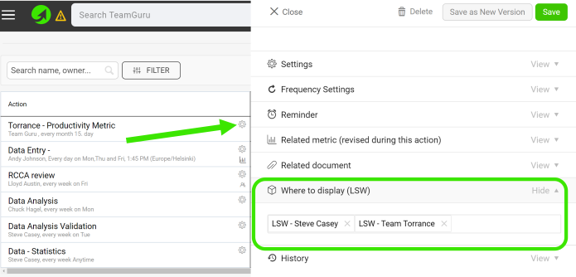
Link your LSW documents. In the action settings, scroll down to the Where to display (LSW) section and select the other LSW documents where you want your action to be displayed as well.
-
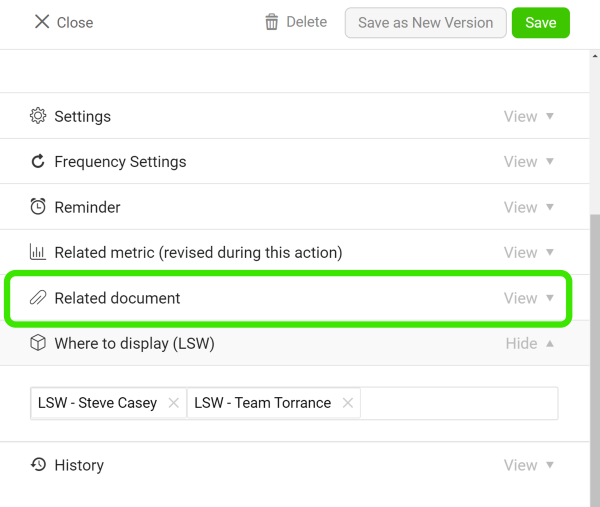
Add related documents. Add related documents to your LSW document.
Assign actions to your team
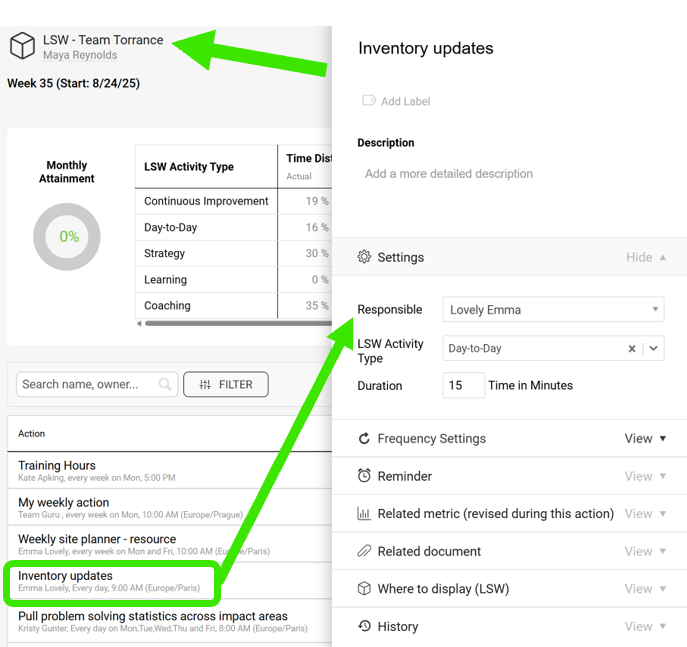
Assign actions in a team LSW
When you create a General LSW document, you can assign actions to your team members.
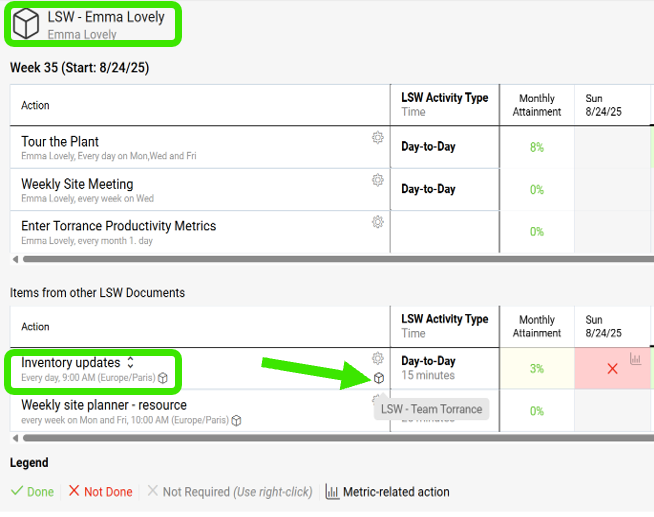
Find the action in a personal LSW
Team members who already have a personal LSW see the action there, under Items from other LSW Documents, with a live link.
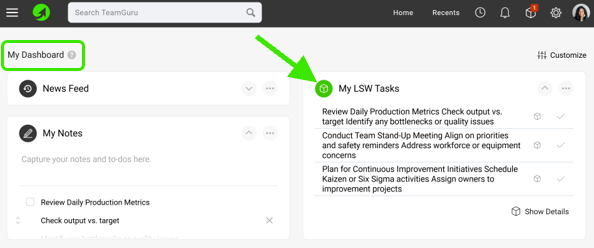
Update the action on My Dashboard
Otherwise, the action is displayed on the My Dashboard page, where they can update it.
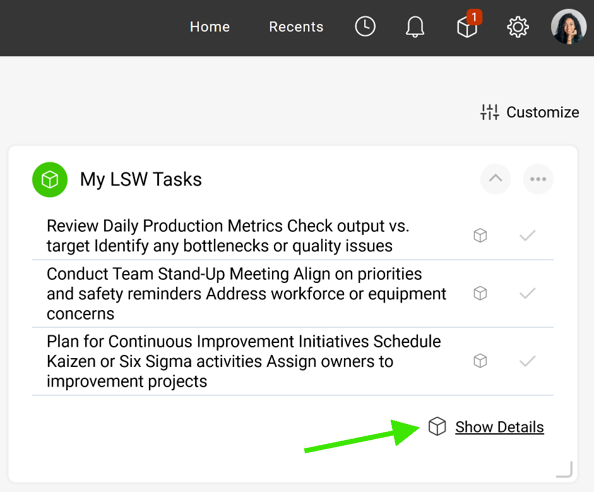
Create a personal LSW from the dashboard
If they click Show Details, they are redirected to a new LSW document, which they can save. This establishes their own LSW document.
Still need help?
Write to us. We usually reply within an hour on business days.