Trabajo estándar del líder (LSW)
Traducción automática del inglés. Se muestra el original en inglés.
A Leadership Standardized Work document helps you manage the regular activities performed by leaders at all levels.
Designing a robust system of regular checks, actions and reviews into the standard work of every leader will significantly improve the performance of your teams. You can also reduce the need for traditional process audits.
Video guide
Create an LSW document
-
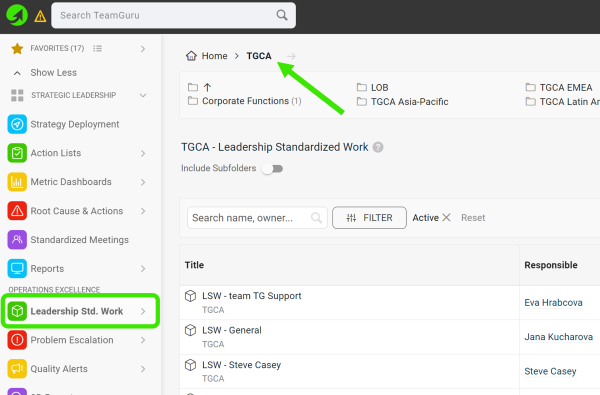
Select a folder. Go to the Leadership Std. Work module and select a folder (the location of your LSW document).
-
Create a new LSW document. Click the green Create New icon in the upper right corner.

-
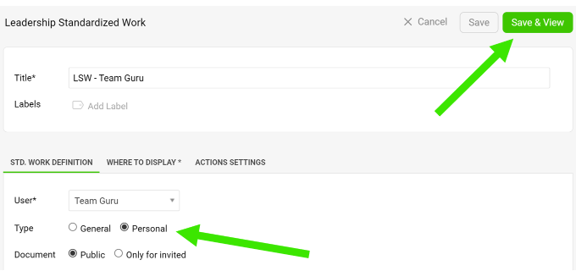
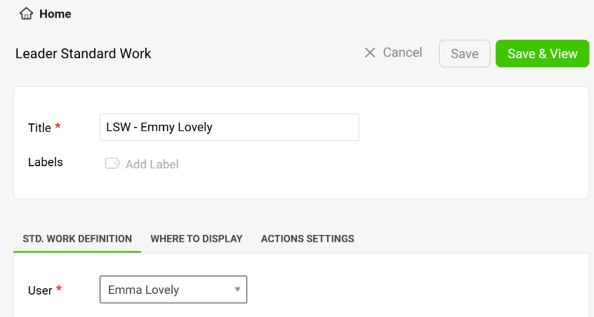
Define the settings. Define all the settings, select the type and click the Save & View button. The General type is a team LSW, the Personal type is an individual LSW.
-
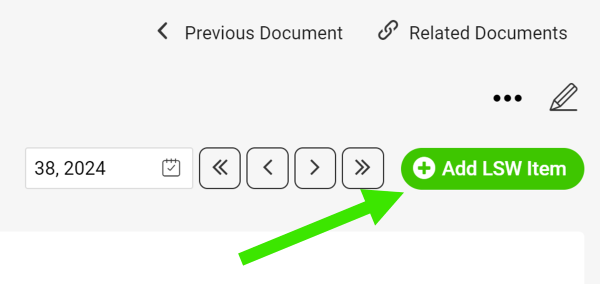
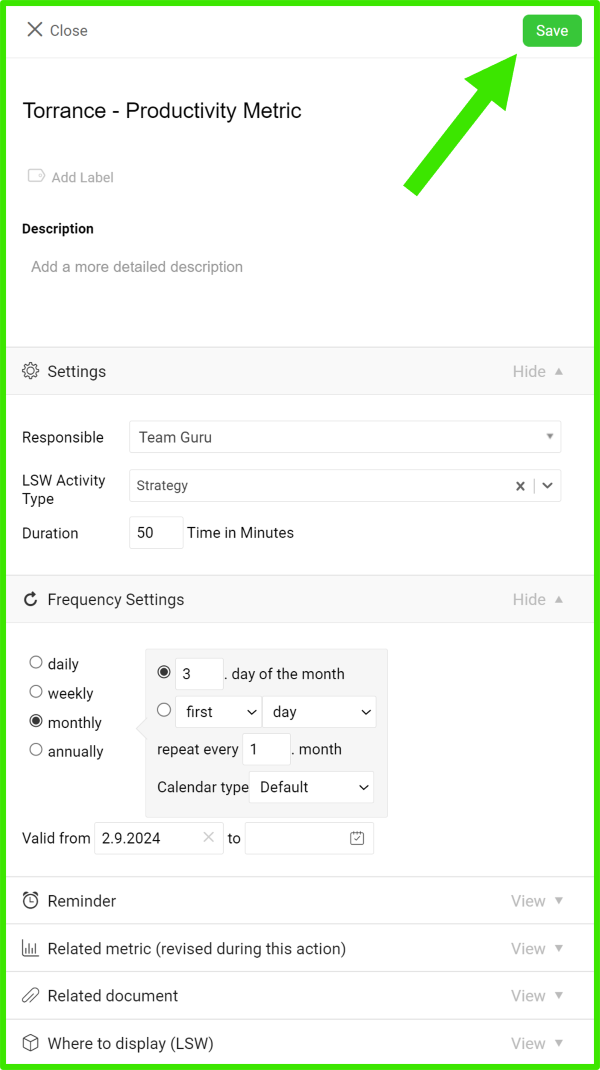
Add an LSW item. Add your LSW item, define its settings and click Save.
-
Edit an LSW item. To edit the settings of an LSW item (action), click the edit icon next to the item.

-
Manage your actions.
-
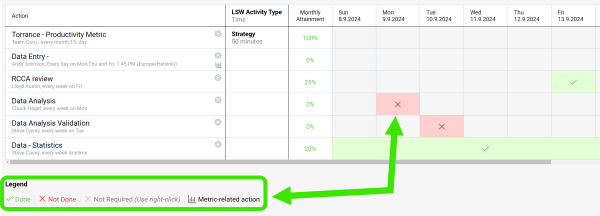
Click into each field and select a status based on the Legend.
-
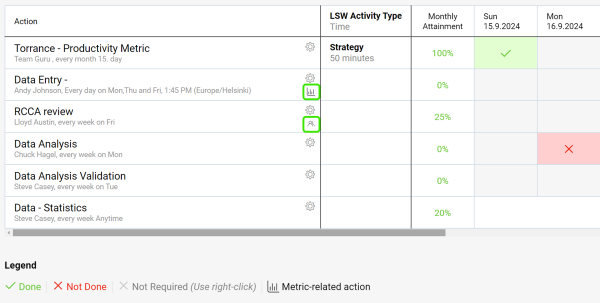
Use live links to get directly to other related documents (e.g. metric dashboards, meetings, etc.).
-
-
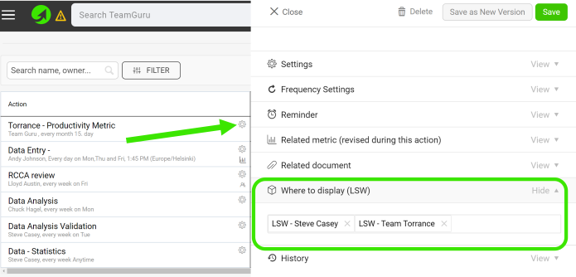
Link your LSW documents. In the action settings, scroll down to the Where to display (LSW) section and select the other LSW documents where you want your action to be displayed as well.
-
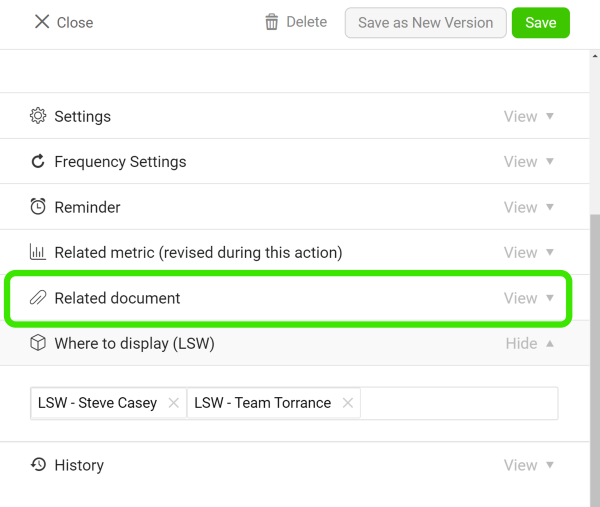
Add related documents. Add related documents to your LSW document.
Assign actions to your team
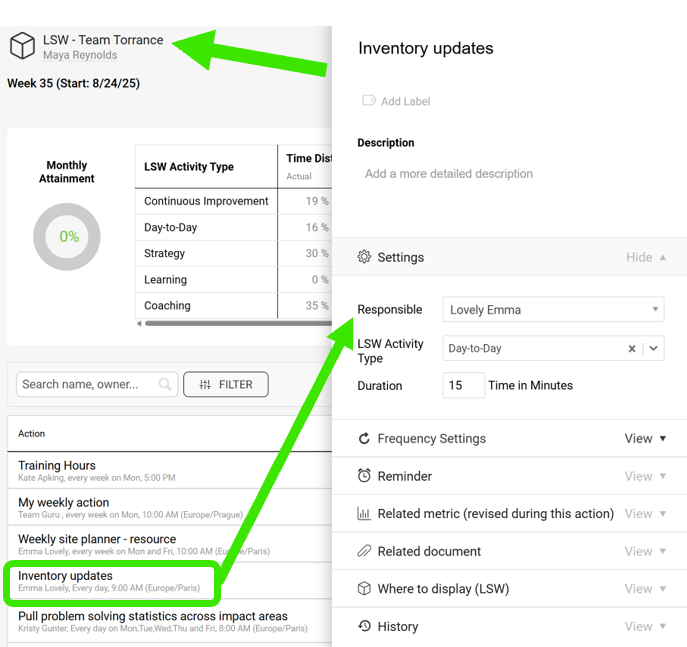
Assign actions in a team LSW
When you create a General LSW document, you can assign actions to your team members.
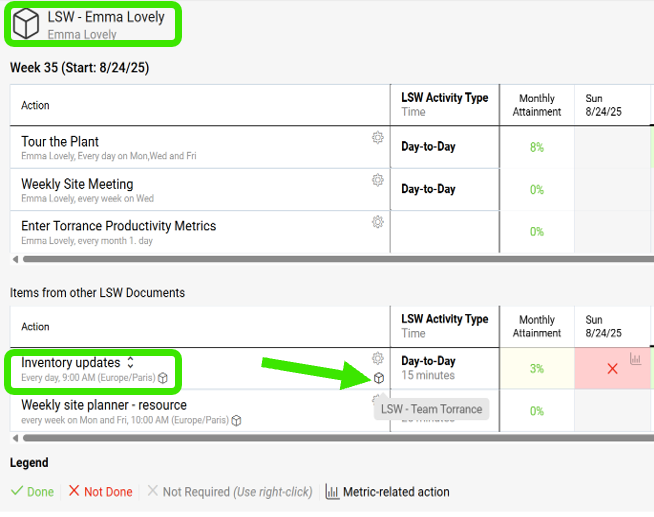
Find the action in a personal LSW
Team members who already have a personal LSW see the action there, under Items from other LSW Documents, with a live link.
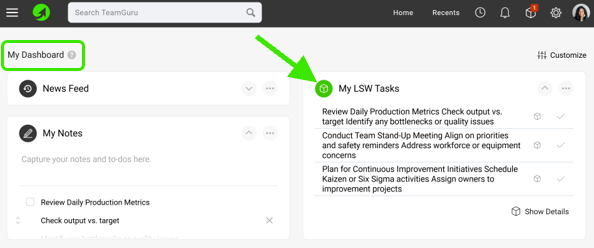
Update the action on My Dashboard
Otherwise, the action is displayed on the My Dashboard page, where they can update it.
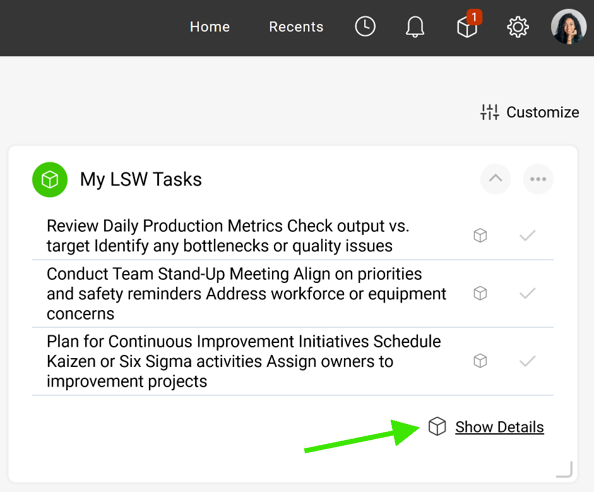
Create a personal LSW from the dashboard
If they click Show Details, they are redirected to a new LSW document, which they can save. This establishes their own LSW document.
Un documento de Trabajo estándar del líder le ayuda a gestionar las actividades periódicas de los líderes de todos los niveles.
Incorporar al trabajo estándar de cada líder un sistema sólido de verificaciones, acciones y revisiones periódicas mejora notablemente el desempeño de sus equipos. También puede reducir la necesidad de auditorías de proceso tradicionales.
Video
Crear un documento LSW
-
Seleccione una carpeta. Vaya al módulo Trabajo estándar del líder y seleccione una carpeta (la ubicación de su documento LSW).
-
Cree un documento LSW. Haga clic en el icono verde Crear nuevo en la esquina superior derecha.
-
Defina la configuración. Defina toda la configuración, seleccione el tipo y haga clic en el botón Guardar y ver. El tipo General es un LSW de equipo; el tipo Personal es un LSW individual.
-
Agregue un elemento LSW. Agregue el elemento LSW, defina su configuración y haga clic en Guardar.
-
Edite un elemento LSW. Para editar la configuración de un elemento LSW (acción), haga clic en el icono de edición junto al elemento.
-
Gestione sus acciones.
-
Haga clic en cada campo y seleccione un estado según la Leyenda.
-
Use los enlaces directos para ir a otros documentos relacionados (por ejemplo, dashboards de KPI, reuniones, etc.).
-
-
Vincule sus documentos LSW. En la configuración de la acción, desplácese hasta la sección Dónde mostrar (LSW) y seleccione los demás documentos LSW en los que también quiere mostrar la acción.
-
Agregue documentos relacionados. Agregue documentos relacionados a su documento LSW.
Asignar acciones a su equipo
Asignar acciones en un LSW de equipo
Al crear un documento LSW General, puede asignar acciones a los miembros de su equipo.
Encontrar la acción en un LSW personal
Los miembros del equipo que ya tienen un LSW personal ven ahí la acción, en Elementos de otros documentos LSW, con un enlace directo.
Actualizar la acción en Mi dashboard
Si no lo tienen, la acción aparece en la página Mi dashboard, donde pueden actualizarla.
Crear un LSW personal desde el dashboard
Si hacen clic en Mostrar detalles, se abre un nuevo documento LSW que pueden guardar. Así crean su propio documento LSW.
¿Necesita más ayuda?
Escríbanos. En días laborables solemos responder en menos de una hora.