How to set automatic color coding
Metric dashboard color coding can work automatically. For that, the metric type must be defined as positive (above the target) or negative (below the target).
Conditions for automatic color coding
- Actual and plan values. The metric dashboard contains both actual and plan values.
- Metric type. The metric is defined in its profile as described below.
Define the metric type
-
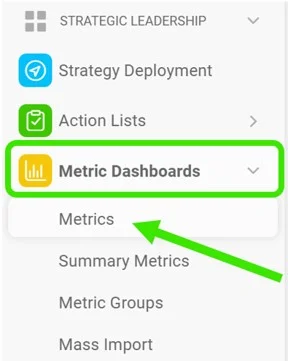
Open the metric list. Go to the Metric Dashboards module and select Metrics in the submenu.
-
Edit the metric. Click the Edit icon.

-
Select the metric type. Select Positive as the metric type for values that should be above the target, or Negative for values that should be below the target.
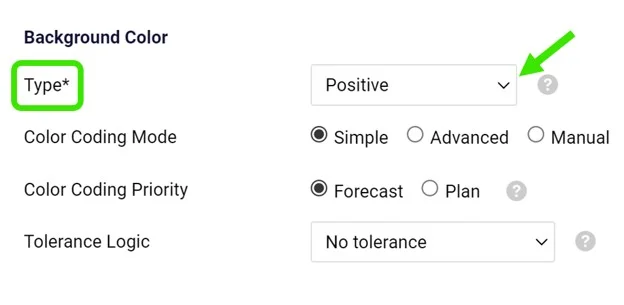
The basic color coding works with red and green. In addition, yellow (amber) can be used directly in your dashboard when the value is within the tolerance. See How to set up amber color for metrics in a dashboard.
Still need help?
Write to us. We usually reply within an hour on business days.