如何设置自动颜色标识
本文由英文机器翻译。 当前显示英文原文。
Metric dashboard color coding can work automatically. For that, the metric type must be defined as positive (above the target) or negative (below the target).
Conditions for automatic color coding
- Actual and plan values. The metric dashboard contains both actual and plan values.
- Metric type. The metric is defined in its profile as described below.
Define the metric type
-
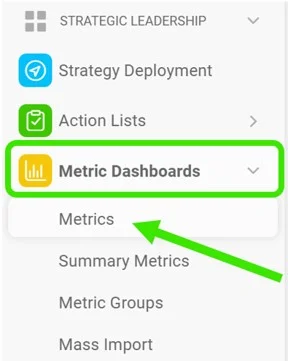
Open the metric list. Go to the Metric Dashboards module and select Metrics in the submenu.
-
Edit the metric. Click the Edit icon.

-
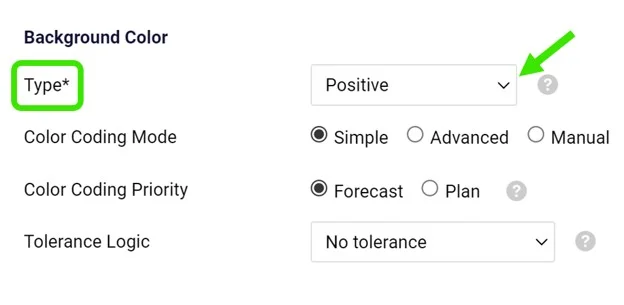
Select the metric type. Select Positive as the metric type for values that should be above the target, or Negative for values that should be below the target.
The basic color coding works with red and green. In addition, yellow (amber) can be used directly in your dashboard when the value is within the tolerance. See How to set up amber color for metrics in a dashboard.
指标仪表板可以自动进行颜色标识。为此,必须将指标类型定义为正向(高于目标)或负向(低于目标)。
自动颜色标识的条件
- 实际值和计划值。 指标仪表板中同时包含实际值和计划值。
- 指标类型。 已按下文所述在指标资料中定义指标类型。
定义指标类型
-
打开指标列表。 进入 指标仪表板 模块,在子菜单中选择 指标。
-
编辑指标。 点击 编辑 图标。
-
选择指标类型。 对于应高于目标的值,选择 正向 作为指标类型;对于应低于目标的值,选择 负向。
基本颜色标识使用红色和绿色。此外,当数值处于容差范围内时,仪表板中还可以直接使用黄色。请参阅如何为仪表板中的指标设置黄色。
还需要帮助吗?
请给我们留言。工作日我们通常会在一小时内回复。